HowTo

WordPress Site Address: 7 Essential, Safe Change Checks
Changing your WordPress site address sounds like a one-field job: type the new URL, click save, done. Then the page reloads into an error, your dashboard disappears, and you’re locked out of your own site. It happens to a lot of site owners — and it’s completely avoidable.
This guide shows you when you actually need to change the site address, how to prepare, the safe ways to make the change, how to fix old links, and what to do if you end up in a redirect loop.
WordPress stores two URLs in Settings → General:
For most sites, both are the same. You’ll need to change them when you:
http:// to https:// after installing SSL.www and non-www versions./wp/) to the root.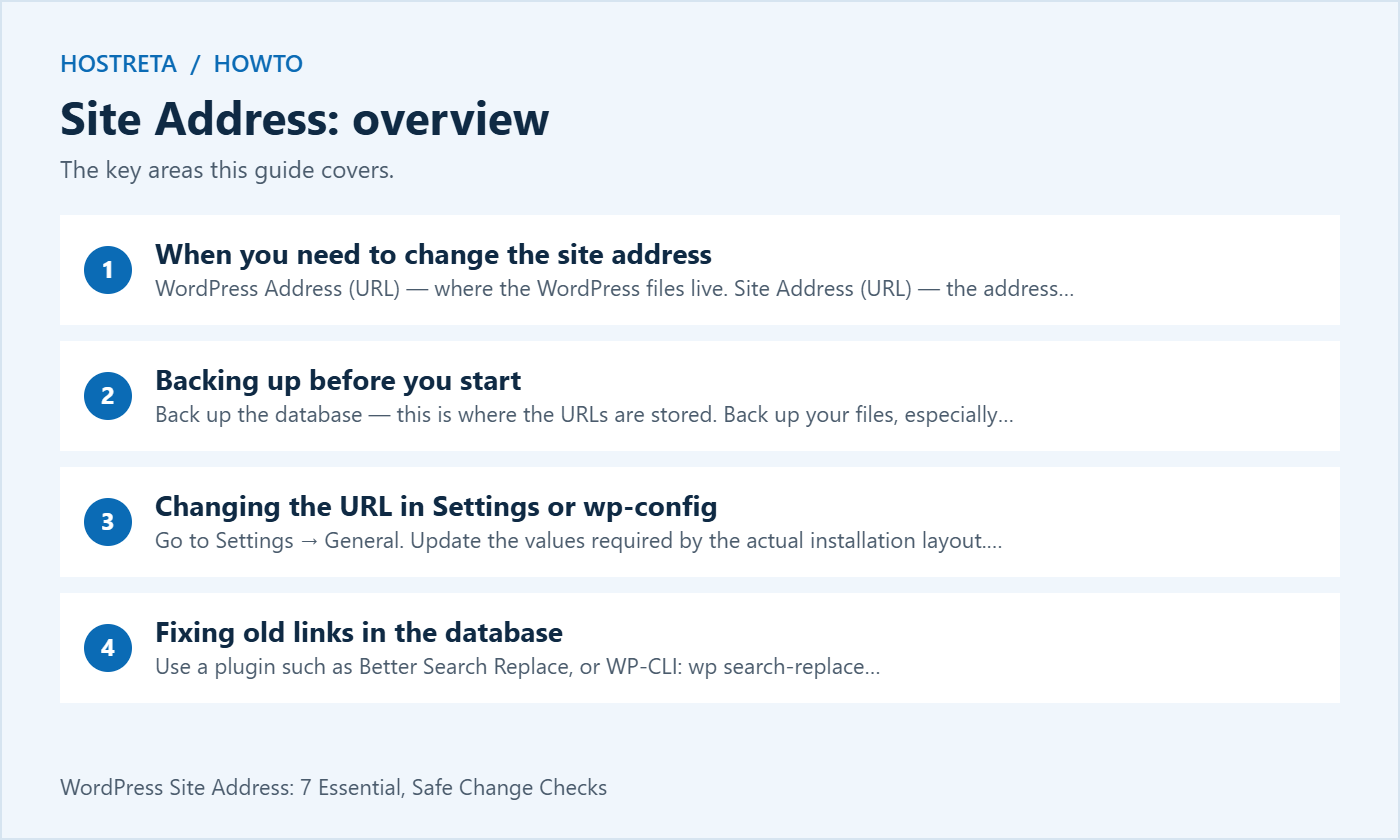
Never change your site address without a full backup. If something goes wrong, a verified backup and recovery procedure provide a way to restore the previous state; recovery time varies.
wp-config.php and wp-content.Need a backup tool? Compare options in Best Backup Plugins for WordPress Compared.
Method 1: Settings (simplest)
https://.Method 2: wp-config.php (when you can’t reach the dashboard)
If you’re locked out, open wp-config.php in your hosting file manager and add these two lines above the line that says “That’s all, stop editing!”:
define( 'WP_HOME', 'https://newdomain.com' );
define( 'WP_SITEURL', 'https://newdomain.com' );
These constants override the stored values without updating those values in the database. Recovery still depends on the correct hostname, protocol, path and server configuration. The fields in Settings will appear greyed out while these lines are present.
Method 3: phpMyAdmin — in the wp_options table, edit the siteurl and home rows. Use this only if you’re comfortable working in the database.
Changing the site address doesn’t update links inside your content. Images, internal links, and menus may still point to the old URL, which causes broken images and mixed-content warnings.
The fix is a search and replace across the database:
wp search-replace 'http://olddomain.com' 'https://newdomain.com' --skip-columns=guid --dry-run.If you changed domains, also set up 301 redirects from the old domain to the new one so visitors and search engines follow you, and update the domain in Google Search Console.
“Too many redirects” is the most common problem after a URL change. Work through these checks:
.htaccess for old redirect rules that point back to the previous address.Still stuck? Use the wp-config.php method above to force the correct URLs, then fix the rest from the dashboard.
A fast, well-supported host makes every WordPress task smoother. Kawedma WordPress hosting and managed WordPress hosting powered by Rocket.net include staging sites for safe testing, while shared hosting from Hosting.com or Kawedma shared hosting suit smaller sites. Protect the site with an SSL certificate and automatic backups from CodeGuard.
wp-config.php to recover if you get locked out.The official WordPress migration guide describes different layouts and recovery approaches. Use it to choose the method for the actual installation. The site address field is not a shortcut that moves files, creates a certificate or transfers a database.
Write the current public address and the intended destination, including protocol, hostname and any path. Then state why the change is needed. Switching to HTTPS, moving from staging and changing a brand domain can involve different dependencies. A clear description prevents an address edit from becoming an unexplained change to the whole application.
Record where the WordPress files currently live and how the web server routes requests. If the installation intentionally uses a separate directory, preserve that design unless the project includes a file-layout change. The site address should reflect the planned public route, while other settings must match their own role.
A hosting migration can sometimes preserve all public URLs. Do not change the site address merely because the server changed. First identify the requirement and verify the destination. An unnecessary public URL change adds redirects, references and testing to a project that may not need them.
If the address fields are unavailable or an edit does not behave as expected, review the supported configuration with the host or developer. Constants or managed settings can override what is stored in the database. Do not repeatedly alter the same field without understanding which source is active.
The WordPress configuration documentation explains the address constants and their relationship to stored values. Keep temporary recovery changes documented so another administrator does not mistake them for the long-term intended setup.
For the site address investigation, record the current source of truth and the proposed correction. If more than one system manages the value, assign ownership before changing production. This reduces the chance that a management tool later restores an old setting.
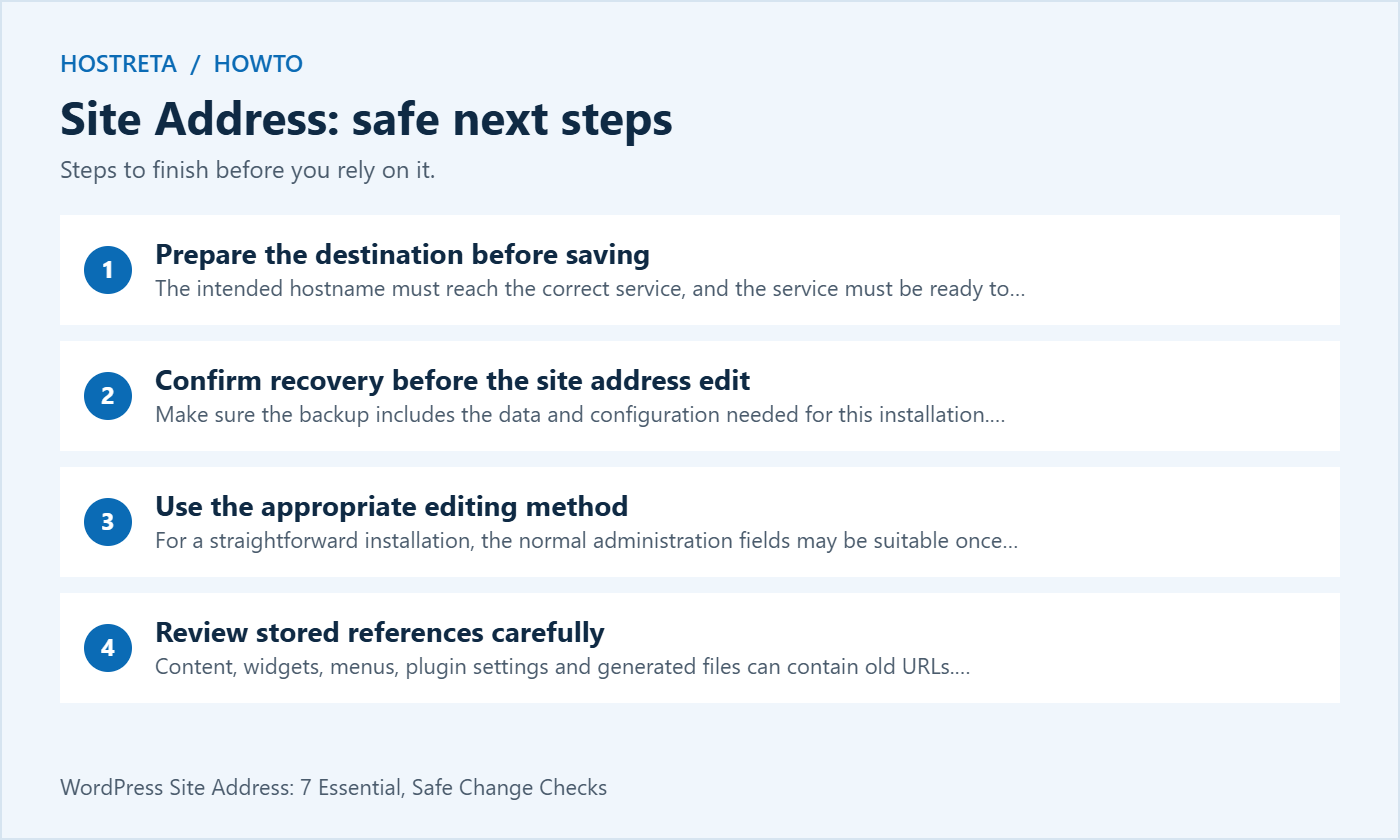
The intended hostname must reach the correct service, and the service must be ready to handle that hostname. Confirm DNS and web-server configuration with the responsible provider. A valid record pointing to a server does not prove that the server serves the right WordPress installation.
Verify HTTPS for the intended public name before relying on a secure site address. Review certificate coverage and the full connection path if a proxy is present. A browser warning should be investigated, not accepted as the expected result of changing a URL field.
Check any access restrictions used during preparation. A staging password or temporary routing setup can affect testing. Document what must remain private and which restrictions are intended to change at launch. Keep the scope of those changes separate from the WordPress address values.
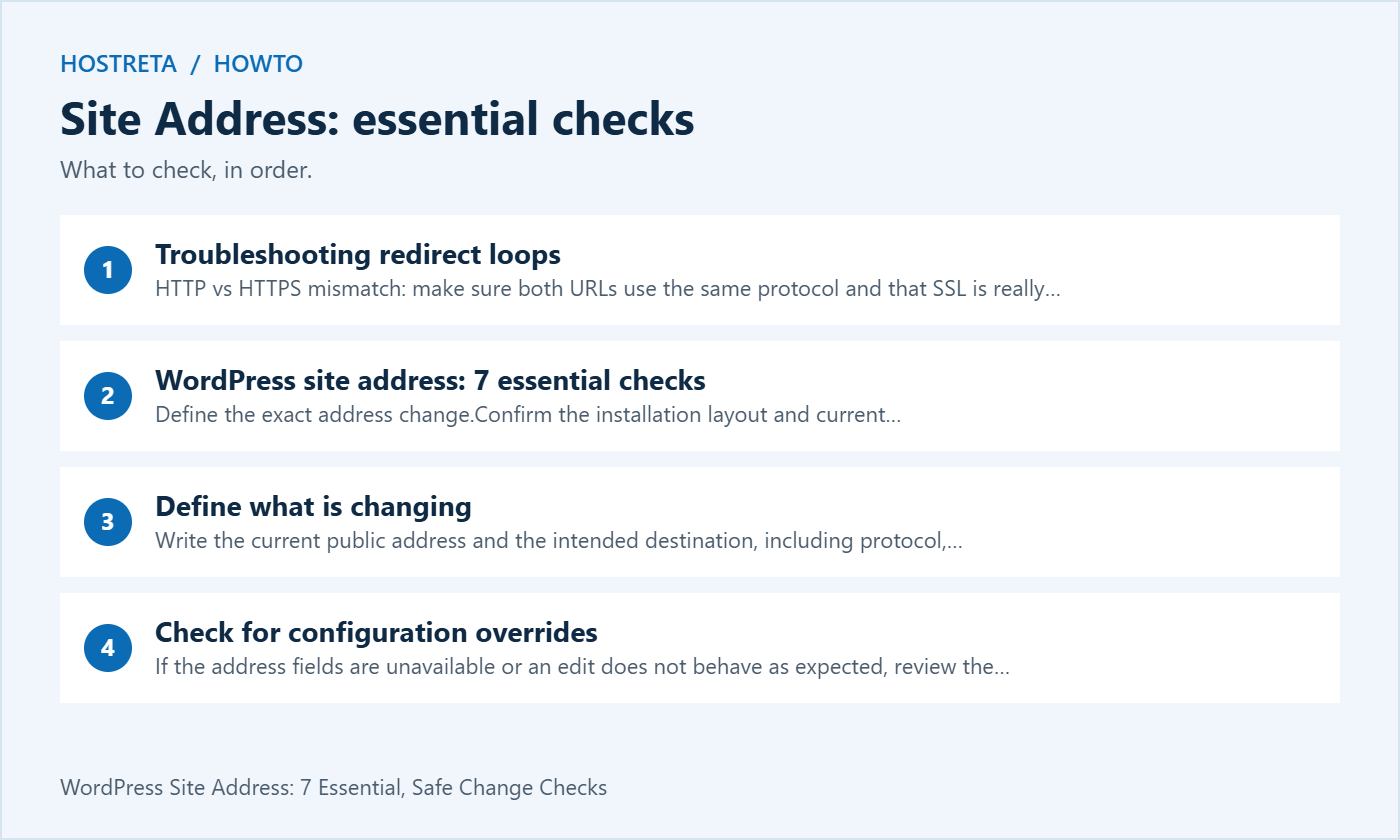
Make sure the backup includes the data and configuration needed for this installation. Know where it is stored and how a restoration would be performed. A backup date is useful, but a recovery process that has never been understood leaves uncertainty during an outage.
Confirm access to the hosting or management interface through the organization’s approved account process. If WordPress administration becomes unavailable, someone should still be able to inspect the relevant configuration. Do not discover during the incident that the only recovery account belongs to a former contractor.
Write down the previous site address and the planned change. Keep secrets in the appropriate credential store, not in a public support note. Assign a person to coordinate the change and another to verify the public result where the team size allows it.
For a straightforward installation, the normal administration fields may be suitable once the destination is ready. For another layout, a managed environment or a recovery case, follow the documented method that matches the setup. Do not apply every method in the article at once.
A constant-based recovery and a direct database correction have different effects. Keep the original values and understand what each operation changes. The site address should not be edited through several competing mechanisms without a record of which one is intended to remain active.
If the site is part of a Multisite network or a complex managed deployment, treat the move as a separate technical project. A single-site example is not a complete network migration procedure. Back up, test and obtain guidance appropriate to the actual architecture.
Content, widgets, menus, plugin settings and generated files can contain old URLs. Changing the site address does not necessarily update every reference. Inventory the places that matter to the visitor journey and test representative pages after the change.
Use a tool that understands the data it edits. The WP-CLI search-replace reference documents dry runs, column exclusions and table scope. Review the proposed matches before applying replacements, and choose the scope for the real site rather than running a copied command blindly.
The example above is a dry run, not an instruction to alter this website. Replace example values only in an authorized project with a backup and a reviewed plan. Keep the operation and its result in the migration record, then inspect the affected application behavior.
Identify which layer handles redirects: the application, web server, control panel or CDN. Record the intended canonical destination and compare every active rule with it. A loop can occur when two layers disagree about protocol or hostname.
Test an old URL through to the final destination and inspect the route. Include representative deep links rather than only the home page. The site address can be correct while an older redirect rule still sends visitors back to a previous hostname.
Do not clear the symptom by disabling unrelated protections. Diagnose the conflicting configuration and apply a targeted correction. Keep the previous rule and retest the same path so the team can establish whether the change resolved the problem.
A cache can preserve an older page or redirect, but not every problem is a cache problem. Record the current public response and the configuration before clearing anything. Then use the appropriate cache controls for the layer involved.
If the site address and server routing disagree, cache clearing alone will not produce a durable fix. Likewise, a correct page in an administrator session does not prove that an ordinary visitor sees the same result. Test with a suitable visitor context and record what differs.
Keep DNS caching separate from page caching. A resolver returning an old destination and a browser displaying an old image are different observations. Diagnose the layer that contains stale information before making another production edit.
After the change, verify that authorized administrators can sign in at the intended location. Check the dashboard links and a controlled editing workflow. Do not assume a successful login proves that all public pages and integrations use the new site address.
As a visitor, review navigation, images, forms and important downloads. If the site is a store, use the supported test flow for checkout and notifications. Avoid real customer data or unintended payment activity in a routine migration test.
Inspect the emails generated by the application using an account you control. A password reset or order link can reveal an old hostname that a home page test misses. Record the failing message type and the setting responsible rather than replacing unrelated content across the whole database.
If public URLs changed, include relevant redirect and search-monitoring work in the project. Update internal references and review platform-generated canonical and sitemap information. A changed site address should agree with the intended public destination.
Review business profiles, templates and links under your control. Prioritize the routes customers use to reach the site. A logo update does not automatically change an invoice template or a saved support link, so keep a list of the places reviewed.
Do not guarantee unchanged rankings after a public URL move. Monitor technical health and relevant business outcomes, and investigate concrete errors. A plugin score is one diagnostic signal; it is not a promise that search visibility will remain constant.
Imagine a business preparing a WordPress site on a temporary hostname. Before launch, the team checks the real domain, HTTPS and destination routing. It records the existing installation layout and verifies a backup. The developer chooses the appropriate method for changing the site address and stored references.
After applying the planned change, the team tests administration, important public pages and a controlled form submission. It checks generated links and the intended redirects. Any temporary configuration is documented and reviewed instead of left unexplained in a file.
The handover includes the current site address, the responsible host and the recovery route. This gives the business a maintainable result rather than a working home page with hidden dependencies. If a later problem appears, the change record provides a useful starting point.
Visit KAWEDMA to review WordPress hosting, domains and website development services. If your project includes a site address change, explain the current layout, destination and required testing. Confirm which migration and setup tasks are included in the agreed service scope.
No. Some layouts intentionally use different locations for the WordPress files and the public site. Follow the documented design for the actual installation.
No. Hosting, files, data and routing need their own preparation. The site address field is not a complete migration tool.
An override and a database edit are different operations. Review the official documentation and keep temporary recovery settings recorded.
No. Use a backup, a dry run and the correct scope. Inspect representative results and application behavior afterward.
Keep the final site address and tested recovery route in the handover notes.
We may earn a commission on purchases made through these links, at no extra cost to you.
Don’t miss the chance to participate in the biggest giveaway of this year.