HowTo

How to Set Up WooCommerce Coupons for a Holiday Sale
How to Set Up WooCommerce Coupons for a Holiday Sale

A good coupon can lift average order value, reward subscribers, and give you a reason to email your list. A badly configured one can stack with sale prices, run forever, or get shared on deal sites and wipe out your margin. Setting up WooCommerce coupons properly takes about ten minutes per code, and those ten minutes protect your profit for the whole holiday season.

Black Friday 2026 falls on November 27 and Cyber Monday on November 30, with many stores running offers for the whole of late November. This guide covers the types of WooCommerce coupons available, creating your first sale coupon, usage restrictions, global coupon settings, auto-applied coupon links, coupon strategies that protect margin, fraud and abuse prevention, testing before launch, and measuring results afterwards.

Why WooCommerce coupons still work in 2026

Shoppers are more price-aware than ever, and many compare stores before buying. A clear coupon gives them a reason to choose you, and it lets you target offers precisely: new subscribers, returning customers, specific categories, or orders above a certain value. Unlike a site-wide sale price, WooCommerce coupons can be limited, tracked, and switched off instantly.

  • Grow your email list: offer a welcome coupon in exchange for a signup — see How to Build a Holiday Email List Before Black Friday.
  • Raise order value: reward carts above a minimum spend.
  • Reward loyalty: send VIP codes to your best customers.
  • Measure campaigns: use different codes for email, social media, and partners.
  • Clear stock: discount specific slow-moving categories.

Types of WooCommerce coupons

  • Percentage discount: a percentage off the cart total. Best for store-wide sales.
  • Fixed cart discount: a set amount off the whole cart, such as $10 off.
  • Fixed product discount: a set amount off each qualifying product.
  • Free shipping: tick the free-shipping box on any coupon (your shipping zone must have a free-shipping method set to “requires a coupon”).

First, make sure coupons are enabled in WooCommerce → Settings → General, where you can also choose whether multiple WooCommerce coupons are calculated sequentially. WooCommerce describes every option in its coupon management documentation.

Choosing the right type for your offer

Percentage discounts feel generous on expensive items and are simple to communicate. Fixed cart discounts work well with a minimum spend — “$15 off orders over $100” — because they protect margin on small orders. Fixed product discounts suit offers on specific items, and free shipping is often the most attractive offer of all for low-priced products, where shipping makes up a large share of the total.
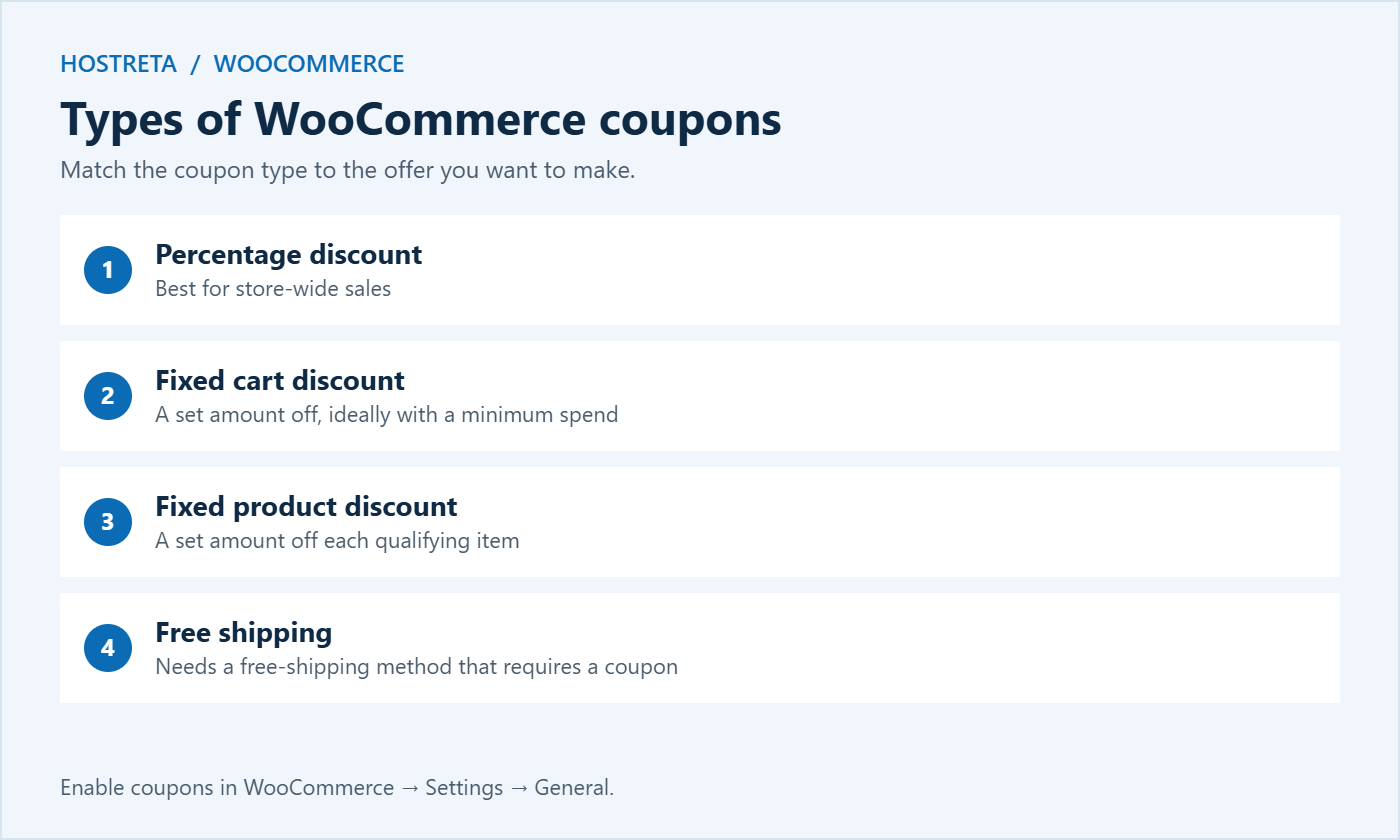
Types of WooCommerce coupons: percentage, fixed cart, fixed product and free shipping

Creating your first sale coupon

  1. Go to Marketing → Coupons → Add coupon.
  2. Enter a code customers will actually type correctly — short, memorable, no confusing characters such as O and 0. For example HOLIDAY20.
  3. Add a description for your own reference, like “Black Friday email list, 20% off.”
  4. On the General tab, choose the discount type and amount.
  5. Set an expiry date, and check how expiry works in your store’s timezone so the code doesn’t stop working hours before your sale ends.
  6. Tick Allow free shipping if the offer includes it.
  7. Publish, then test the coupon straight away.

Naming WooCommerce coupons

Good codes are easy to remember, easy to type on a phone, and tell you where they came from. A simple pattern like BF26-EMAIL, BF26-INSTA, and BF26-VIP lets you compare channels in your reports. Avoid generic codes such as SALE or DISCOUNT, which shoppers guess and share.

Usage restrictions for WooCommerce coupons

On the Usage restriction tab:

  • Minimum spend to protect margins on small orders.
  • Maximum spend to cap the discount on very large carts.
  • Individual use only so it can’t be combined with other coupons.
  • Exclude sale items so discounts don’t stack on already-reduced products.
  • Products or categories the coupon applies to, or excludes.
  • Allowed emails for personal or VIP offers.

On the Usage limits tab, set a total usage limit and a limit per user. Together these prevent a code spreading on deal sites from becoming expensive.

Protecting your margin

Before publishing any of your WooCommerce coupons, calculate the worst case: what happens if the coupon is used on your lowest-margin product, combined with free shipping, by hundreds of people? If that scenario loses money, add restrictions — exclude low-margin categories, raise the minimum spend, or cap total uses. It’s far easier to loosen a restriction later than to explain why you cancelled orders.

Auto-applied WooCommerce coupons with links

Typing a code is friction, and a forgotten code is an abandoned cart. Two options:

  • URL coupons: a link that applies the discount automatically when the shopper clicks it. This needs a plugin such as Advanced Coupons or a similar extension.
  • Auto-apply rules: the discount appears when cart conditions are met, with no code at all.

Use these links in emails and ads, and still show the code on the page so shoppers know the discount applied. Pair them with UTM parameters to track campaigns — see UTM Parameters: Track Every Campaign Link. Plugins that add BOGO deals, store credit, and scheduled coupons are compared in WooCommerce Coupon Plugins: 7 Essential Checks for a Safe Promotion.
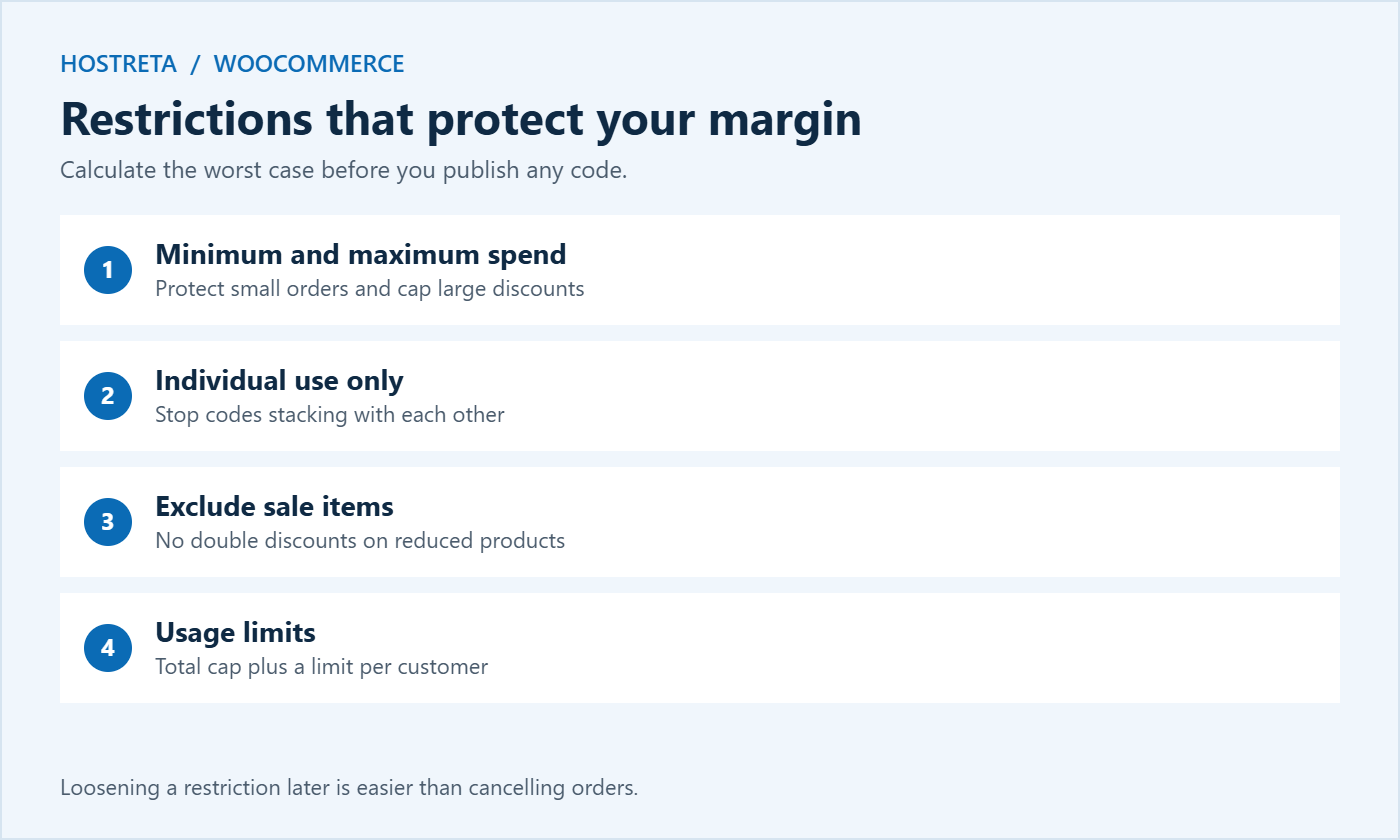
WooCommerce coupons usage restrictions and limits

Holiday coupon strategies that work

  • Early access for subscribers: send a private code a day before the public sale — see How to Use Early Access Offers to Warm Up Holiday Buyers.
  • Tiered discounts: 10% off over $50, 15% over $100, 20% over $150. These raise order value naturally.
  • Free shipping thresholds: set just above your average order value.
  • Gift with purchase: a free item instead of a discount protects perceived value.
  • Bundle offers: combine products rather than discounting them individually — see How to Set Up Product Bundles in WooCommerce.
  • Win-back codes: personal offers for customers who haven’t ordered in a year.
  • Post-purchase codes: a thank-you coupon for the next order, valid in January.

Plan every offer on a calendar so codes, emails, and banners line up — see Black Friday Marketing Calendar: A Countdown Plan for Small Stores.

Coupons vs scheduled sale prices

Scheduled sale prices show reduced prices to everyone automatically; WooCommerce coupons apply only when entered or linked. Use sale prices for broad public offers and coupons for targeted, trackable offers. If you use both, decide in advance whether coupons can apply to sale items. Scheduling is covered in How to Schedule a WooCommerce Sale in Advance, and a countdown timer can add urgency — see How to Add a Countdown Timer in WordPress for Your Sale.

Preventing coupon abuse

  • Limit uses per customer and set a total cap.
  • Restrict personal codes to specific email addresses.
  • Use unique single-use codes for high-value offers instead of one shared code.
  • Watch for leaks on deal sites and disable a code quickly if needed.
  • Protect checkout from bots that try codes and cards automatically — see Card Testing: 7 Essential Checks for a Safe WooCommerce Store.

Testing WooCommerce coupons before the sale

  1. Add a product to the cart and apply the coupon. Check the discount is exactly what you expect.
  2. Test the minimum spend rule by trying a smaller cart.
  3. Test with a sale item to confirm exclusions work.
  4. Try combining two coupons if you set “individual use only.”
  5. Complete a full test order and check the order record shows the discount.
  6. Test the auto-apply link in a private window.
  7. Re-test after clearing caches — see WooCommerce Caching: 7 Essential Checks.
  8. Check the coupon works in the block-based Cart and Checkout, which is the default for new stores.

Include coupons in your full checkout test — see How to Test Your Checkout End to End Before Peak Season.
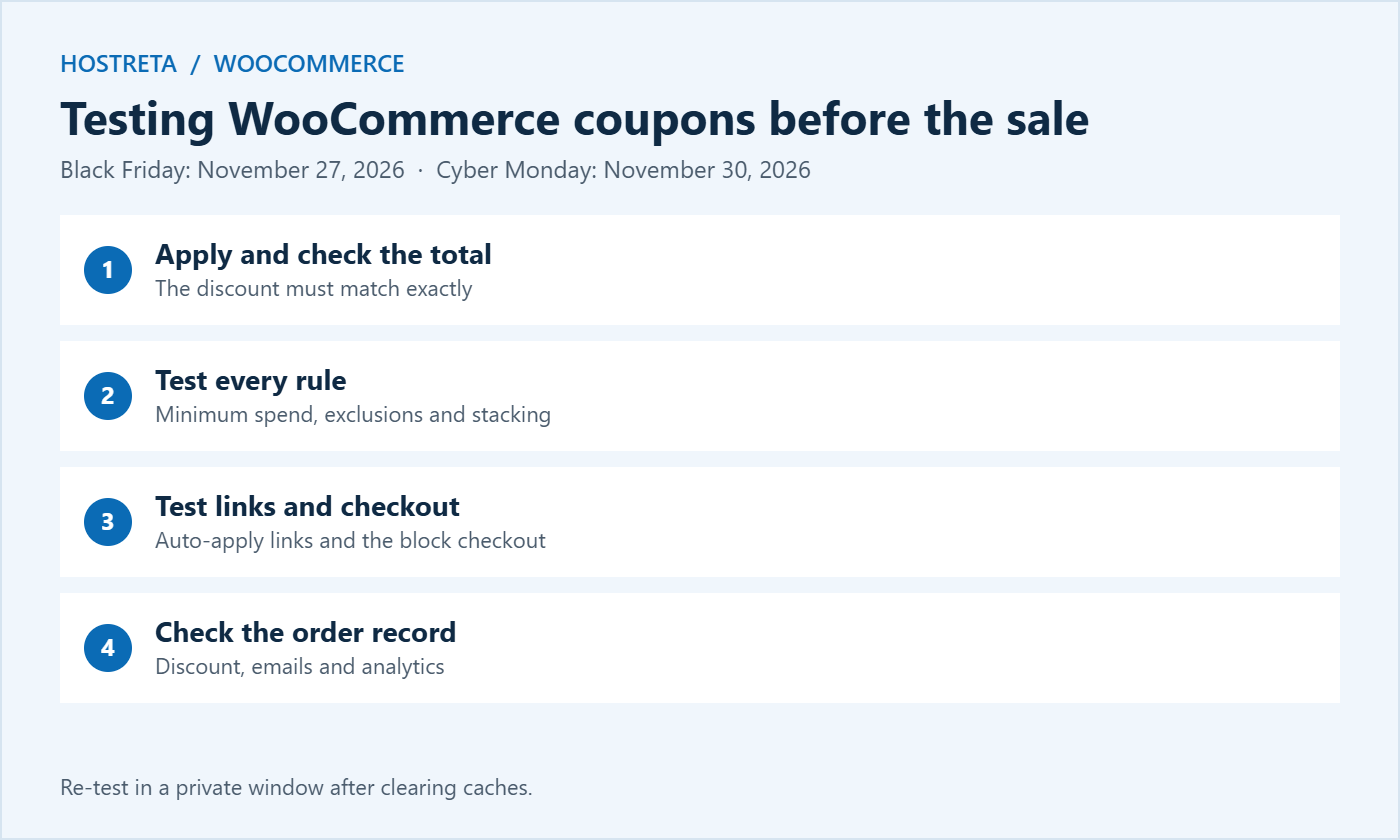
How to test WooCommerce coupons before Black Friday 2026

Measuring coupon results

Go to Analytics → Coupons in WooCommerce to see how often each code was used and the total discount given. Compare that with orders and revenue in the same period. Useful questions:

  • Which channel’s codes produced the most orders?
  • Did average order value rise for orders using coupons?
  • Did the coupon attract new customers or mostly discount existing ones?
  • Was any code used far more than expected?

Write down what worked so next year’s WooCommerce coupons start from real data.

A fast, secure store makes every offer count

A great coupon is wasted if the store slows down when shoppers arrive. Make sure your plan can handle the extra traffic — see WooCommerce Hosting Requirements. Kawedma WordPress hosting, managed WordPress hosting powered by Rocket.net, and a Kawedma VPS server give WooCommerce room to grow. Secure checkout with an SSL certificate, and promote your codes across social platforms with SocialBee.

Global settings that affect WooCommerce coupons

A few store-wide settings change how every code behaves, so review them before you create holiday WooCommerce coupons:

  • Enable the use of coupon codes: found in WooCommerce → Settings → General. If this is off, no code will work at checkout.
  • Calculate coupon discounts sequentially: when several WooCommerce coupons apply, this setting applies each one to the already-discounted price rather than the original price. It reduces the total discount when codes stack.
  • Prices entered with or without tax: affects how fixed discounts are calculated on taxed products. Test a fixed cart coupon with tax enabled to make sure the result matches your expectations.
  • Free shipping method settings: in each shipping zone, choose whether free shipping requires a coupon, a minimum order amount, or either.
  • Store timezone: in WordPress → Settings → General. Expiry dates follow this timezone, so make sure it matches your business location.

Rounding and tax details

Percentage WooCommerce coupons can produce totals with awkward cents, especially when tax is included in prices. Check a handful of real carts and make sure totals round sensibly. If you sell in several currencies, test codes in each currency, because fixed amounts may not convert the way you expect. Clear, predictable totals build trust at the most sensitive moment of the purchase.

Communicating WooCommerce coupons to shoppers

A code nobody sees can’t drive sales. Make your offers visible at every stage:

  • Site-wide banner: a short message at the top of every page with the code and end date.
  • Product pages: a small note near the price for eligible items.
  • Cart page: a reminder of the code and how much more to spend for the next tier.
  • Email: one clear button with an auto-apply link, plus the code in plain text — see How to Write a Newsletter People Actually Open.
  • Social media: simple graphics showing the offer and the deadline — see How to Use AI for Social Media Content Creation.

Be specific about conditions. “20% off everything except sale items, orders over $50, until November 30” avoids disappointment and support emails. Honest, clear terms also keep your WooCommerce coupons on the right side of consumer protection rules in many countries, which require genuine discounts and clear terms.

Making coupon fields easy to find

On mobile, the coupon field is often hidden behind a small link. If you promote codes heavily, make sure shoppers can find where to enter them, or rely on auto-apply links so the discount appears without typing. A missing or hard-to-find field is one of the most common reasons WooCommerce coupons lead to abandoned carts instead of sales.

After the sale: cleaning up WooCommerce coupons

  1. Confirm every holiday code has expired or move it to draft.
  2. Remove banners and notices that mention ended offers.
  3. Review usage reports and note which offers performed best.
  4. Send a thank-you code for January to encourage repeat purchases.
  5. Archive old WooCommerce coupons so the list stays manageable next year.

A tidy coupon list makes it much easier to plan next season and avoids old codes accidentally working months later. Before any bulk changes to products or prices, take a backup — see Store Backup and Rollback Plan for Peak Sales Days.

Frequently asked questions

Can customers use more than one WooCommerce coupon?

Yes, unless you tick “Individual use only.” Decide your stacking rules before the sale and test combinations carefully.

How do I stop coupons applying to sale items?

Tick “Exclude sale items” on the Usage restriction tab. Products with a sale price will then be ignored by that coupon.

Can I schedule a coupon to start later?

Core WooCommerce coupons have an expiry date but no start date. Publish the coupon when the sale begins, or use a plugin that adds scheduled start dates.

Why isn’t my coupon working?

Check the expiry date, minimum spend, product restrictions, usage limits, and whether the customer’s email matches any allowed list. Caching can also hide changes, so test in a private window.

Example WooCommerce coupons for a holiday calendar

Here is a simple set of WooCommerce coupons a small store could run across the season. Adjust amounts to your margins:

  • Early November — WELCOME10: 10% off a first order for new email subscribers, one use per customer, minimum spend $30.
  • Two days before Black Friday — VIP-EARLY: 20% off for subscribers only, restricted to allowed emails or sent as unique codes, excluding sale items.
  • Black Friday weekend — BF26: tiered discounts through a plugin, or a single 15% code with a $60 minimum spend and a total usage cap.
  • Cyber Monday — CYBER26: free shipping on all orders, valid for 24 hours.
  • December — GIFT15: $15 off orders over $100 on gift categories, ending on your last delivery date before Christmas.
  • January — THANKS10: a thank-you code included in holiday order emails to bring customers back.

Spacing offers like this gives you a reason to contact customers several times without discounting every order. It also gives you clean data on which type of WooCommerce coupons your audience responds to best.

Working with partners and influencers

Give each partner a unique code so you can track sales and pay commissions accurately. Set an expiry date, a usage cap, and exclusions that match your agreement. If you run an affiliate programme, link codes to affiliate accounts so both tracking methods agree — see How to Track Affiliate Links and Clicks.

Do WooCommerce coupons work with subscriptions?

With WooCommerce Subscriptions, you get extra coupon types such as recurring discounts and sign-up fee discounts. Decide whether a holiday discount should apply only to the first payment or to every renewal, and test both cases.

Can I create bulk unique codes?

Core WooCommerce creates one code at a time. Plugins can generate hundreds of unique single-use WooCommerce coupons for email campaigns, printed inserts, or partners, which makes leaks much less damaging.

Should I show a coupon field at all?

If you rarely run coupon promotions, a visible empty coupon field can send shoppers away to search for codes. Some stores hide it behind a small link and rely on auto-apply links instead.

Are WooCommerce coupons good for SEO?

Coupons themselves don’t affect rankings, but a clear offers page that lists current promotions can attract searches for your brand plus “discount code” and keep shoppers on your site instead of third-party coupon sites.

Set up your holiday WooCommerce coupons this week, test each one carefully, and you will go into the busiest weekend of the year with offers that sell without hurting your margin.

Key takeaways

  • Choose percentage, fixed cart, or fixed product WooCommerce coupons to match the offer.
  • Always set usage limits and an expiry date.
  • Exclude sale items so discounts don’t stack.
  • Use clear code names to track each channel.
  • Test every coupon, including auto-apply links, before launch.
Z
zasma171

Writes for Hostreta about the topics covered in this article.

Comments (0)

Your email address will not be published. Required fields are marked *

Ad
Affiliate links
Tools we recommend
Protect Your Website with Automated Daily Backups
$2.09
Get it
the easiest way to manage all of your social media accounts
$29
Get it
Starter Website Get online, properly
$249
Get it
google workspace Business Starter
$3.75
Get it
Nord Vpn Cybersecurity. Built for Everyday Use
$8.99
Get it
More hosting options · affiliate
AI SiteBuilder
View plans
AI Application Hosting
View plans
Shared Hosting
View plans
Reseller Hosting
View plans
Managed WordPress · Rocket.net
View plans
Unmanaged VPS Hosting
View plans
Managed VPS Hosting
View plans
Virtual Dedicated Servers
View plans

We may earn a commission on purchases made through these links, at no extra cost to you.

Ad
Ad

$ top hosting picks

affiliate
★★★★★

KAWEDMA Website Services

See optionsCheck current plans and terms
  • Explore website setup services
  • Choose a scope that fits your project
  • Confirm features with KAWEDMA
Explore KAWEDMA →
affiliate link · we may earn a commission
★★★★★

Managed WordPress Hosting

See plansCurrent terms on provider website
  • Managed hosting for WordPress
  • Powered by Rocket.net
  • Compare current plan specifications
View WordPress plans →
affiliate link · we may earn a commission
★★★★★

AI SiteBuilder

See plansCheck current offer and renewal terms
  • Explore AI-assisted website creation
  • Review included tools and features
  • Choose a plan for your project
Explore SiteBuilder →
affiliate link · we may earn a commission

Never miss a new article

Join thousands of developers and builders getting a weekly digest of the best tech articles.