Hosting

PHP Workers Explained: Why Your Store Slows Down Under Load
PHP Workers Explained: Why Your Store Slows Down Under Load

Your hosting plan lists storage, bandwidth, and maybe CPU — but the number that decides whether your store survives a traffic spike is often hidden: PHP workers. Run out of them and visitors queue, pages crawl, and checkout times out, even though your CPU graph looks calm. It is one of the most common reasons stores slow down during sales, and one of the least understood.

This guide explains what PHP workers actually do, how they relate to PHP-FPM and your server, why WooCommerce needs more of them, the warning signs, how to measure usage, how many PHP workers you need, how to reduce demand, and how to get more before Black Friday on November 27, 2026.

What PHP workers actually do

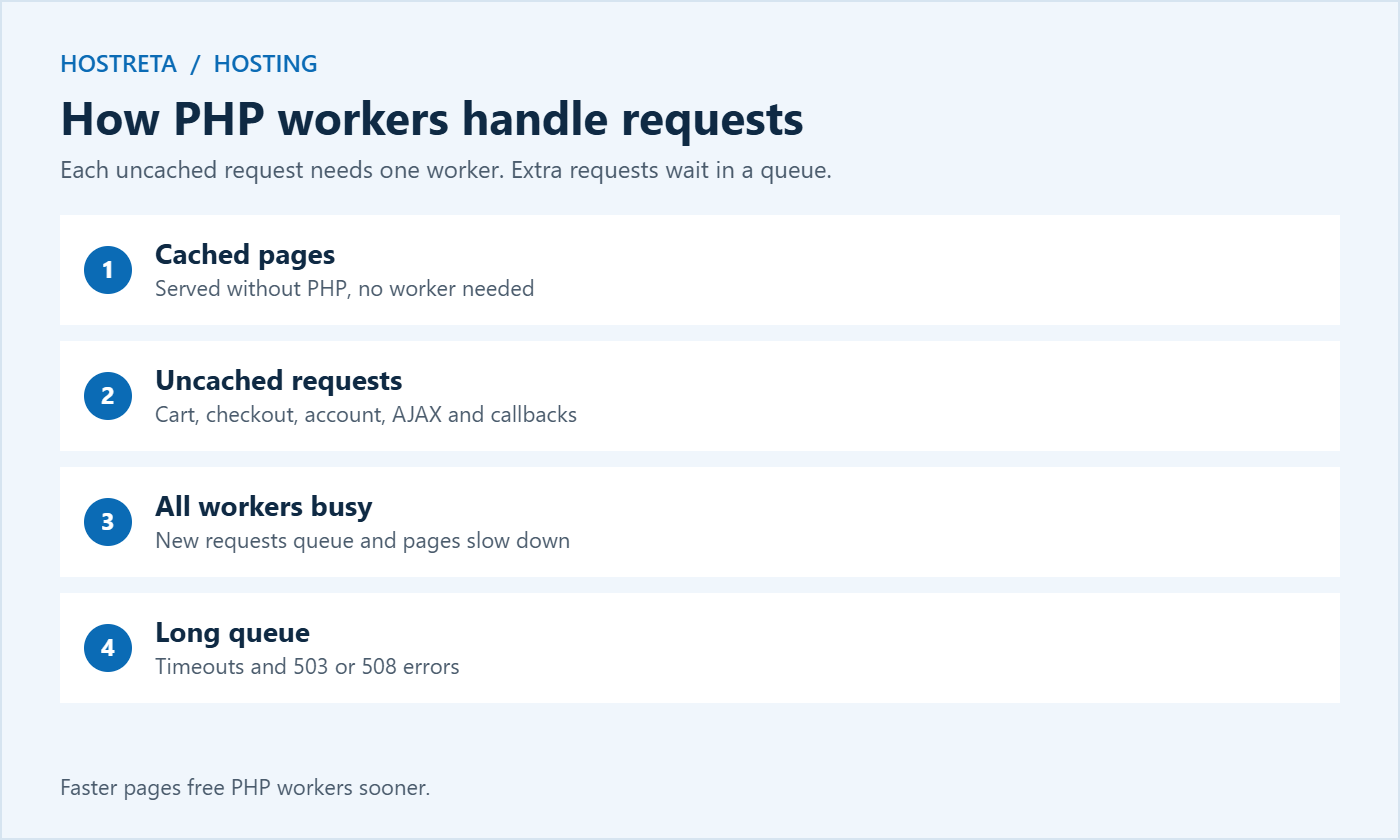
A PHP worker is a process that builds one uncached page at a time. When a request arrives that can’t be served from cache, a worker picks it up, runs the PHP, queries the database, assembles the HTML, and sends it back. Then it takes the next request.

If every worker is busy, new requests wait in a queue. A short wait means a slow page. A long wait means a timeout or a 50x error.

Cached pages don’t use PHP workers at all — which is why caching has such a dramatic effect on how many visitors a plan can handle.

A simple analogy

Think of PHP workers as checkout lanes in a supermarket. Cached pages are like the self-service exit for customers who bought nothing — they walk straight out. Uncached requests need a lane. With four lanes and four customers, nobody waits. With four lanes and forty customers arriving at once, a queue forms, and some customers give up and leave. Adding lanes helps, but so does serving each customer faster.

PHP workers, PHP-FPM, and entry processes

Different hosts use different names for the same idea. On servers running PHP-FPM, the setting pm.max_children controls how many PHP processes can run at once. LiteSpeed servers use LSAPI processes. Shared hosting panels such as CloudLinux often show entry processes or EP limits. Managed WordPress hosts usually just say “PHP workers.” Whatever the label, it measures how many uncached requests your site can process at the same moment.

Why WooCommerce uses more PHP workers

  • Cart, checkout, and account pages can’t be page-cached — every view needs a worker — see WooCommerce Caching: 7 Essential Checks for a Safe Store.
  • AJAX requests like add-to-cart, variation lookups, and live search each consume a worker briefly.
  • Background tasks (emails, scheduled sales, stock sync, webhooks) use workers too.
  • Logged-in customers bypass the page cache entirely.
  • Payment callbacks from gateways arrive as requests as well.
  • Bots and crawlers hitting search, filter, and cart URLs create uncached load you never see in analytics.

A blog with the same traffic might need a fraction of the PHP workers a store does.

How many requests does one shopper create?

A single shopper browsing cached category pages may use almost no workers. But adding a product to the cart, changing a variation, applying a coupon, viewing the cart, and completing checkout can easily create ten to twenty uncached requests in a few minutes. Multiply that by everyone shopping at once during a sale, and it’s easy to see how a small number of PHP workers becomes the bottleneck.
How PHP workers process uncached WooCommerce requests

Signs you are running out of PHP workers

  • 508 “resource limit reached” or 502/503/504 errors at busy times.
  • Pages slow dramatically under load while CPU usage looks moderate.
  • Checkout times out even though product pages feel fine.
  • Admin becomes unusable while the front end still works.
  • Your host’s panel shows queued or limited requests, or entry process faults.
  • Time to first byte rises sharply during campaigns, then drops back when traffic falls.

Load testing reveals this before customers do — see Load Test Your Store: 7 Essential Checks for a Safe Rehearsal.

How to measure PHP worker usage

  1. Check your hosting panel for entry processes, PHP worker usage, or faults over the last 30 days.
  2. Look at error logs for 503 and 508 errors and match them to busy periods or campaigns.
  3. Use Query Monitor to see how long uncached pages take to build — see Query Monitor: 7 Essential Checks.
  4. Measure time to first byte on cart and checkout pages under normal and busy conditions — see How to Use Chrome DevTools to Find Slow Resources.
  5. Ask your host for a report of maximum concurrent PHP processes during your last sale.

How many PHP workers you need

There’s no universal number, but rough guidance for stores:

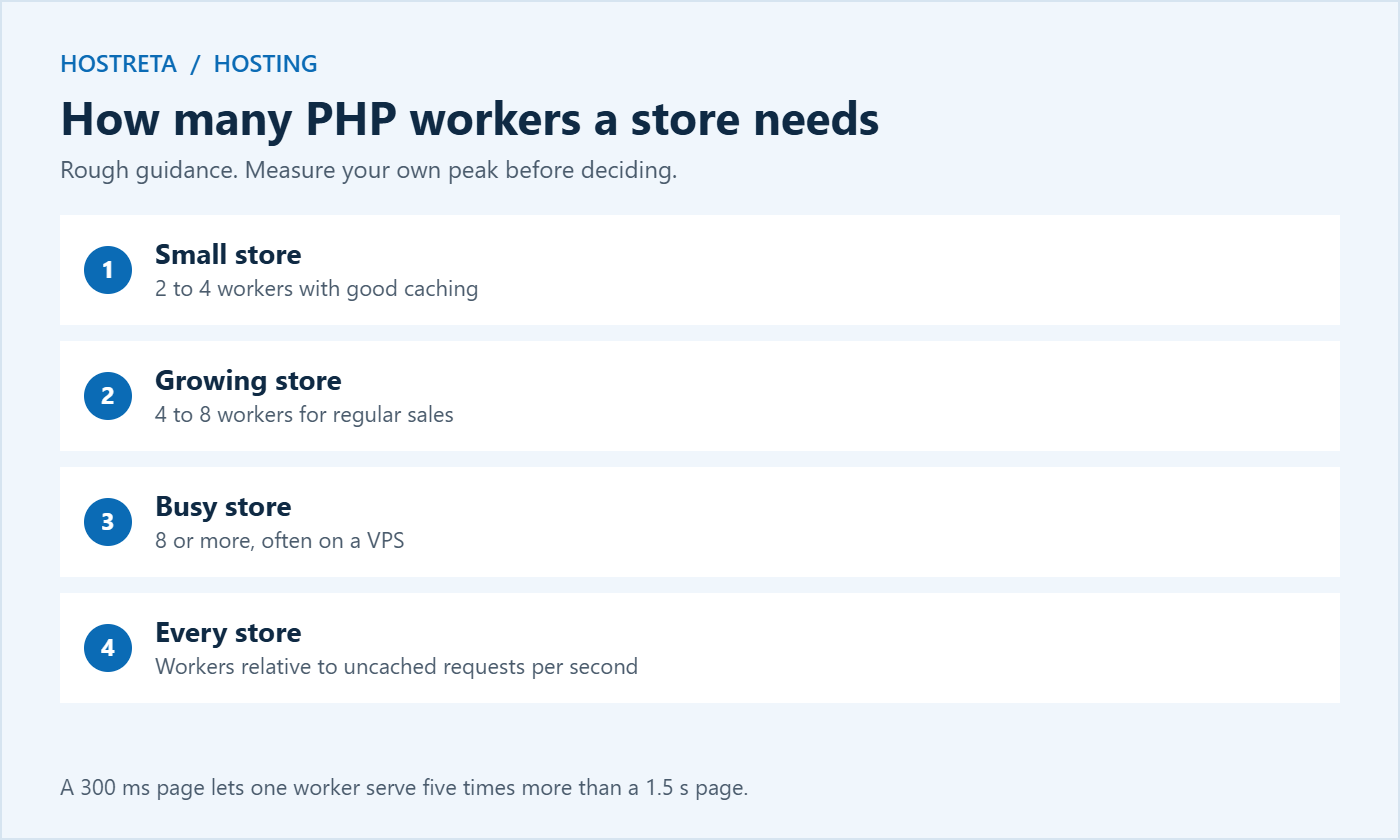
  • Small store, modest traffic: 2–4 PHP workers is often enough with good caching.
  • Growing store with regular sales: 4–8.
  • Busy store or peak-season spikes: 8 or more, often on a VPS where you control the limit.

What matters is workers relative to uncached requests per second. Faster pages free workers sooner, so optimisation is as valuable as adding capacity — a page that takes 300 ms instead of 1.5 seconds lets one worker serve five times as many requests.

A quick capacity estimate

If each uncached request takes 0.5 seconds, one worker can handle about two requests per second. Four PHP workers can handle about eight. If your peak hour brings 50 active shoppers each making a request every ten seconds, that’s five uncached requests per second — comfortable with four workers, but tight if pages slow down or bots add extra load. This rough maths helps you have a sensible conversation with your host.
Reducing demand on PHP workers

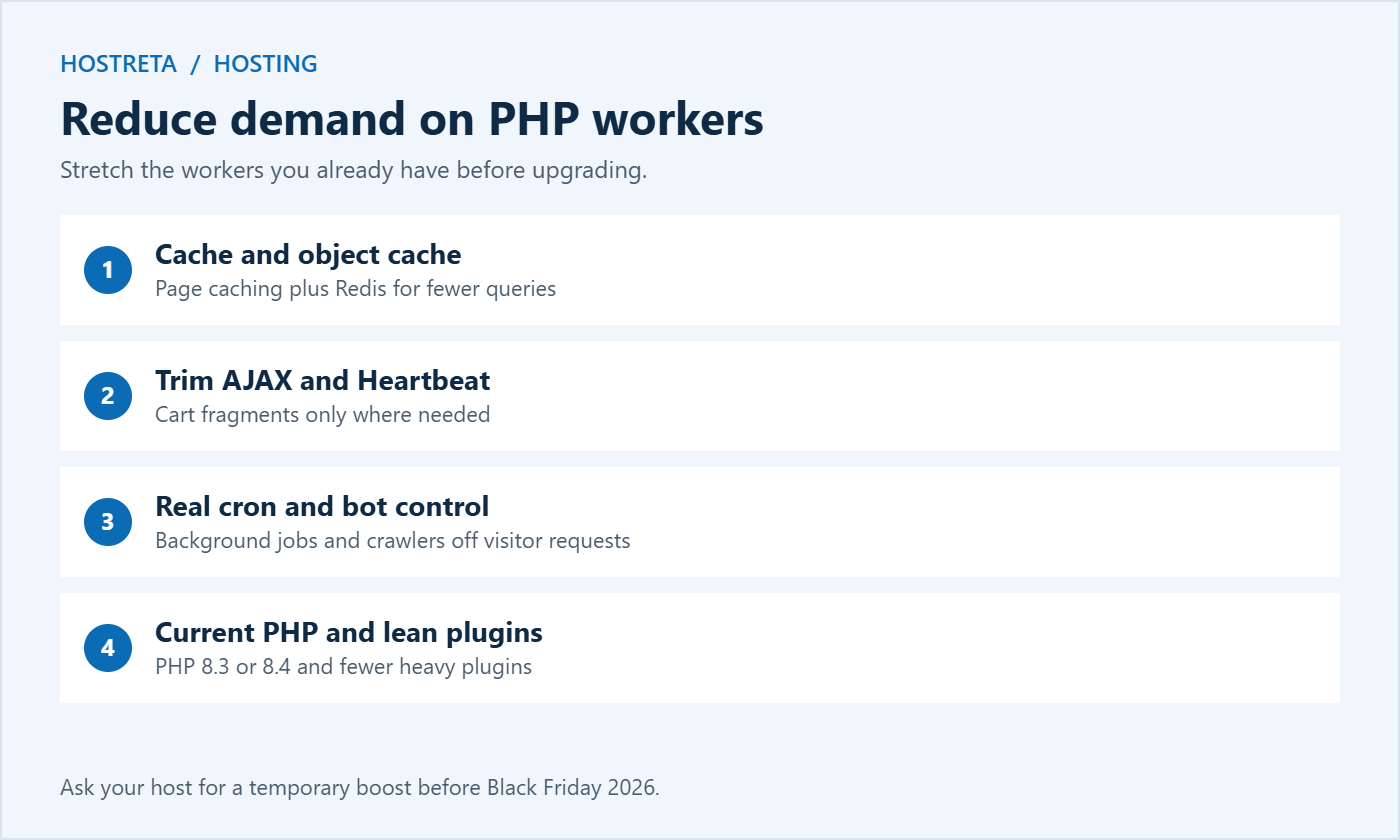
  • Page caching for every page that can be cached, with correct exclusions for cart, checkout, and account.
  • Object caching with Redis so each request runs fewer database queries — see Redis Object Caching for WooCommerce Stores Explained.
  • Cart fragments: since WooCommerce 7.8, the cart fragments script no longer loads on every page by default, but some themes and mini-cart widgets still trigger it. Check that it only runs where needed.
  • Heartbeat API: reduce how often the WordPress Heartbeat runs in the admin, which can keep workers busy when several staff are logged in.
  • Real cron instead of WP-Cron so background jobs don’t piggyback on visitor requests — see Real Cron Job: 7 Essential Checks.
  • Block bad bots and limit crawling of filter and search URLs with a firewall or CDN rules.
  • Fewer, lighter plugins — see How to Reduce Plugin Bloat in WordPress.
  • Faster product pages — see Speed Up WooCommerce Product Pages: 7 Essential Checks.
  • Current PHP versions: PHP 8.3 and 8.4 run WordPress faster than older releases, so each worker finishes sooner — see Upgrade PHP Version: 7 Essential Checks.

How many PHP workers a WooCommerce store needs

Getting more PHP workers from your host

  1. Ask directly: “How many PHP workers does my plan include, and how do I see usage?”
  2. Reduce demand first: caching, object caching, fewer plugins, and lighter product pages.
  3. Upgrade the plan if usage is genuinely at the limit; many managed hosts scale workers with the plan tier.
  4. Ask for a temporary increase for your sale period — many hosts will accommodate it if you ask in advance.
  5. Move to a VPS if you need full control — see How to Move From Shared Hosting to a VPS.
  6. Re-test after changes and watch the error rate.

More workers need more memory

Each PHP worker uses memory — often 64 to 256 MB for a WooCommerce request. Adding workers without enough RAM causes the server to swap or crash, which is worse than queuing. On a VPS, size pm.max_children to fit available memory, leaving room for the database and cache. On managed hosting, the provider balances this for you.

Hosting options by PHP worker needs

The wider decision is covered in Should You Upgrade Your Hosting Plan Before Black Friday? and WooCommerce Hosting Requirements.
Ways to reduce demand on PHP workers in WooCommerce

PHP workers during a real sale: what happens minute by minute

To understand why PHP workers matter so much, picture a small store with four workers sending its Black Friday email at 9:00 in the morning.

  • 9:00: the email goes out to 10,000 subscribers. Within minutes, hundreds of people click through. Category and product pages are cached, so the store feels fast.
  • 9:05: shoppers start adding products to their carts. Every add-to-cart, cart view, and coupon check is uncached, so the four PHP workers are now busy most of the time.
  • 9:10: checkout traffic peaks. Each checkout runs shipping calculations, tax, fraud checks, and a payment request. Requests start to queue, and time to first byte rises from half a second to several seconds.
  • 9:15: a few shoppers refresh the page, which adds even more requests. Some see 503 or 508 errors. Payment callbacks from the gateway also wait in the queue, so some orders stay “pending.”
  • 9:30: traffic drops and the queue clears. The store looks fine again, but a share of the most motivated buyers have already left.

The fix is a mix of more PHP workers, faster requests, and spreading traffic — for example, sending the email to segments thirty minutes apart, or opening early access for subscribers the day before. Planning around your worker limit is often cheaper than doubling your hosting bill.

Spreading load across time

Many stores now start sales earlier, run early access for subscribers on Thanksgiving, and stagger email sends. That spreads demand on PHP workers across several hours instead of a single spike. It also gives you time to spot problems while traffic is still moderate. See How to Use Early Access Offers to Warm Up Holiday Buyers and Black Friday Marketing Calendar.

PHP workers and external services

A PHP worker stays busy for the whole time it waits on something else. If your checkout calls a shipping rate API that takes two seconds to respond, that worker is blocked for two seconds, even though the server itself is doing almost nothing. The same applies to payment gateways, tax services, address validation, and marketing integrations that run during checkout.

  • Remove integrations you don’t need at checkout.
  • Cache shipping rates where your plugin allows it.
  • Move marketing syncs to background jobs that run after the order, not during it.
  • Monitor slow external calls with Query Monitor’s HTTP API panel.

Cutting a single slow external request can free more capacity than adding an extra worker. Shipping tools are compared in WooCommerce Shipping Plugins Compared.

A PHP workers checklist before Black Friday 2026

  1. Ask your host how many PHP workers your plan includes and how to view usage.
  2. Review the last 30 days of entry process or worker faults.
  3. Confirm page caching is working and excludes cart, checkout, and account pages.
  4. Enable object caching with Redis if available.
  5. Check cart fragments, Heartbeat, and WP-Cron settings.
  6. Block bad bots and limit crawling of filter and search URLs.
  7. Upgrade to PHP 8.3 or 8.4 after testing on staging.
  8. Run a load test and note the point where errors begin.
  9. Upgrade or request a temporary boost by mid-November if needed.
  10. Set up monitoring for checkout response time — 360 Monitoring tracks uptime and server health.
  11. Test checkout end to end after every change — see How to Test Your Checkout End to End.

Common misunderstandings about PHP workers

  • “More workers always means a faster site.” Not if CPU or memory is already maxed out. Extra workers then compete for the same resources.
  • “My visitors per month tell me how many workers I need.” Monthly totals hide spikes. Concurrency during your busiest minutes is what counts.
  • “Caching solves everything.” It solves a lot, but WooCommerce carts, checkouts, and logged-in users always need PHP workers.
  • “CPU graphs show the whole picture.” Workers can be fully used while CPU looks moderate, especially when requests wait on databases or external APIs.

Frequently asked questions

Are PHP workers the same as CPU cores?

No. Workers are processes; cores are the hardware that runs them. More workers than cores can work if requests spend time waiting on the database, but too many workers on too few cores slows everything down.

Do PHP workers affect cached pages?

No. Fully cached pages are served without PHP, which is why good caching lets a small number of workers support a lot of traffic.

Why is my site slow when CPU usage is low?

Requests may be queuing for PHP workers, or waiting on slow database queries or external APIs. Check worker limits and slow queries before upgrading CPU.

Can a plugin use up PHP workers?

Yes. Plugins that make frequent AJAX calls, slow external requests, or heavy background jobs can keep workers busy. Query Monitor helps identify them.

How do I check PHP workers on cPanel hosting?

Open the Resource Usage or CPU and Concurrent Connection Usage section. Look for entry processes (EP) and any faults recorded when the limit was reached. Frequent EP faults at busy times mean you need more capacity or less uncached load.

Should I increase PHP workers or memory first?

Check which limit you’re hitting. If workers are full but memory is free, more workers help. If memory is near its limit, adding workers without more RAM can make things worse.

Do logged-in customers use more PHP workers?

Yes. Logged-in visitors usually bypass the page cache, so every page they view needs a worker. Stores with many account holders or memberships should plan for this.

Can a CDN reduce PHP worker usage?

A CDN serves images, CSS, and JavaScript from the edge, and some can cache full pages for anonymous visitors. That reduces requests reaching PHP, though cart and checkout still need workers.

Understanding PHP workers changes how you think about hosting. Instead of asking “how many visitors can my plan handle?”, ask “how many shoppers can check out at the same time, and how fast is each request?” Answer that with real measurements, reduce unnecessary work, and add capacity where it is genuinely needed. That approach keeps your store fast on the busiest days of the year without paying for resources you never use, and it gives you clear numbers to discuss with your host when you plan the next big sale.

If you only do one thing this week, ask your host how many PHP workers your plan includes and compare that number with your expected peak. That single answer tells you whether you are ready for the sale or need to act now.

Key takeaways

  • Each uncached request needs one of your PHP workers.
  • Store pages like cart and checkout can’t be page-cached.
  • Too few PHP workers means queued visitors and timeout errors.
  • Faster pages, object caching, and fewer bots stretch the workers you have.
  • Ask your host for worker counts and upgrade before peak season if needed.
Z
zasma171

Writes for Hostreta about the topics covered in this article.

Comments (0)

Your email address will not be published. Required fields are marked *

Ad
Affiliate links
Tools we recommend
Protect Your Website with Automated Daily Backups
$2.09
Get it
the easiest way to manage all of your social media accounts
$29
Get it
Starter Website Get online, properly
$249
Get it
google workspace Business Starter
$3.75
Get it
Nord Vpn Cybersecurity. Built for Everyday Use
$8.99
Get it
More hosting options · affiliate
AI SiteBuilder
View plans
AI Application Hosting
View plans
Shared Hosting
View plans
Reseller Hosting
View plans
Managed WordPress · Rocket.net
View plans
Unmanaged VPS Hosting
View plans
Managed VPS Hosting
View plans
Virtual Dedicated Servers
View plans

We may earn a commission on purchases made through these links, at no extra cost to you.

Ad
Ad

$ top hosting picks

affiliate
★★★★★

KAWEDMA Website Services

See optionsCheck current plans and terms
  • Explore website setup services
  • Choose a scope that fits your project
  • Confirm features with KAWEDMA
Explore KAWEDMA →
affiliate link · we may earn a commission
★★★★★

Managed WordPress Hosting

See plansCurrent terms on provider website
  • Managed hosting for WordPress
  • Powered by Rocket.net
  • Compare current plan specifications
View WordPress plans →
affiliate link · we may earn a commission
★★★★★

AI SiteBuilder

See plansCheck current offer and renewal terms
  • Explore AI-assisted website creation
  • Review included tools and features
  • Choose a plan for your project
Explore SiteBuilder →
affiliate link · we may earn a commission

Never miss a new article

Join thousands of developers and builders getting a weekly digest of the best tech articles.