HowTo

Speed Up WooCommerce Product Pages: 7 Essential Checks
WooCommerce product pages need to show useful images, accurate prices, and a responsive buying interface. A slow gallery or delayed variation selector can interrupt that journey. Measure the actual page before changing it: a large image, expensive server rendering, and a slow third-party script require different fixes.
This guide shows how to speed up WooCommerce product pages: what slows them down, image optimisation, reducing scripts, tuning WooCommerce features, and measuring the result.
Full details in How to Optimize Images for the Web.
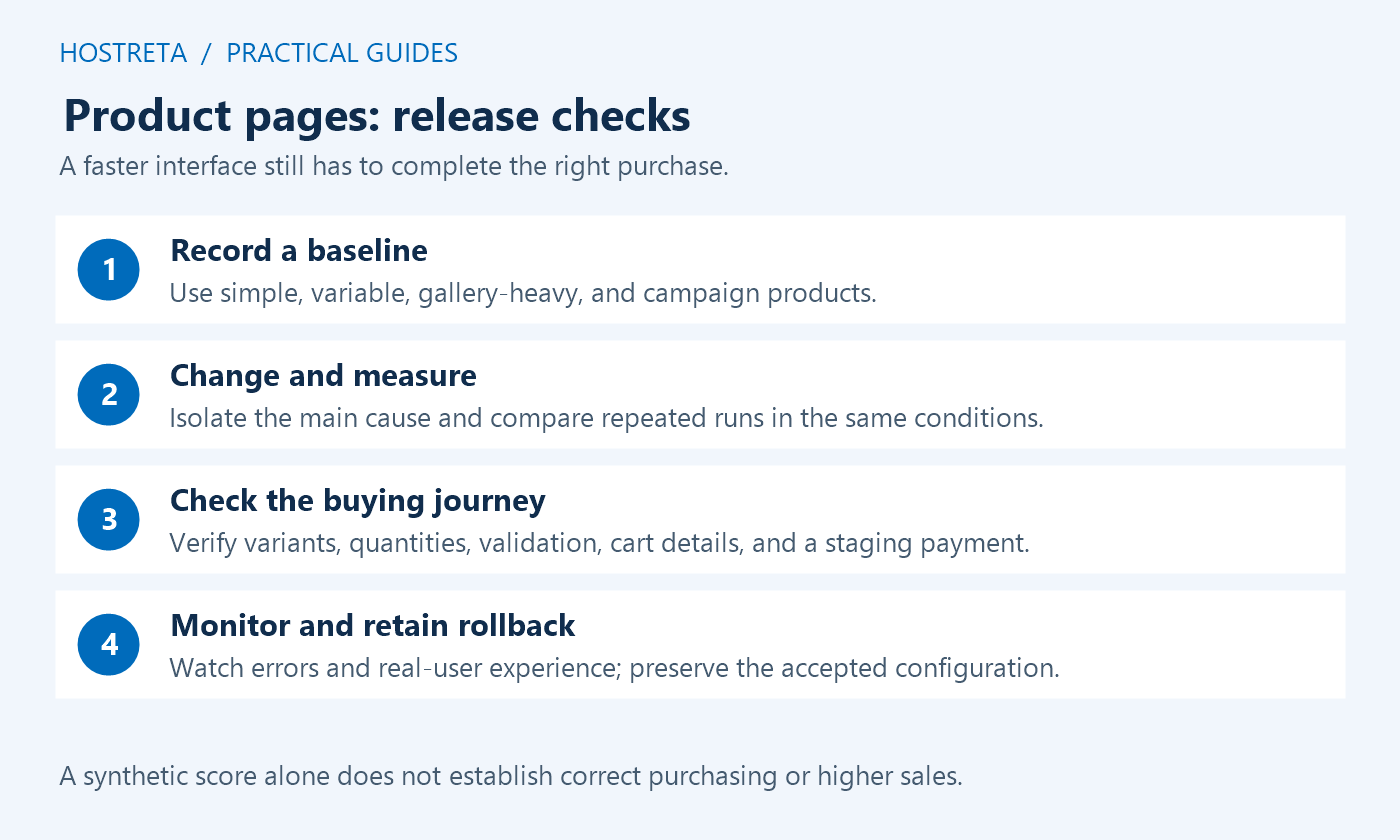
Work on a staging copy and retain the original configuration, image files, and product data. Set a clear target for the customer experience rather than chasing a perfect laboratory score. Product pages must still display the correct variation, stock status, price, delivery information, and cart result after optimisation. A faster screen that selects the wrong item is a failed change.
Choose several products: a simple item, a variable item with many choices, a gallery-heavy item, and a popular campaign item. Include an out-of-stock example and any product with personal pricing or add-ons. Product pages can use the same template while triggering very different amounts of server work, media loading, and JavaScript. Testing only the easiest item can conceal the real bottleneck.
Record the URL, device, connection profile, account state, cache state, and test time. Run repeated measurements under comparable conditions, and separate a first visit from a repeat visit. Save the waterfall and the main observations, such as when the image appears or when the selector becomes responsive. Compare medians or consistent patterns rather than selecting the best run as the result.
Separate laboratory and real-user evidence. A lab tool gives a reproducible environment for debugging, while field data reflects actual devices and visits over a reporting period. A page may have insufficient field data, so avoid presenting missing results as a pass. Check whether a report describes the specific URL or an origin-wide group before attributing that measurement to one product.
Inspect the downloaded image, not only the media library dimensions. The browser should receive an appropriate responsive source for the displayed slot. Confirm that the theme outputs useful responsive image information and that an image CDN does not replace it with an oversized file. Reserve the image’s layout space so the price and purchase controls do not jump as it loads.
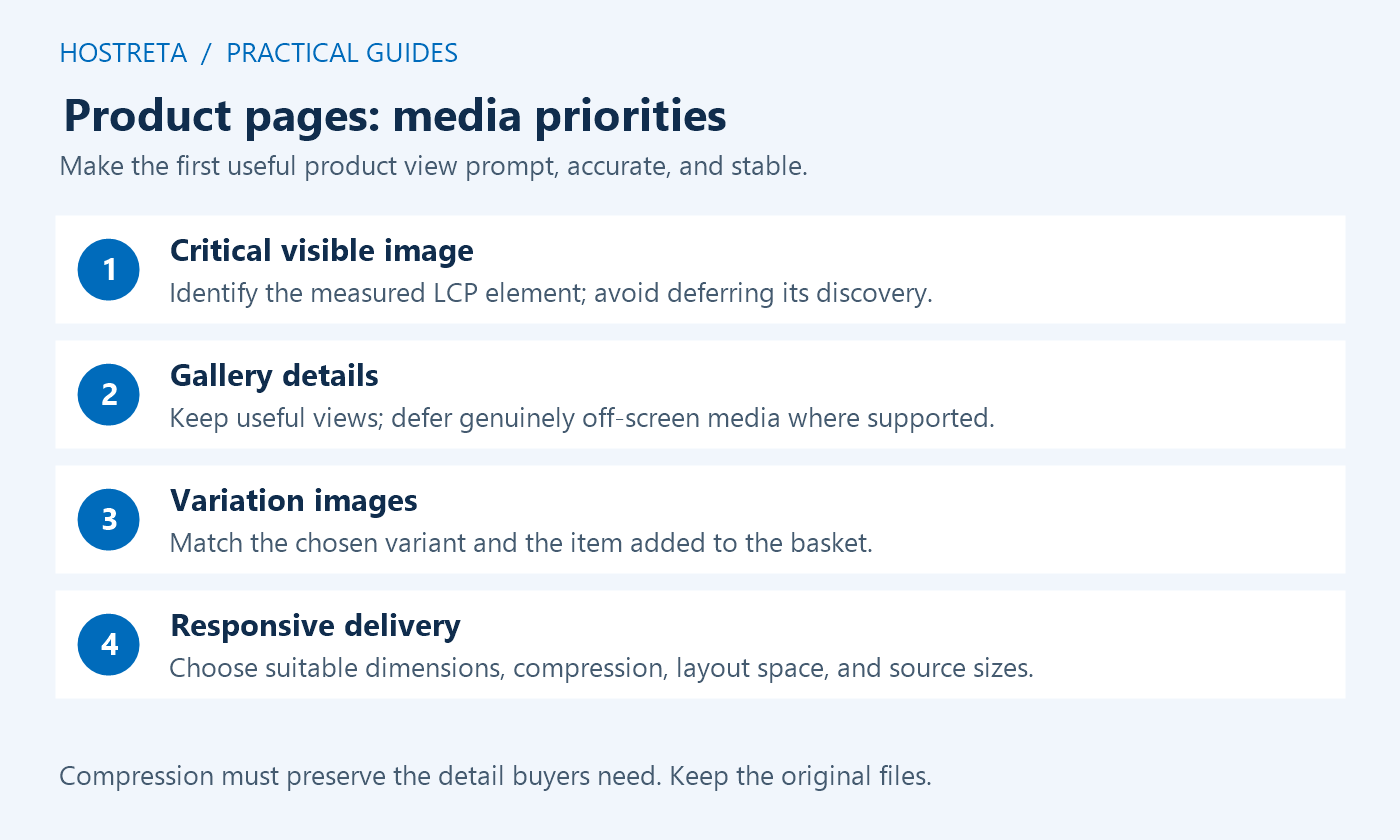
Identify the Largest Contentful Paint element for the tested viewport. When it is the main product photo, avoid deferring that resource behind lazy loading or a late gallery initialisation. Google’s LCP optimisation guidance explains how discovery and resource priority affect loading. Prioritise the genuinely critical resource; assigning high priority to every gallery image makes that signal less useful.
Compress derivatives while preserving the visual detail buyers need. Check fabric texture, small print, book-cover text, colour boundaries, and zoom quality on an actual device. Keep the original file available for future processing. A new format may reduce transfer size, but compare visual quality and fallback behaviour before adopting it across product pages. Do not repeatedly recompress already degraded copies.
A gallery needs to answer buying questions: front and back, scale, important details, packaging, or the selected variation. Remove redundant assets only after considering that purpose. For product pages with many images, load the primary view promptly and defer genuinely off-screen media using the supported gallery implementation. Test swiping, zoom, keyboard navigation, focus movement, and close controls after every change.
Embedded video can add substantial work before a shopper chooses to watch. Consider a supported poster and user-initiated player, with captions or an accessible alternative where appropriate. Keep essential product information available independently of autoplay or animation. Avoid removing a demonstration that answers a crucial purchase question solely because it increases a synthetic page score.
Check variations individually. Each selection may replace images, price, availability, or downloadable details. Current WooCommerce capabilities and theme support vary, so review the installed version and official gallery documentation. Confirm that the final selected image matches the item added to the basket, especially when an older gallery extension overlaps with a newer native feature.
Inventory the scripts and styles that actually load. Group them by function: gallery, variations, add-ons, cart, reviews, consent, analytics, chat, and advertising. Identify unused or duplicated integrations, then remove the redundant integration through its supported configuration. Plugin count alone is a poor measure: one complex extension can cost more than several small ones, and a necessary extension may be well optimised.
Defer optional widgets when that does not undermine the task. Keep variation selection, quantity controls, add-to-cart feedback, required validation, and accessible navigation responsive. Blanket JavaScript delay can make product pages appear fast until the first tap, then force a large burst of work exactly when the shopper tries to buy. Test the first interaction as well as the initial screenshot.
Keep consent behaviour consistent with applicable requirements. A script optimisation feature does not decide whether tracking is permitted. Re-test both accepted and declined consent states and any region-specific configuration. Verify that an analytics failure does not block purchasing and that a chat provider outage does not prevent the product form from submitting. Third-party availability should not determine whether the basic shopping interface works.
Slow product pages may spend most of their time on the server before an image request even starts. Compare cached anonymous requests with uncached or personalised ones. On staging, use a supported profiler to identify costly queries, repeated external calls, or expensive template components. Administrator profiling can differ from a public visit, so interpret it as diagnostic evidence rather than the final customer performance measurement.
Inspect related-product sections, recommendation engines, review widgets, and variation data. Limit output to what helps the purchase, and use supported configuration before custom code. Avoid creating unnecessary combinations of variation attributes. Do not delete legitimate variations or stock records merely to reduce a query count; the catalogue still needs to represent what the business sells.
Check scheduled jobs, imports, and background processes that compete with browsing traffic. A slow product request during an import may reflect resource contention rather than the template alone. Use the hosting resource limits guide to record CPU, memory, workers, and database pressure. Buy more capacity only when measurements show which limit needs additional headroom.
Anonymous product pages can often use shared HTML caching when every visitor receives the same public content. Check membership pricing, country-dependent presentation, customer discounts, currency, and cart state before deciding what is shareable. Follow the host’s documented variations and exclusions rather than assuming that all product URLs are safe to cache under one key.
Test freshness after editing a product, changing stock, and starting or ending a sale. A cached category card or related-products block can show an old value even when the detail page is current. Confirm invalidation across the CDN, hosting cache, and plugin cache. Review the WooCommerce caching checklist before extending a public cache policy to more routes.
Use object caching where the hosting environment supports it, and measure the result separately from page caching. It can reduce eligible application data work but does not remove every database request or external dependency. Correctness remains essential for product pages: the displayed information should be consistent with the live purchase calculation, even when the final checkout recalculates price and availability.
Prepare a narrow release containing changes that can be explained and reversed. Retain the previous configuration and any custom code version. Optimise one major cause at a time, re-run the baseline products, and compare under the same conditions. If several changes are necessary together, document their dependencies so rollback does not leave the gallery and scripts in an incompatible state.
Test the buying journey from product pages through cart and a staging payment. Include guest and signed-in users, mobile and desktop, a coupon, an unavailable variation, quantity limits, and a changed shipping address. Confirm useful validation messages rather than accepting a silent button failure. Check that the item description, variation, price, and quantity in the resulting order match the selections.
After release, monitor error reports and real-user experience as data becomes available. Conversion changes can be influenced by traffic quality, stock, promotions, and seasonality, so avoid attributing every sales increase to speed. Report the measured technical improvement and its limits. Schedule another check after a theme, gateway, catalogue, or major optimisation-plugin update changes the page’s behaviour.
| Symptom on product pages | Investigate first | Useful confirmation |
|---|---|---|
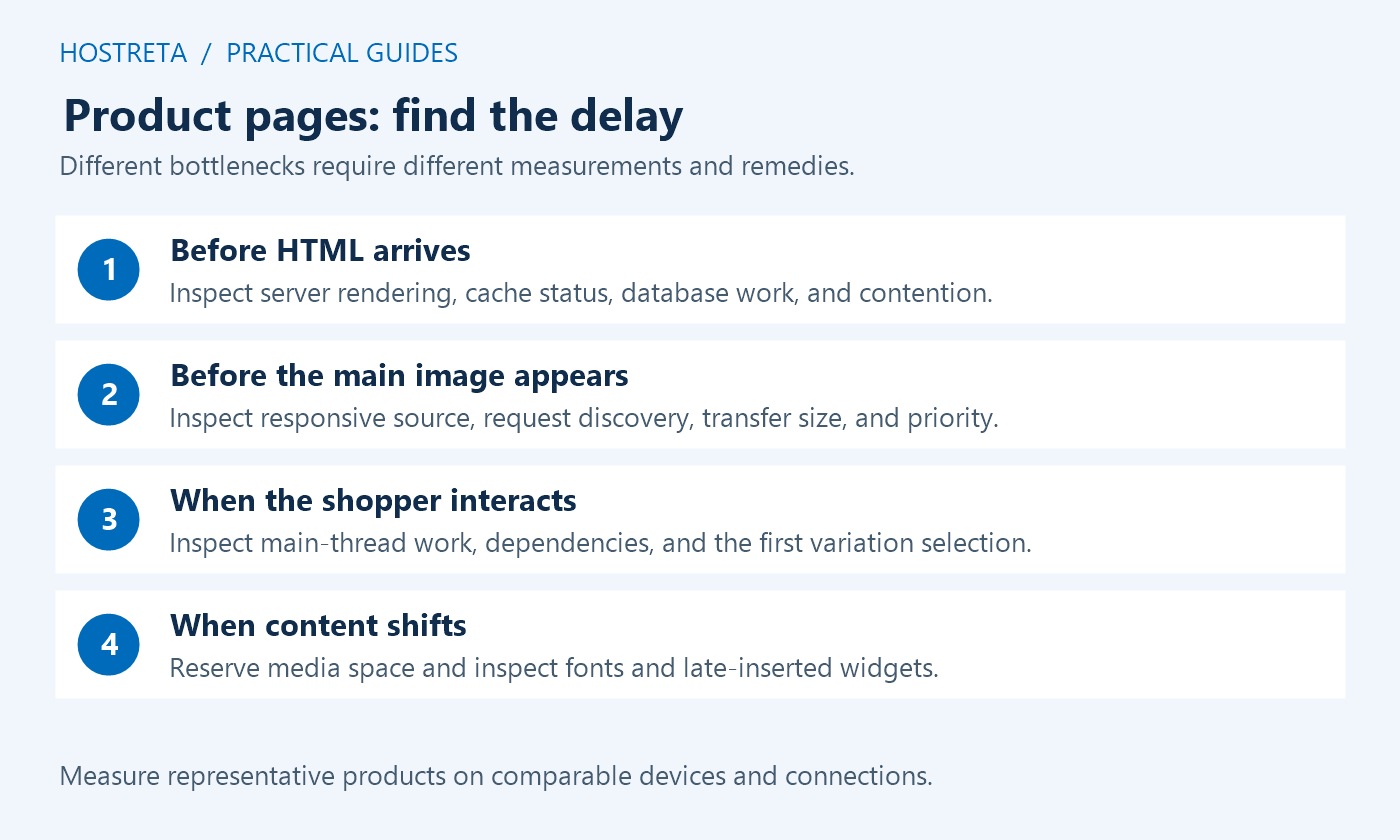
| Long wait before HTML arrives | Server rendering, cache status, resource contention | Comparable public requests and server timings |
| Image starts downloading late | Resource discovery, lazy loading, gallery initialisation | Waterfall and the actual LCP element |
| Large transfer with quick server response | Image dimensions, formats, duplicate media | Delivered files at the tested viewport |
| First tap feels unresponsive | Main-thread work and deferred dependencies | Interaction trace and working product controls |
| Price panel jumps as the page loads | Missing dimensions, fonts, late inserted widgets | Layout-shift trace and visual inspection |
| Old sale price remains visible | Cache invalidation and scheduled sale handling | Product, category, and campaign views agree |
Set budgets around the store’s actual shoppers and product needs. Record a target for image transfer size, critical request count, server response, and interaction responsiveness based on a representative mobile test. These are local engineering limits, not universal WooCommerce requirements. A detailed furniture gallery and a simple ebook cover may need different media budgets while sharing the same expectation of a usable purchase form.
Assign an owner to every optional widget added to product pages. Ask what customer question it answers, how much loading or interaction work it adds, and how it will be removed if it causes problems. A short review before adding a new popup, review carousel, or campaign pixel is cheaper than diagnosing several overlapping integrations during a sale.
Keep a comparison sheet that includes functional results beside speed results. Record the original state, proposed change, repeated measurements, device, and any limitations. If image compression saves bytes but makes a cover unreadable, it should fail acceptance. If script delay lowers the lab score’s blocking time but breaks the first selection, reverse it. The budget protects the shopper’s task, not a badge.
Check the measured LCP element and the initial viewport. If the main photo is the critical visible image, lazy loading can delay its discovery or request. Keep below-the-fold gallery media separate from that decision. Product pages should deliver the first useful view promptly while avoiding an unnecessary rush to download every optional asset.
No. Removing unused code can help, but the effect depends on what the extension actually loads or executes. Profile the page and test supported configuration changes. Some plugins provide essential purchasing features, and removing them may damage orders or product data. Keep a backup and use staging for conflict tests.
Start with the existing host, theme, and WooCommerce capabilities. A paid tool may solve a specific measured problem, but it can also duplicate an existing cache or script feature. Evaluate it against the baseline and acceptance checks before paying. No tool can guarantee a fixed speed score or a sales increase for every store.
If the bottleneck needs template or hosting changes, provide the evidence sheet to the responsible developer or host. A provider such as KAWEDMA offers hosting and website development; discuss your measured problem, staging access, testing requirements, and rollback responsibilities. Do not share customer records when a reproducible test product and anonymised timings are enough.
Use WooCommerce’s slow-site troubleshooting guide for the investigation sequence and retain the store’s own measurements. Recheck product pages after catalogue growth, major promotions, and template changes. The aim is a buying interface that stays fast, accurate, and understandable under the conditions your customers actually use.
Before changing product pages again, preserve the current accepted baseline. Repeat the same products, device settings, and account states so the next comparison is meaningful. Include a short note about new catalogue features or third-party widgets that arrived since the previous test. That record makes a later regression easier to identify and reverse without guessing which setting caused it.
We may earn a commission on purchases made through these links, at no extra cost to you.
Don’t miss the chance to participate in the biggest giveaway of this year.