HowTo

Emails Sent From WordPress: 7 Easy, Powerful Checks

A customer says they never got their order confirmation. A lead swears they filled in your contact form. You check your inbox and find nothing. Was the email never sent, or did it get lost on the way? Without logging, you’re guessing.
This guide shows how to track emails sent from WordPress: why they go missing, how to install an email log, how to send and read test emails, how to diagnose failures, and how to keep logs tidy and private.
WordPress uses wp_mail(), which normally relies on PHPMailer and the configured transport. Hosting and mailer configuration affect what happens next. Common issues include:
A supported authenticated SMTP or API mailer can improve the sending setup — see How to Set Up SMTP in WordPress So Emails Arrive. Logging shows you whether that fix is working.
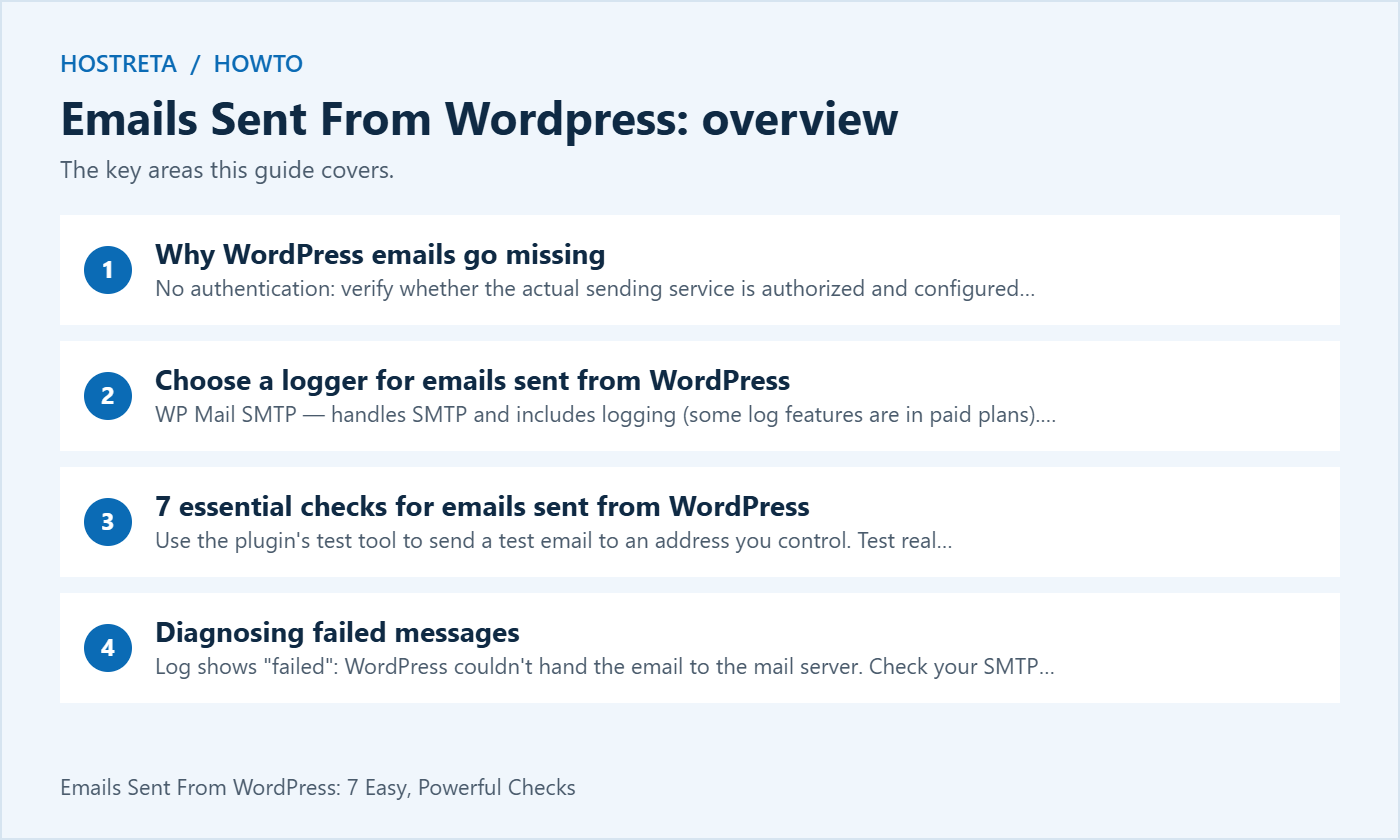
A log records the messages and events captured by that plugin. Check its scope and settings; messages sent through a separate external application may not appear. A success status is not proof of inbox delivery. Good options include:
Install one from Plugins → Add New, activate it, and turn on logging in its settings. If your SMTP plugin already logs, don’t add a second logging plugin.
Do this after every change: new form plugin, new theme, SMTP settings, DNS changes, or a host migration.
DNS details are explained in Email Deliverability: SPF, DKIM and DMARC in Plain English.
Email logs can contain personal data: names, email addresses, order details, and sometimes password reset links.
A fast, well-supported host makes every WordPress task smoother. Kawedma WordPress hosting and managed WordPress hosting powered by Rocket.net include staging sites for safe testing, while shared hosting from Hosting.com or Kawedma shared hosting suit smaller sites. Protect the site with an SSL certificate and automatic backups from CodeGuard.
Start with the event that should create a notification. A contact form, password reset and order update may use different settings even when they run on the same website. Establish which event failed, when it happened and which recipient should have received the message. Without that starting point, a successful generic test can distract from a broken form notification.
The next stage is the application’s attempt to prepare and send the message. A logger may capture this attempt, depending on its integration and settings. Then the configured transport processes the request, and an external provider or mail server may accept it. Receiving-server acceptance and inbox placement occur later. Keep these observations separate when reviewing emails sent from WordPress.
The official wp_mail documentation explicitly distinguishes successful processing from successful receipt. Use that distinction in support reports: describe the stage confirmed by the log rather than saying the customer must have received the email.
Keep the test small and repeatable. A contact form submission should contain an obvious test label and no confidential customer information. A store test should use the supported test workflow and avoid an unintended real charge. Emails sent from WordPress should be tested through the same notification path that matters to the business.
A mailer routes messages through a supported service. A logger captures information about sending attempts. One plugin may do both, or the website may use separate tools. Review the current setup before adding another plugin. Multiple plugins attempting to control delivery can complicate troubleshooting and create uncertainty about which configuration is active.
Check the selected plugin’s current documentation and the features available in your edition. Do not assume that a screenshot from another version applies to your interface. The WP Mail Logging directory page describes its logging purpose, while FluentSMTP’s email log documentation explains its own recorded events. Use the instructions for the tool installed on your site.
For emails sent from WordPress, record which plugin controls the transport and which records the evidence. If an external application sends messages independently, include its own logs in the investigation. Absence from the WordPress logger does not prove that no service sent any message using the domain.
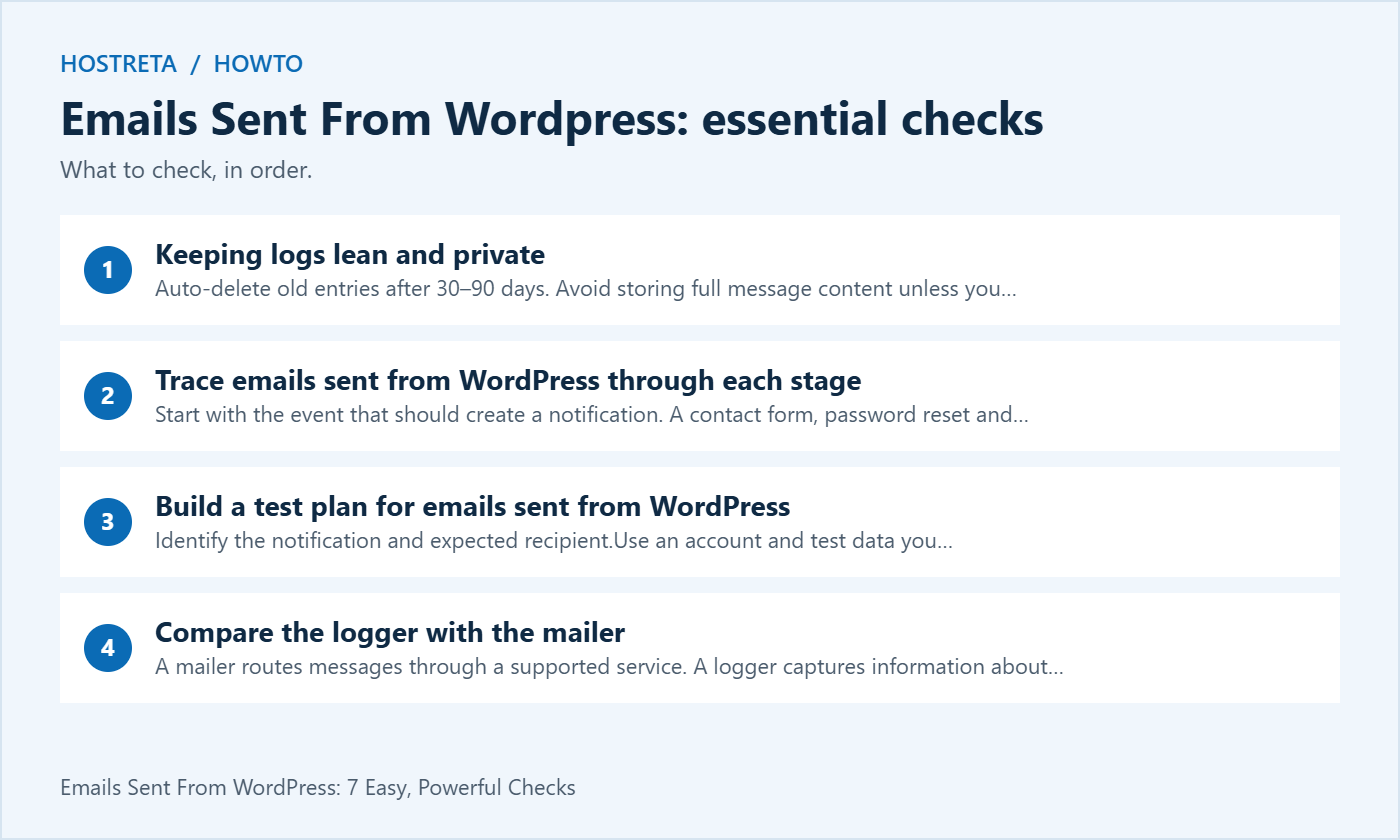
Open the settings for the form or application responsible for the message. Verify that notifications are enabled and the destination address is correct. Check any conditions that determine when the message should be generated. A form can save an entry successfully while a notification is disabled or directed to a different recipient.
Inspect the sender and reply behavior separately. The visible From address should use an identity supported by the delivery service. A reply address can direct responses to the appropriate person without impersonating a form visitor as the sender. When reviewing emails sent from WordPress, check both fields rather than treating a correct display name as complete configuration.
If you recently changed the site administrator address, do not assume every plugin notification changed with it. Some applications store their own recipients. Record the exact setting that controls each important message. This makes future changes easier and prevents a website-wide setting from being blamed for a plugin-specific problem.
A failed transport response can contain a useful reason, such as authentication failure, an unauthorized sender or a connection issue. Preserve the relevant error text and time. Follow the provider’s instructions for the configured method instead of trying random combinations of ports and encryption settings. A supported API integration and an SMTP connection have different troubleshooting steps.
Keep secrets out of screenshots and support messages. Do not publish API tokens, mailbox passwords or full debug logs without reviewing their contents. If a credential appears compromised, follow your account recovery and rotation process. Emails sent from WordPress can be diagnosed without exposing every setting to a public forum.
Check recent changes before making new ones. A hosting move, DNS edit, plugin update or disabled account can alter the sending path. Change one relevant component at a time and repeat the same controlled test. This helps establish whether the adjustment actually resolved the observed failure.
A local success status can mean only that the configured method processed the request. Look for provider-side events if they are available and confirm what those events actually represent. Delivery, deferral and rejection are different outcomes. Then inspect the recipient’s folders, rules and mailbox status using an account you control or information supplied by the recipient.
For emails sent from WordPress that reach one provider but not another, collect examples with their dates and exact response information. Do not assume a particular word in the subject caused the problem. Authentication, routing, reputation, recipient rules and service policies can all need review. Use evidence to narrow the investigation.
If a message arrived, inspect its headers through the receiving application’s supported view. Confirm which service sent it and review authentication results in context. A pass result for one check does not guarantee inbox placement or prove that every notification uses the same path. Test the important flows independently.
First confirm the time range and filters in the logger. Check the site’s timezone and the account used for the test. A narrow search or a different clock can make an existing attempt difficult to find. Then confirm that logging was enabled before the event, not afterward.
If no entry exists, inspect whether the application triggered the notification and whether it uses the mechanism captured by the logger. Some integrations send through their own external service. Emails sent from WordPress may therefore need more than one source of evidence. Trace the application’s documented notification route rather than installing several loggers in the hope that one will reveal everything.
Use a staging environment for broader plugin-conflict investigation where practical. Keep a backup and a clear reproduction case. Avoid disabling unrelated production features during customer activity simply to explore a theory. Start with the narrowest setting or integration that the evidence identifies.
Logs can contain names, addresses, order information and links that grant account access. Store only what is necessary for the investigation and routine operations. If the logger allows content capture to be disabled, consider whether metadata and provider responses are enough. A larger archive is not automatically a better diagnostic system.
Choose retention according to the business purpose and applicable organizational requirements. A fixed period copied from a tutorial may not fit the site. Document the reason, the access permissions and the cleanup process. Review whether backups and exports also contain the captured messages.
When sharing an example, redact personal details and tokens while preserving the information required to understand the error. Do not forward password reset messages or customer order contents into a public support thread. Emails sent from WordPress deserve the same care in logs that they receive in the user’s mailbox.
Before using a resend button, identify the message type and recipient. An old password reset link may be expired or inappropriate to resend. An order notification may confuse a customer or duplicate an operational action. A fresh controlled test is often clearer than replaying an old production message.
If a resend is necessary, confirm the recipient, current content and business purpose. Record that the message is a retry so the team can distinguish it from the original event. Emails sent from WordPress should not become a stream of repeated notifications while administrators troubleshoot.
Do not resend a whole failed queue without understanding the cause and the provider’s limits. Resolve the sending problem, test a small sample and follow the supported retry process. Monitor the result before expanding the recovery action. This keeps diagnosis separate from broad customer communication.
For each important flow, record the trigger, expected recipient, sender identity, transport and evidence of receipt. Include the date and the person who performed the test. A simple record helps the next administrator understand what a previous green result actually covered.
Repeat the relevant tests after changes that affect the path, such as a mailer reconfiguration, domain migration or form replacement. Do not run every test after every minor text edit. Focus verification on changes that can alter emails sent from WordPress, and keep the results comparable.
If the business relies on order or support notifications, define how a failure will be noticed and who will investigate it. A logger that nobody reviews may help after a complaint but does not establish a response process. Keep the operational owner and support route with the website documentation.
If you need to evaluate the website and mailbox services behind emails sent from WordPress, visit KAWEDMA. Its site lists WordPress hosting and business email options. Ask which plan supports your application’s sending method, expected volume and support needs. Confirm those details rather than assuming that a hosting or mailbox subscription guarantees inbox delivery.
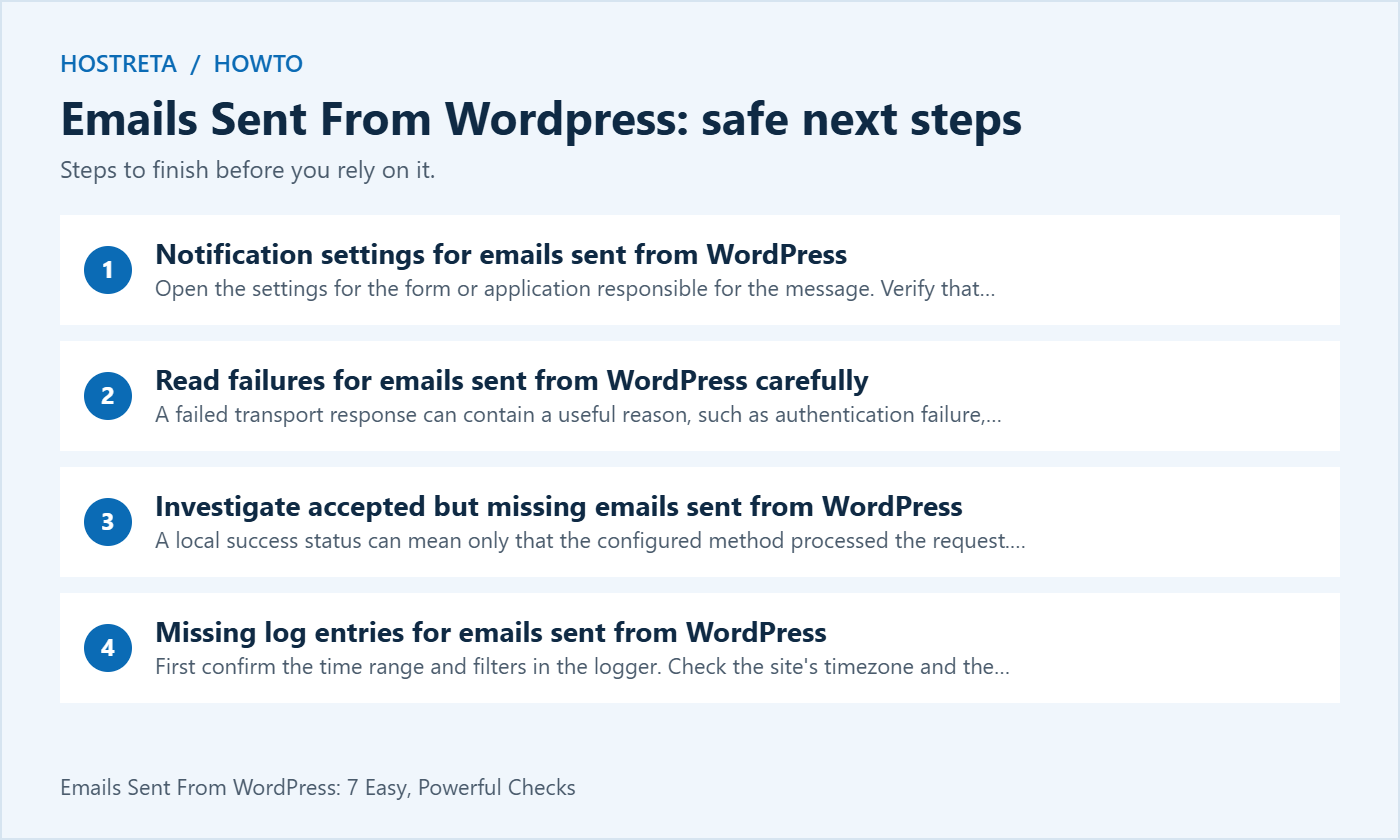
No. Identify what that status means in your logger and transport. A provider accepting a request and a person finding the message in an inbox are different observations. Use provider events and a controlled recipient check to verify the next stage.
Review the existing delivery setup first. More plugins do not automatically provide better evidence and can make configuration harder to understand. Use the supported combination for your site and document which component handles sending.
Choose retention deliberately. Full messages can expose customer details and account links, and old logs increase the amount of information requiring protection. Keep what you need for a defined purpose and follow the site’s data management process.
Before a new administrator takes over, show them one successful controlled test and the matching evidence. Explain which tool captures the attempt and where the delivery service reports later events. Emails sent from WordPress are easier to maintain when the team shares the same definition of success.
Keep a short list of the notifications that matter most, such as a customer order, a contact request and an account reset. Document who owns each setting and how to reach support. Do not include passwords or reset links in the handover notes. Use the organization’s approved credential system for account access.
If a future test fails, preserve the evidence before making changes. Compare the last working configuration with the current one and start with the component that changed. Emails sent from WordPress should be investigated through a clear sequence, with each result recorded. This avoids repeating the same unsuccessful steps and gives the next person a reliable starting point.
We may earn a commission on purchases made through these links, at no extra cost to you.
Don’t miss the chance to participate in the biggest giveaway of this year.