Dev & Security

How to Test Your Checkout End to End Before Peak Season
Every year, stores discover on their busiest day that a payment method stopped working, a coupon broke the total, or order emails stopped arriving. All of it is avoidable. The only reliable way to know your checkout works is to buy from your own store, properly, before customers do. That is what checkout testing means: placing real and test orders through every path a customer might take, and checking every result.
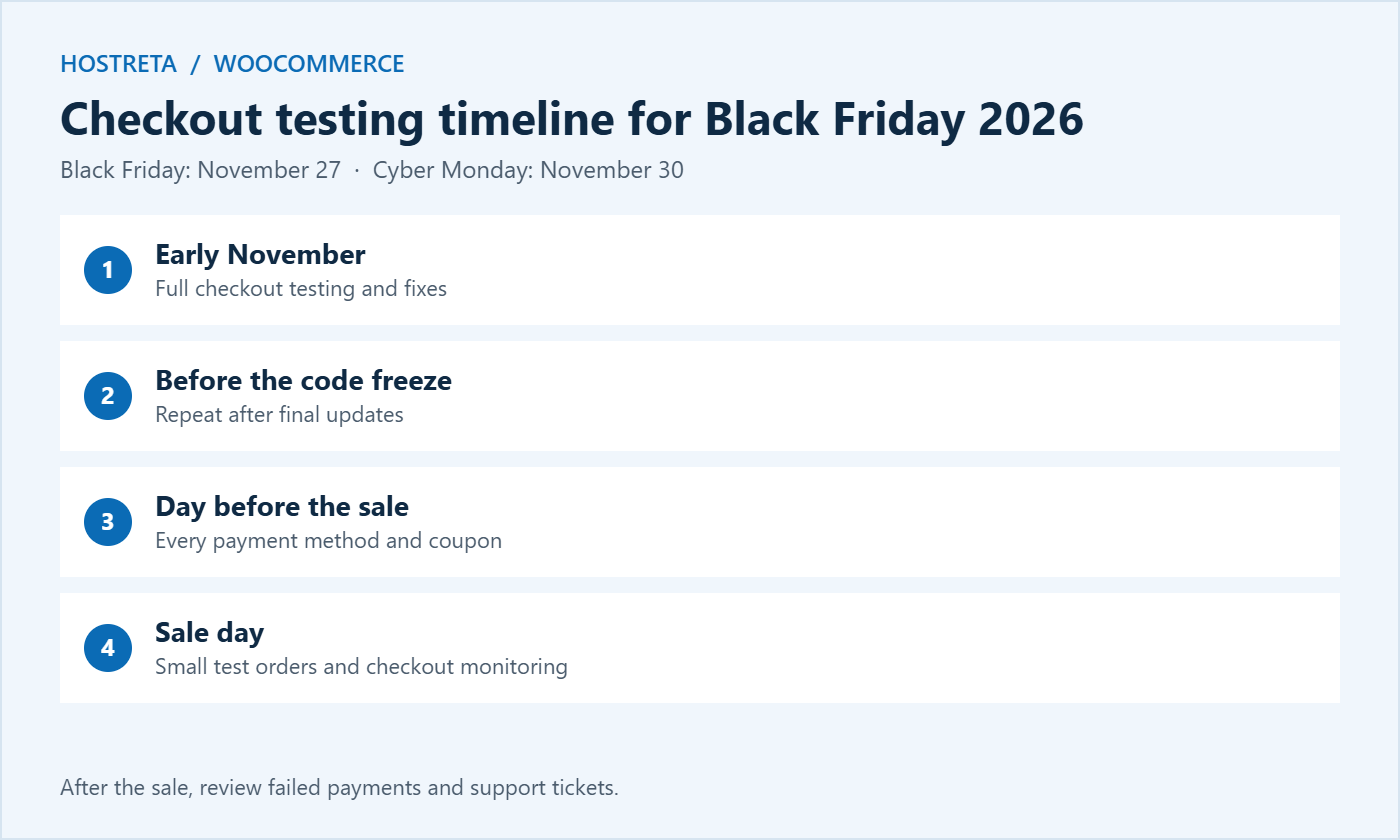
With Black Friday on November 27, 2026 and Cyber Monday on November 30, the time to run checkout testing is now, not the night before. This guide shows how to test your checkout end to end: why it matters, what changed in WooCommerce checkout recently, building a test plan, testing payments and totals, checking devices and browsers, accessibility, performance under load, and fixing issues safely.
Regular checkout testing turns these hidden risks into a short list of known, fixed issues. It is one of the highest-value tasks you can do before any big promotion.
Since WooCommerce 8.3, new stores use the Cart and Checkout blocks by default instead of the older shortcode-based pages. Many existing stores have switched too. The block checkout looks and behaves differently, and some older plugins that add fields or change totals don’t support it fully. Orders are also stored in dedicated tables through High-Performance Order Storage (HPOS). Both changes make checkout testing essential after every update: confirm which checkout your store uses, and test every extension that touches the cart or order data.
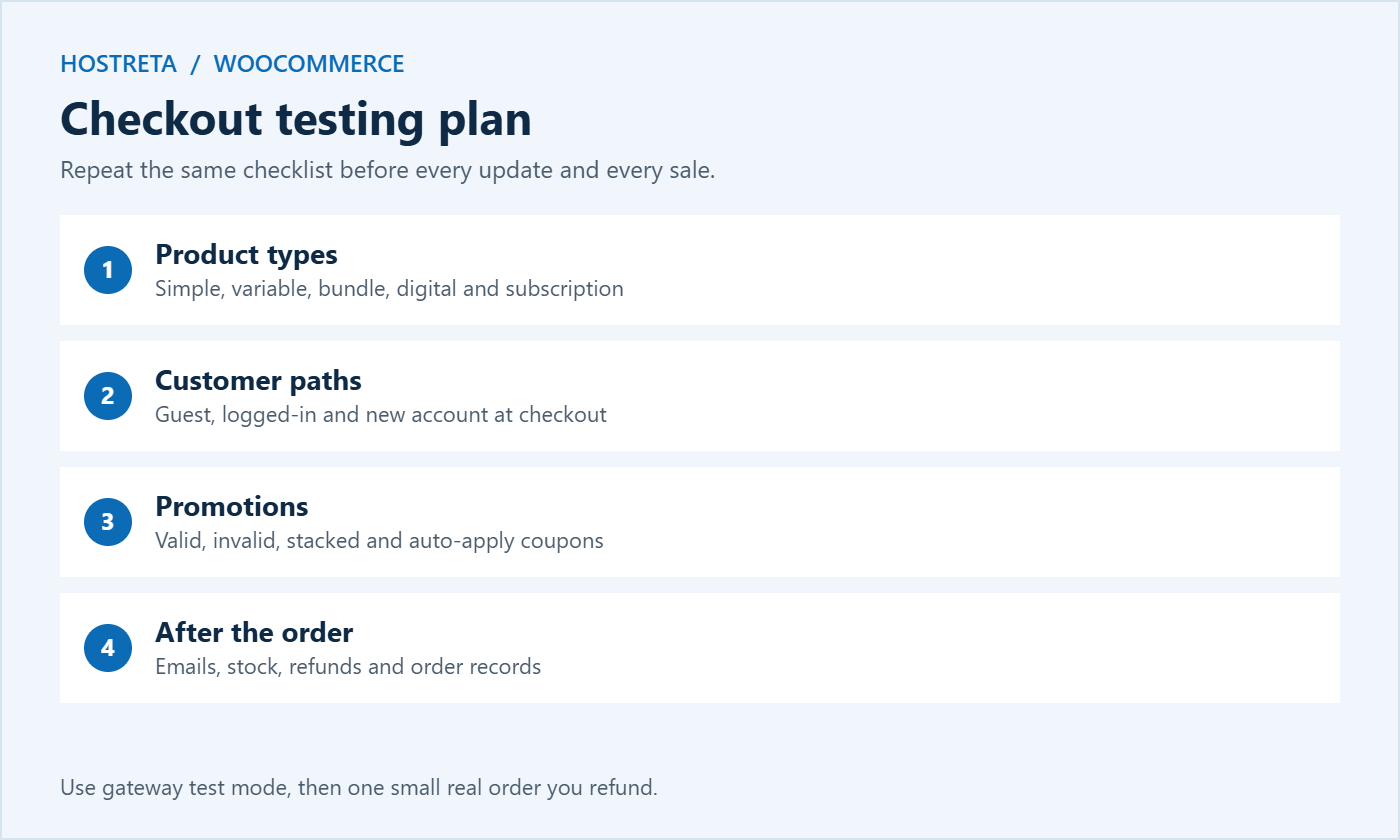
Write a short checklist you can repeat. Cover:
Use your gateway’s test mode where possible, or place small real orders and refund them. Keep the checklist in a shared document so anyone on your team can run checkout testing the same way every time.
Ideally, someone who didn’t build the store. Fresh eyes notice confusing labels, missing information, and steps that the owner has stopped seeing. Ask a friend, a family member, or a team member to buy something while you watch quietly and take notes. Their hesitations are your to-do list.
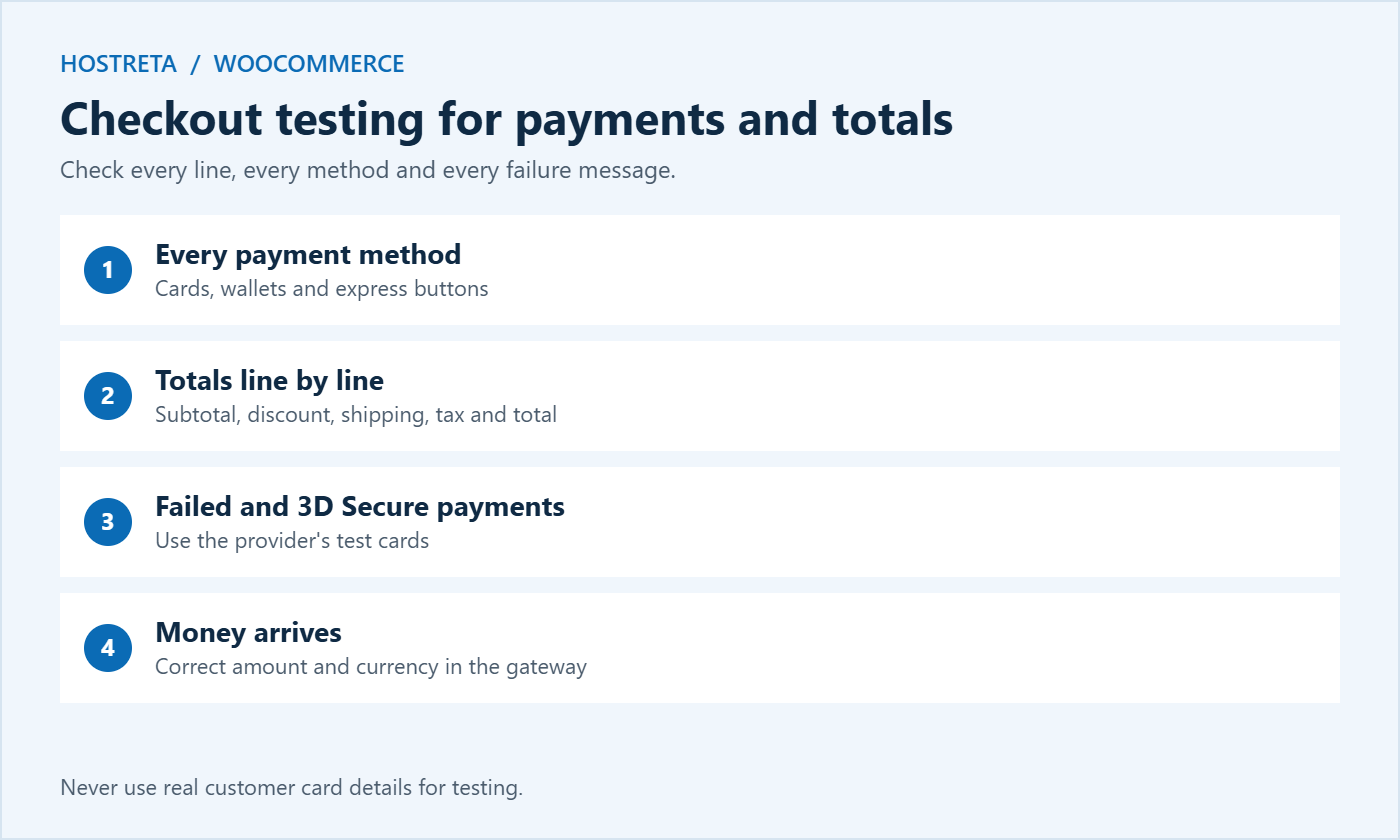
Payment providers publish test card numbers and scenarios; Stripe’s testing documentation is a good example, and PayPal offers a sandbox for the same purpose. Never use real customer card details for checkout testing.
Tax and shipping errors are easy to miss and expensive to fix after the sale. Place test orders to at least one address in each shipping zone you serve. Confirm the right shipping methods appear, prices match your settings, and tax is calculated correctly, including on shipping where required. If you sell internationally, check that currency, duties messages, and address formats work for each country. Shipping tools are compared in WooCommerce Shipping Plugins Compared: 7 Essential Checks.
Holiday promotions add risk because coupons and scheduled sale prices often interact. During checkout testing, try:
Coupon tools are compared in WooCommerce Coupon Plugins: 7 Essential Checks.
Device testing tips are covered in Test Your Website on Mobile: 7 Essential Checks.
An accessible checkout is easier for everyone and is increasingly a legal requirement; the European Accessibility Act has applied to many online stores selling in the EU since June 2025. Include these checks:
Checkout is the main target for fraud. While you run checkout testing, confirm your protections work without blocking real customers:
A checkout that works for one shopper can still fail for a hundred at once. Cart and checkout pages can’t be cached like normal pages, so every buyer uses real server resources. After functional checkout testing, run a controlled load test — see Load Test Your Store: 7 Essential Checks for a Safe Rehearsal — and check your limits in PHP Workers Explained.
If checkout slows down under modest traffic, it may be time for more resources. Kawedma WordPress hosting, managed WordPress hosting powered by Rocket.net, a Kawedma VPS server, or a managed VPS from Hosting.com all give WooCommerce more room. The decision process is explained in Should You Upgrade Your Hosting Plan Before Black Friday?
Before you change anything during the sale, keep a recent backup ready — see Store Backup and Rollback Plan for Peak Sales Days.
Checkout testing is most useful when you can compare one round with the next. Keep a simple spreadsheet or document with a row for every test and these columns:
After two or three rounds, you will see patterns: the same plugin causing problems after updates, a payment method that fails on one browser, or emails that often land in spam. That record also makes it much faster to brief a developer or your host when something breaks.
Manual checkout testing catches the most issues, but automation helps between sales. Developers can use tools such as Playwright or Cypress to run a scripted purchase on staging after every update. Simpler options include uptime monitors that load the checkout page and alert you if it returns an error, and synthetic transaction checks offered by some monitoring services. Automation should support, not replace, a human walking through the purchase before every major promotion.
Checkout testing isn’t only about finding errors. It is also the best moment to remove friction that quietly costs sales. While you test, ask yourself:
Fix the easy wins before the sale, and list the larger improvements for January. Abandoned cart recovery can also win back shoppers who leave — see Best Abandoned Cart Plugins for WooCommerce Compared.
The customer journey doesn’t end when payment succeeds. Include these steps in your checkout testing:
Branded, authenticated email improves delivery rates. If your store still sends from a free address, a business email plan from Kawedma or Google Workspace gives you a professional sender with proper SPF, DKIM, and DMARC — see Email Deliverability: SPF, DKIM and DMARC in Plain English.
After every plugin, theme, or WooCommerce update that touches the store, after any change to payments, shipping, or tax, and always before a major sale.
Yes. Most gateways have a test or sandbox mode with test card numbers. For a final check, place one small real order and refund it.
Test orders can appear in reports. Mark them clearly, refund or cancel them, and filter them out when reviewing results.
Start with your most common purchase on mobile, using your most popular payment method. That single path represents most of your revenue.
Stores that sell across borders have extra paths to check. If you offer several currencies, place a test order in each one and confirm the amount charged matches the amount shown. Check that prices round sensibly, that the currency switcher remembers the shopper’s choice through to payment, and that refunds return the right amount in the right currency.
Address formats vary between countries, so test postcodes, states or provinces, and phone number fields for your main markets. If you translate your store, run checkout testing in each language, because translated labels and error messages are often missed — see How to Make a WordPress Website Multilingual. Finally, confirm that local payment methods popular in each market, such as iDEAL, Bancontact, or Klarna, appear for the right countries and complete successfully.
When your promotion finishes, run one more quick round of checkout testing. Confirm that sale prices have ended, temporary coupons no longer work, and banners have been removed. Shoppers who arrive after the sale should see normal prices and a working checkout, not an expired offer that fails at the payment step.
A focused round covering the main products, payment methods, and devices takes about one to two hours for a typical small store. Larger catalogues with many shipping zones or payment options may need half a day. It is time well spent compared with the cost of a broken checkout during your biggest sales weekend.
We may earn a commission on purchases made through these links, at no extra cost to you.
Don’t miss the chance to participate in the biggest giveaway of this year.