Dev & Security

How to Back Up a WooCommerce Store Without Losing Orders
Restoring a backup is supposed to save you. On a store, it can also destroy a day’s orders — because the backup you’re restoring was taken before those orders existed. Knowing how to set up a WooCommerce backup properly, and how to restore one safely, is as important as having backups at all.
This guide is updated for 2026 and focuses on the practical side: why a WooCommerce backup is different from a normal site backup, what to include now that orders live in HPOS tables, choosing frequency, real-time versus scheduled backups, tools and storage, safe restore strategies, and how to test before Black Friday on November 27, 2026. For the peak-season plan around code freezes and incident response, see the companion guide Store Backup and Rollback Plan for Peak Sales Days.
A blog can happily restore yesterday’s copy. A store usually can’t. That’s why a WooCommerce backup strategy starts with the database and treats orders as the most precious data you hold.
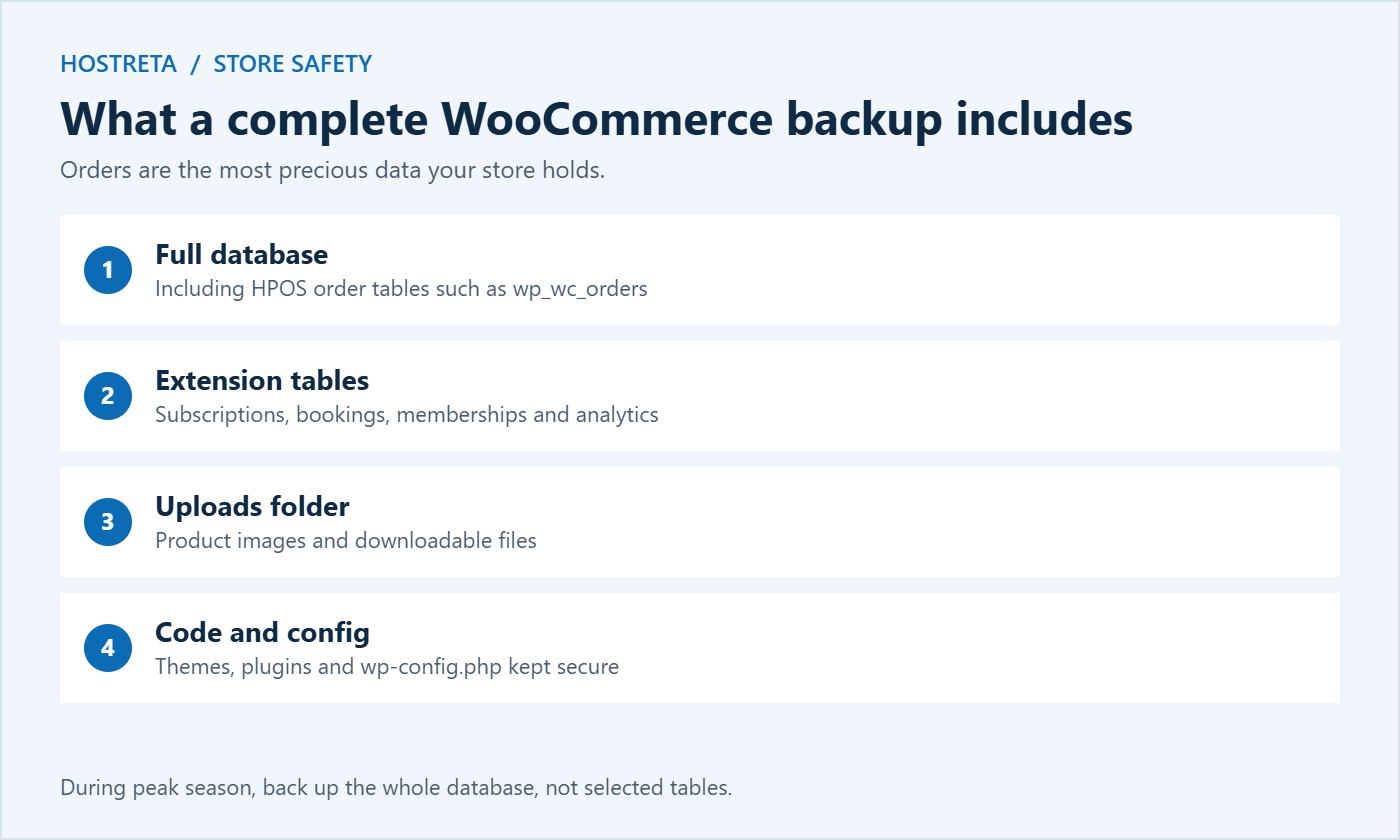
wp_wc_orders, which have been the default for new stores since WooCommerce 8.2.wp-config.php, stored securely because they contain credentials.Partial backups that only copy posts and postmeta are no longer enough for most stores. During peak season, back up the entire database rather than a hand-picked list of tables. The general principles are covered in the official WordPress backup documentation.
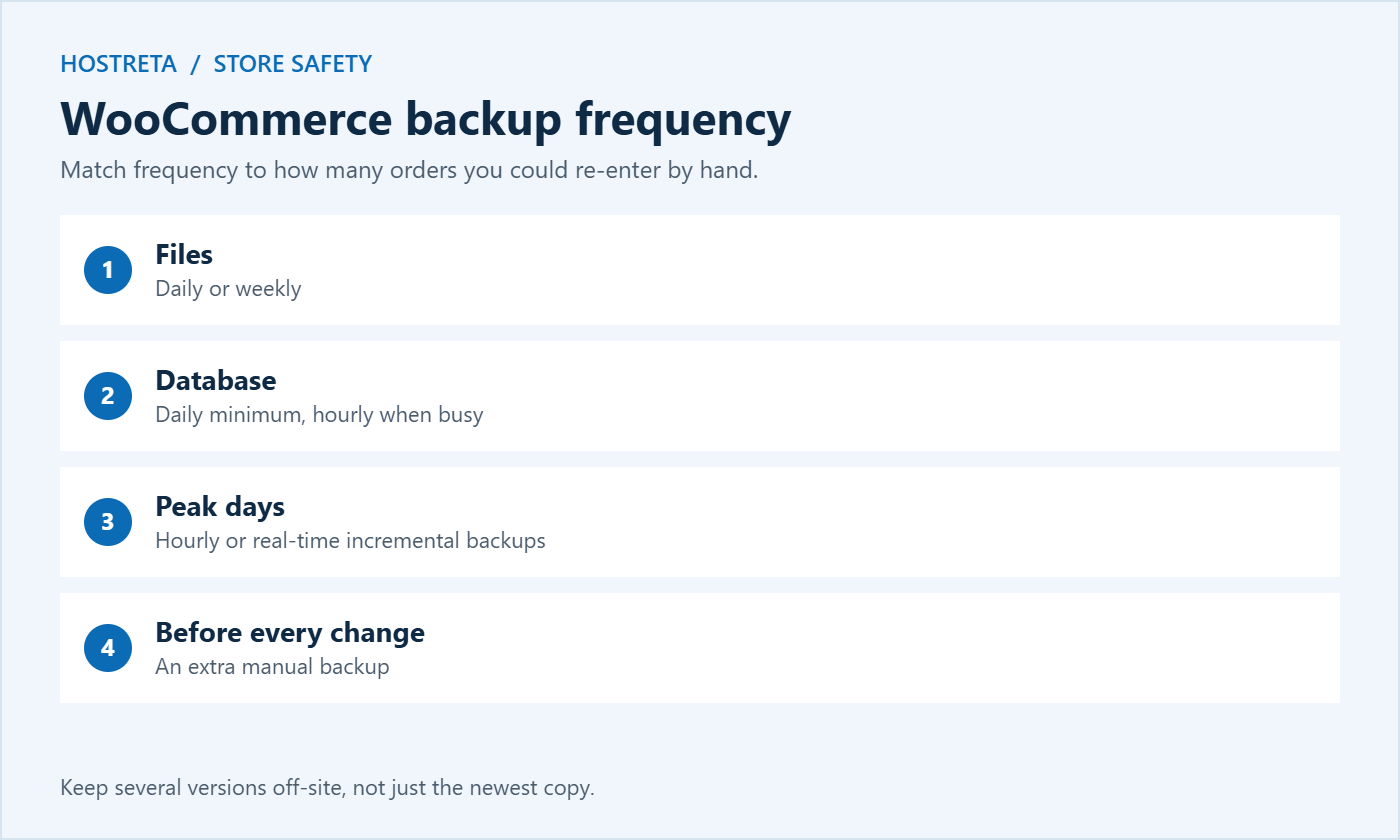
Ask yourself how many orders you could afford to re-enter by hand. A store with five orders a day might accept a daily backup plus order exports. A store with fifty orders an hour needs real-time or at least hourly database backups, because even a short gap means dozens of orders to recover. Write down that number — your recovery point objective — and choose tools that meet it.
Scheduled backups run at fixed times. Simple and cheap, but anything after the last run is at risk.
Real-time (incremental) backups capture changes as they happen, so orders are saved within moments. Services such as Jetpack VaultPress Backup and several managed hosts offer real-time backups for stores, usually as a paid tier. Incremental backups also put less load on the server because they only copy what changed.
For a store taking more than a handful of orders a day, real-time or hourly database backups are worth the cost. Compare tools in Best Backup Plugins for WordPress Compared.
Hosting that includes backups and staging simplifies everything. Kawedma WordPress hosting and managed WordPress hosting powered by Rocket.net include automatic backups, while a Kawedma VPS server or managed VPS gives larger stores room for frequent database snapshots.
Never restore a full database over a live store without thinking. Instead:
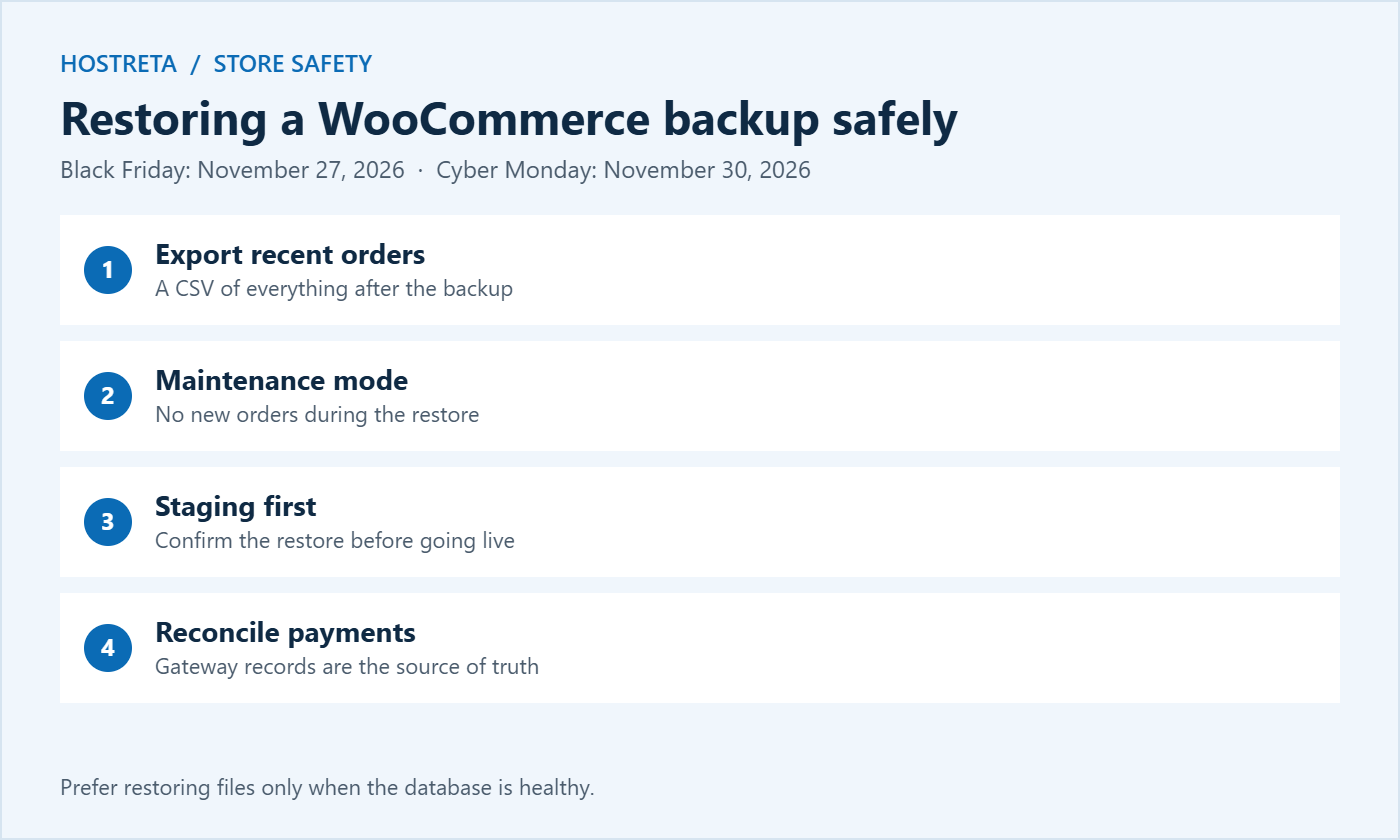
This setup takes an hour or two and protects you for years. Review it every quarter and before every big promotion.
A WooCommerce backup contains customer names, addresses, emails, and order history, so it must be protected like the live store. Encrypt archives where your tool allows it, restrict access to the storage account, and never leave backup files in a public folder on your server where they could be downloaded. Delete old copies on a schedule that matches your privacy policy. These steps also help with data protection rules such as GDPR — see Privacy Policy and Cookie Consent.
If you ever have to restore the database, orders placed after the WooCommerce backup will be missing from WordPress. Recovering them is manageable if you prepared:
The shorter the gap between your last backup and the incident, the less of this work you’ll face — which is the strongest argument for real-time or hourly database backups on busy stores.
The best backup is the one you never need. Reduce the chance of a restore with good security and careful change management: keep software updated, use strong passwords and two-factor authentication, scan for malware with a tool such as SiteLock, secure checkout with an SSL certificate, and test updates on staging. Monitor uptime with 360 Monitoring so problems are caught early. More security steps are in WordPress Security: 7 Essential Checks for a Safer Site and PCI Compliance Basics for Small Online Stores.
Most stores combine two or three of these: host snapshots for quick restores, an independent off-site WooCommerce backup for serious incidents, and daily order exports for peace of mind.
As a store grows, backups get bigger and slower. A database with hundreds of thousands of orders can take a long time to export, and a full backup running at the wrong moment can slow checkout. Larger stores should:
Server-level snapshots are especially useful before major upgrades, such as a new WooCommerce version or a PHP upgrade — see Upgrade PHP Version: 7 Essential Checks. Dedicated resources on a cloud hosting plan or an unmanaged VPS give you full control over snapshot schedules.
If you look after several WooCommerce stores, standardise the setup: one backup tool, the same schedules, separate storage folders per client, and a shared document listing restore steps and contacts for each store. Reseller plans such as Kawedma reseller hosting or reseller hosting from Hosting.com keep each client isolated, which makes backups and restores simpler and safer.
Back up the database at least daily, and hourly or in real time during busy periods. Files can be backed up daily or weekly.
Restoring the database replaces it with the older copy, so orders placed after the backup disappear from WordPress. Export them first and use your gateway records to recover them.
It’s a good start, but keep at least one independent, off-site WooCommerce backup that you control.
Full backups of large databases can. Schedule them for quiet hours or use incremental backups, which copy only changes.
Yes. A quick manual WooCommerce backup before updates gives you an easy way back if something breaks, especially during the busy season.
Keep at least one copy off your hosting server, in cloud storage you control. Ideally keep a second copy with your host for fast restores.
Keep hourly copies for a few days, daily copies for at least 30 days, and monthly copies for several months. Problems aren’t always noticed immediately.
Most tools restore whole databases, not individual orders. Use your order exports and gateway records to recreate single orders instead.
No special tool is needed, but make sure your backup includes the full database. Tools that let you pick tables must include the WooCommerce order tables.
A WooCommerce backup is not just a technical box to tick. It is the safety net that protects your customers’ orders, your revenue, and your reputation when something goes wrong. Set up automatic, frequent, off-site backups that include every order table. Export recent orders daily during busy periods, and practise restoring on staging until you can do it calmly and quickly.
Do this before Black Friday and the busiest days of the year will be far less stressful, because you will know that whatever happens, every paid order can be recovered and every customer can be looked after properly. Review the setup again in January, adjust schedules to your new order volume, and keep testing every few months so the plan stays reliable as your store grows.
A good plugin is a strong start, but it runs inside WordPress, so it can fail if the site is broken or hacked. Pair it with host snapshots or an external service that works independently. Two independent copies, stored in different places, give you real protection rather than a single point of failure. Check both regularly so you know each one is actually working.
Start today: check when your last backup ran, confirm where it is stored, and schedule a test restore on staging this week before the holiday rush begins in earnest.
Every paid order deserves to be safe, whatever happens to your server on the busiest day of the year.
We may earn a commission on purchases made through these links, at no extra cost to you.
Don’t miss the chance to participate in the biggest giveaway of this year.