Dev & Security

How to Add reCAPTCHA to WooCommerce Checkout
How to Add reCAPTCHA to WooCommerce Checkout

Checkout is the one page you never want to add friction to — and also the page bots love most. Automated scripts use it to test stolen cards, create fake accounts, and hammer your server. A well-chosen challenge such as reCAPTCHA or Cloudflare Turnstile stops them while staying invisible to real customers.

This guide is updated for the big reCAPTCHA changes of 2025 and 2026, when Google moved every key to Google Cloud and introduced a much smaller free tier. It explains why checkout bots are a problem, compares reCAPTCHA v2, v3, Turnstile, and hCaptcha, covers the new pricing, shows how to add a challenge with a plugin, and explains testing and monitoring before Black Friday on November 27, 2026.

Why checkout bots are a problem

  • Card testing: hundreds of tiny failed payments, each costing a gateway fee — see Card Testing: 7 Essential Checks for a Safe WooCommerce Store.
  • Fake accounts used to abuse first-order discounts.
  • Server load: checkout requests can’t be cached, so each one consumes a PHP worker — see PHP Workers Explained.
  • Dirty data in orders and customer reports.
  • Risk to your payment account: high decline rates can trigger reviews or restrictions from your payment provider.

Bots don’t take holidays. They often increase activity during busy sales, when stores are distracted and extra traffic hides their requests.

What changed with reCAPTCHA in 2025 and 2026

Google migrated all classic reCAPTCHA keys to Google Cloud projects by the end of 2025. Keys are now managed in the Google Cloud console, and pricing follows a tiered model:

  • Essentials (free): up to 10,000 assessments per month. Beyond that, requests return errors unless billing is enabled.
  • Premium: enabled automatically when you add billing. Usage from 10,001 to 100,000 assessments a month costs a flat fee (currently $8), with per-assessment pricing above that.
  • Enterprise: contract pricing with advanced fraud features.

Importantly, the free allowance is shared across your Google Cloud organisation, not per site. Every page that loads reCAPTCHA can count as an assessment, so a busy store — or an agency running several sites — can reach the limit quickly. Check the current details in Google’s reCAPTCHA billing documentation and in your Cloud console before the sale.
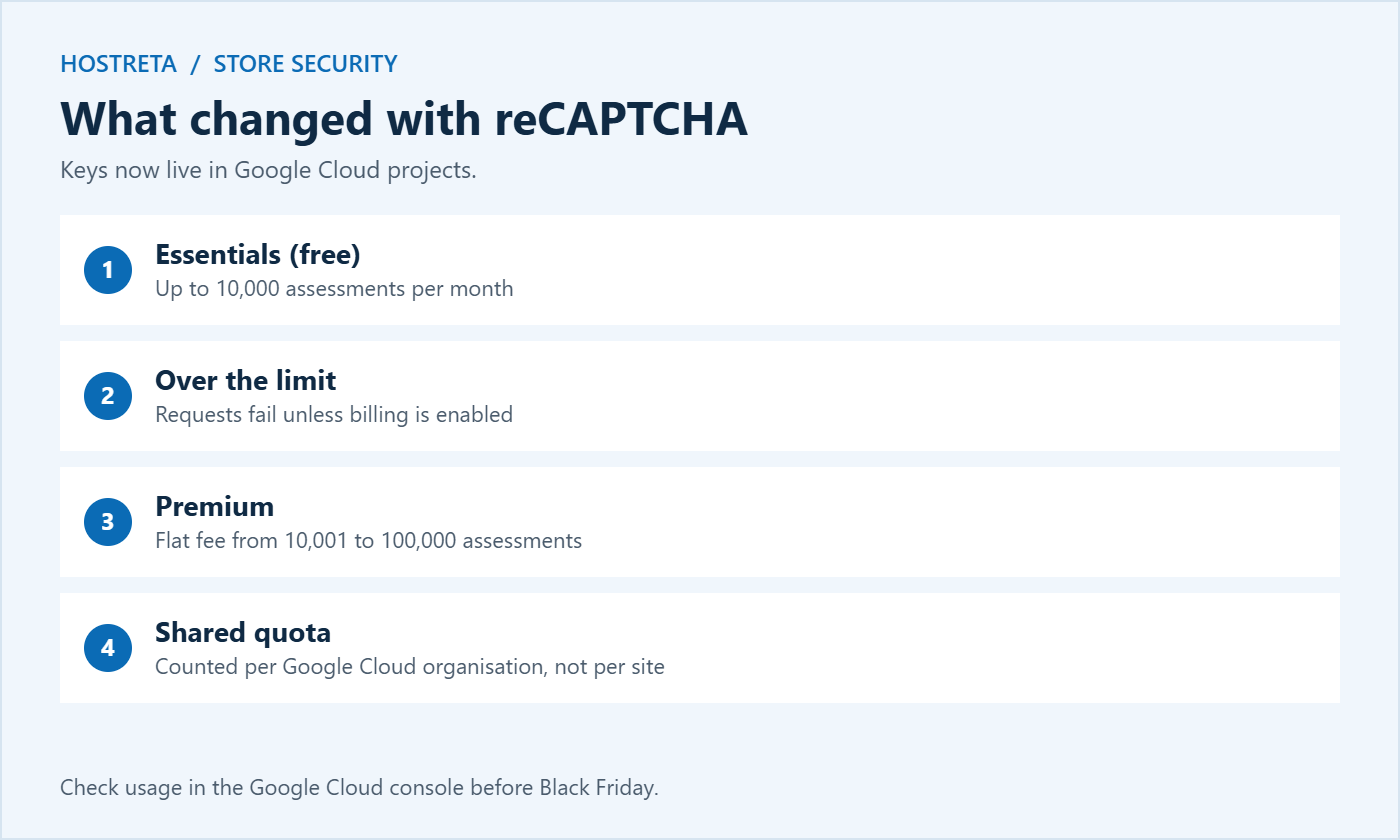
reCAPTCHA changes: Google Cloud migration and 10,000 free assessments

reCAPTCHA v2 vs v3 vs Turnstile vs hCaptcha

  • reCAPTCHA v2: the “I’m not a robot” checkbox. Clear to users, but adds a step and sometimes shows image puzzles.
  • reCAPTCHA v3: invisible, scoring each visitor from 0 to 1. No friction, but you must choose a score threshold — too strict and real customers get blocked.
  • Cloudflare Turnstile: free, privacy-friendly, and usually invisible. Increasingly popular as a reCAPTCHA replacement, especially since Google’s free tier shrank.
  • hCaptcha: another privacy-focused alternative with a generous free tier and a similar user experience to reCAPTCHA v2.

For checkout specifically, invisible options (reCAPTCHA v3 or Turnstile) are usually the right trade-off. Note that these services load third-party scripts, which may need mentioning in your privacy policy — see Privacy Policy and Cookie Consent: What Your Site Needs.

Which should you choose in 2026?

If your store already uses reCAPTCHA and stays well under 10,000 assessments a month, keeping it is fine. If you have more traffic, don’t want to set up Google Cloud billing, or prefer a privacy-friendly option, Turnstile is a strong default. hCaptcha suits stores that want a visible challenge with fewer Google dependencies. Whatever you pick, use only one service across the site.

Adding reCAPTCHA or Turnstile with a plugin

  1. Get your keys from the Google Cloud console for reCAPTCHA, or the Cloudflare dashboard for Turnstile.
  2. Install a plugin that supports WooCommerce forms — options include Advanced Google reCAPTCHA, Simple Cloudflare Turnstile, or the CAPTCHA features in your security suite.
  3. Paste the site key and secret key into the plugin settings.
  4. Choose where it applies: checkout, login, registration, and lost password are the valuable ones.
  5. Set the score threshold if using reCAPTCHA v3 — start permissive (around 0.3) and tighten only if bots get through.
  6. Load scripts only where needed to save assessments and keep pages fast.
  7. Save and clear caches.

Avoid running two CAPTCHA plugins at once — they conflict and can block legitimate customers. Also check that the plugin supports the block-based Checkout, which is the default for new WooCommerce stores.
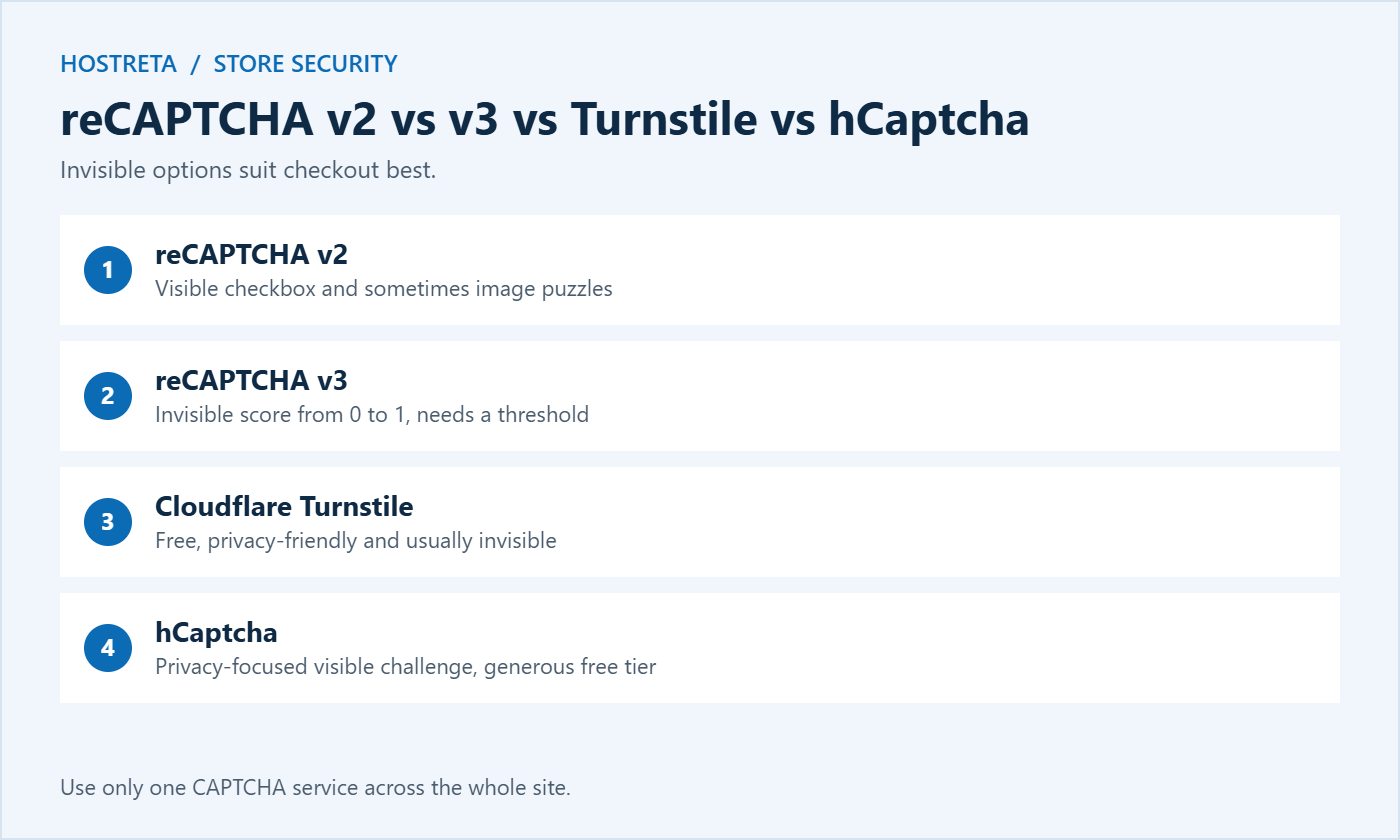
Comparing reCAPTCHA v2, v3, Cloudflare Turnstile and hCaptcha

Testing reCAPTCHA without hurting conversions

  • Place a real test order in a private window, logged out — see How to Test Your Checkout End to End Before Peak Season.
  • Test on a phone over mobile data, where challenges are most disruptive.
  • Test with a VPN to simulate a visitor whose IP looks unusual. A VPN such as NordVPN lets you check how the challenge behaves for visitors from other countries.
  • Test express payment buttons such as Apple Pay and Google Pay, which can bypass or conflict with some CAPTCHA setups.
  • Watch your conversion rate for a few days after enabling it.
  • Re-check checkout load time so the extra script hasn’t slowed the page noticeably.
  • Have a plan to disable it quickly if something goes wrong during a sale.

Monitoring blocked attempts

  • Review the reCAPTCHA (Google Cloud) or Turnstile dashboard for traffic, challenge rates, and monthly assessment counts.
  • Watch your gateway’s decline rate — a drop after enabling is a good sign.
  • Check your security plugin or firewall log for blocked requests.
  • Watch for customer complaints about being unable to check out, and loosen the threshold if needed.
  • Set a reminder to check usage mid-month during November so you don’t hit the free limit on sale day.

Layered protection beyond reCAPTCHA

A CAPTCHA is one layer, not a complete defence. Combine it with:

Good hosting matters too, because bots consume resources. Kawedma WordPress hosting and managed WordPress hosting powered by Rocket.net include security layers that block much of this traffic before it reaches WordPress.
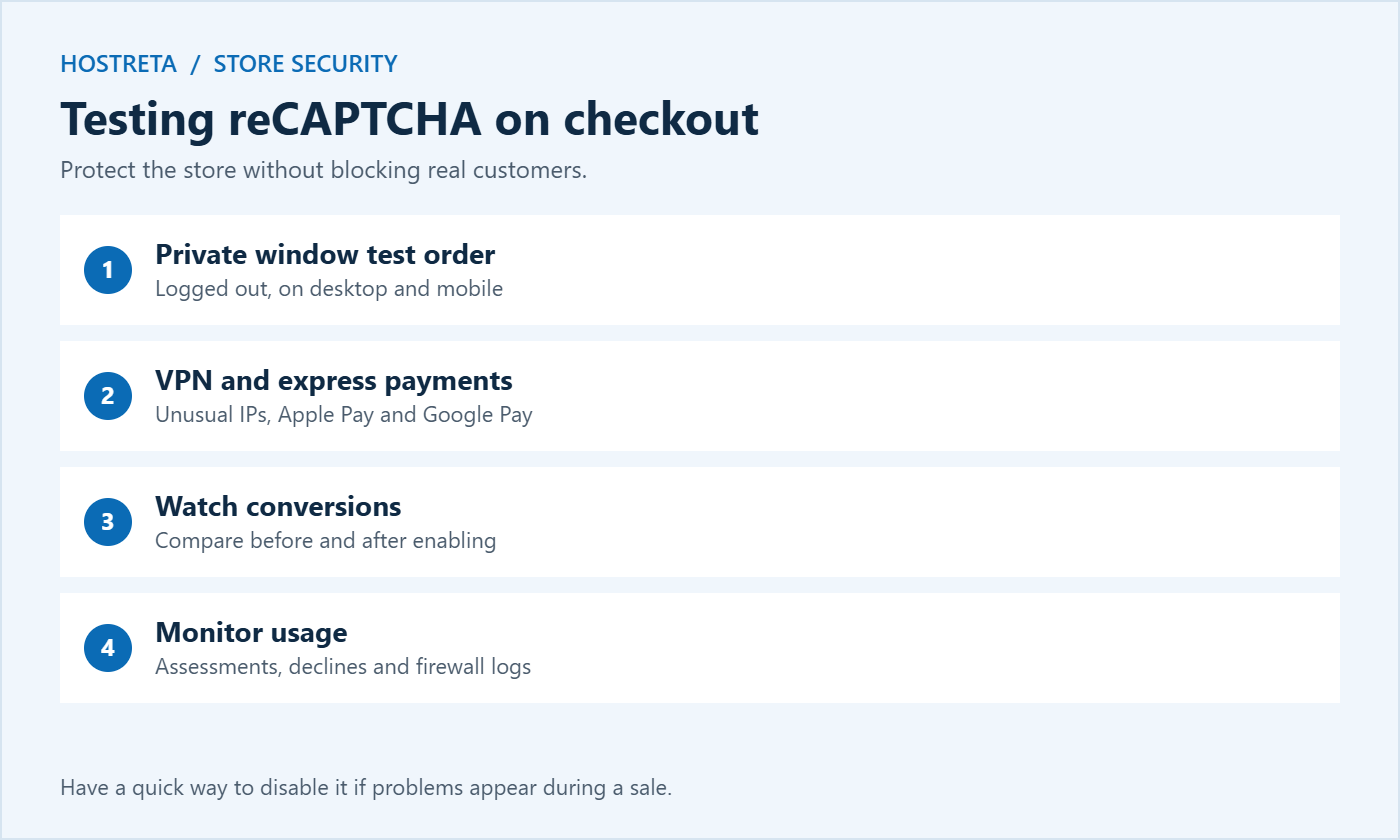
How to test reCAPTCHA on WooCommerce checkout

How reCAPTCHA v3 scoring works in practice

reCAPTCHA v3 never shows a puzzle. Instead, it watches how a visitor interacts with your site — mouse movement, timing, browser signals, and Google’s wider knowledge of the device — and returns a score between 0.0 and 1.0. Scores near 1.0 suggest a real person; scores near 0.0 suggest automation. Your plugin then decides what to do with each score.

  • 0.7 and above: almost always genuine visitors.
  • 0.3 to 0.7: a grey zone that includes some real shoppers on VPNs, privacy browsers, or shared networks.
  • Below 0.3: very likely bots.

A sensible starting point is to block below 0.3 on checkout and watch the results for a week. If bots still get through, raise it gradually to 0.4 or 0.5. If real customers report problems, lower it. Some plugins let you show a visible fallback challenge for low scores instead of blocking outright, which gives genuine shoppers a second chance.

Why scores vary

Visitors using privacy-focused browsers, ad blockers, corporate networks, or VPNs often receive lower scores even though they’re real people. Shoppers who land directly on checkout from an email link may also score lower because reCAPTCHA has seen less of their behaviour. That’s why a gentle threshold matters most on the checkout page, where every false positive is a lost sale.

Turnstile setup in a few minutes

Because so many stores are moving from reCAPTCHA to Cloudflare Turnstile, here’s a quick outline of the switch:

  1. Create a free Cloudflare account if you don’t have one. Your domain doesn’t need to use Cloudflare DNS for Turnstile to work.
  2. Add a Turnstile widget in the dashboard, enter your domain, and choose “Managed” mode, which shows a challenge only when needed.
  3. Copy the site key and secret key.
  4. Install a Turnstile plugin for WordPress and WooCommerce, paste the keys, and select checkout, login, and registration.
  5. Deactivate the old reCAPTCHA plugin so the two don’t conflict.
  6. Clear caches and test every protected form on desktop and mobile.

If you already use Cloudflare for DNS or CDN, the switch is even simpler — see How to Use WordPress With Cloudflare the Right Way.

Protecting login and registration as well

Checkout gets the attention, but bots also target login and account creation. Credential-stuffing attacks try leaked passwords against your customer and admin accounts, and fake registrations fill your database with spam users. Adding reCAPTCHA or Turnstile to these forms, along with two-factor authentication for admins, closes the most common gaps — see Strong Passwords & 2FA: Secure Your Accounts in 10 Minutes and How to Change the WordPress Login URL.

Contact and quote forms are another target. If you receive floods of spam enquiries, the same challenge helps there too — see Contact Form Spam: 7 Essential, Safe Form Checks.

Keeping reCAPTCHA within the free tier

With a 10,000-assessment monthly allowance, small decisions about where reCAPTCHA loads make a big difference. To stay inside the free tier:

  • Load it only on protected forms — checkout, login, registration, lost password, and contact — not on every page.
  • Avoid site-wide reCAPTCHA v3 badges that run an assessment on every page view.
  • Block obvious bad traffic earlier with a firewall or CDN rules, so bots never reach the form.
  • Check usage weekly in November, when traffic and bot activity both rise.
  • Enable billing as a safety net if you’re close to the limit, so the service keeps working on sale day.
  • Use separate Google Cloud organisations for client sites if you’re an agency, or consider Turnstile for high-traffic stores.

A store that hits the limit without billing enabled may find its checkout protection stops working — or worse, blocks legitimate orders — at the exact moment traffic peaks.

Accessibility and privacy considerations

Visible challenges such as image puzzles can be difficult for people using screen readers or with visual impairments. Invisible options and Turnstile’s managed mode are much more accessible. If you must use a visible challenge, make sure an audio alternative is available and that error messages explain what to do next — see Web Accessibility Basics.

On privacy, reCAPTCHA sends visitor data to Google, which matters under GDPR and similar laws. Mention the service in your privacy policy and, where required, in your cookie consent tool. Turnstile and hCaptcha market themselves as more privacy-friendly, which can simplify compliance for stores selling into Europe.

A reCAPTCHA checklist before Black Friday 2026

  1. Confirm your keys work in the Google Cloud console, or that Turnstile is active.
  2. Check last month’s assessment count and enable billing if you’re near the limit.
  3. Make sure only one CAPTCHA plugin is active.
  4. Test checkout, login, and registration on desktop and mobile, logged out.
  5. Test express payment buttons and coupon application.
  6. Review the v3 threshold and fallback behaviour.
  7. Confirm gateway fraud rules and firewall rate limits are active.
  8. Write down how to disable the challenge quickly if a problem appears during the sale.

Combine this with your full pre-sale routine in Black Friday Marketing Calendar and PCI Compliance Basics for Small Online Stores.

Troubleshooting common reCAPTCHA problems

  • “Invalid site key” or “invalid domain”: the key wasn’t created for your exact domain, or you’re testing on staging. Add every domain you use, including staging, to the key settings.
  • Checkout button does nothing: often a JavaScript conflict with the theme, a caching or minification plugin, or another CAPTCHA plugin. Exclude the reCAPTCHA script from minification and test with other plugins disabled on staging.
  • Real customers blocked: lower the v3 threshold, enable a visible fallback, or switch to Turnstile’s managed mode.
  • Errors after months of working: check whether your organisation exceeded the free monthly assessments and whether billing is enabled.
  • Challenge missing on the block checkout: the plugin may only support the older shortcode checkout. Look for an update or an alternative that supports the Checkout block.
  • Cached pages with expired tokens: make sure checkout, cart, and account pages are excluded from page caching — see WooCommerce Caching: 7 Essential Checks.

When something breaks during a sale, disable the challenge first to restore checkout, then investigate on staging. A short period without a CAPTCHA, protected by your gateway’s fraud tools and firewall, is far better than a checkout nobody can use.

Frequently asked questions

Is reCAPTCHA still free?

Yes, up to 10,000 assessments per month per Google Cloud organisation. Above that, you need to enable billing, or requests start failing.

Will reCAPTCHA hurt my conversion rate?

Invisible options like reCAPTCHA v3 or Turnstile rarely affect real customers when set up sensibly. Visible puzzles can, so avoid them on checkout where possible.

Should I add reCAPTCHA to every form?

Prioritise checkout, login, registration, and contact forms. Loading it on every page wastes assessments and slows your site.

Is Turnstile better than reCAPTCHA?

For many small stores, yes: it’s free without a strict monthly cap, privacy-friendly, and usually invisible. Test both if you’re unsure.

Does reCAPTCHA slow down my store?

It adds a small external script. Loading it only on protected forms keeps the impact minimal. Avoid loading it on every page, which slows browsing and uses up assessments.

Can bots bypass reCAPTCHA?

Determined attackers sometimes use solving services or real devices. That’s why reCAPTCHA should be one layer among several, alongside gateway fraud rules, rate limiting, and monitoring.

Do I need reCAPTCHA if my gateway has fraud protection?

Gateway tools catch fraudulent payments, but they don’t stop bots from loading your checkout, creating accounts, or consuming server resources. A CAPTCHA stops much of that traffic earlier.

What happens to reCAPTCHA v2 keys?

Existing v2 and v3 keys were moved to Google Cloud projects. They keep working, but they’re now managed in the Cloud console and count towards the same monthly assessment allowance.

Bot protection works best when it is invisible to customers and boring to manage. Choose one service, apply it to the forms that matter, check usage before busy periods, and combine it with your gateway and firewall protections. With reCAPTCHA or Turnstile set up properly, your checkout stays open to genuine shoppers while automated attacks are quietly turned away, and you can focus on serving customers during the busiest weekend of the year instead of fighting fake orders and failed payments.

Should agencies use reCAPTCHA on client stores?

Agencies should be careful, because the free allowance is shared across a Google Cloud organisation. Create keys in each client’s own Google Cloud account, or use Turnstile, so one busy store doesn’t use up the quota for every other site you manage. Document which service each client uses and who owns the keys, so handovers and renewals stay simple.

Set it up this week, test it carefully, and check usage again a few days before Black Friday so nothing surprises you.

Your customers will never notice it, and that is exactly the point.

Key takeaways

  • Checkout bots cost fees, server resources, and clean data.
  • reCAPTCHA now runs on Google Cloud with a 10,000-assessment free tier.
  • Invisible options like reCAPTCHA v3 or Turnstile keep the experience smooth.
  • Apply it to checkout, login, and registration — and use only one plugin.
  • Test on mobile before sale day and watch conversion rates and usage.
Z
zasma171

Writes for Hostreta about the topics covered in this article.

Comments (0)

Your email address will not be published. Required fields are marked *

Ad
Affiliate links
Tools we recommend
Protect Your Website with Automated Daily Backups
$2.09
Get it
the easiest way to manage all of your social media accounts
$29
Get it
Starter Website Get online, properly
$249
Get it
google workspace Business Starter
$3.75
Get it
Nord Vpn Cybersecurity. Built for Everyday Use
$8.99
Get it
More hosting options · affiliate
AI SiteBuilder
View plans
AI Application Hosting
View plans
Shared Hosting
View plans
Reseller Hosting
View plans
Managed WordPress · Rocket.net
View plans
Unmanaged VPS Hosting
View plans
Managed VPS Hosting
View plans
Virtual Dedicated Servers
View plans

We may earn a commission on purchases made through these links, at no extra cost to you.

Ad
Ad

$ top hosting picks

affiliate
★★★★★

KAWEDMA Website Services

See optionsCheck current plans and terms
  • Explore website setup services
  • Choose a scope that fits your project
  • Confirm features with KAWEDMA
Explore KAWEDMA →
affiliate link · we may earn a commission
★★★★★

Managed WordPress Hosting

See plansCurrent terms on provider website
  • Managed hosting for WordPress
  • Powered by Rocket.net
  • Compare current plan specifications
View WordPress plans →
affiliate link · we may earn a commission
★★★★★

AI SiteBuilder

See plansCheck current offer and renewal terms
  • Explore AI-assisted website creation
  • Review included tools and features
  • Choose a plan for your project
Explore SiteBuilder →
affiliate link · we may earn a commission

Never miss a new article

Join thousands of developers and builders getting a weekly digest of the best tech articles.