Every extra second on checkout costs sales. And checkout is the slowest page on most stores, because it can’t be cached, loads payment scripts, and runs tax and shipping calculations on every change. Before the holiday rush, checkout speed deserves a dedicated pass — not just a quick look at your homepage score.
This guide is updated for 2026. It covers why checkout speed matters, the Core Web Vitals that apply to checkout, how to measure it properly, cutting heavy scripts and plugins, block checkout and payment considerations, hosting and caching tweaks, and retesting under realistic conditions before Black Friday on November 27, 2026.
Highest-intent page: these visitors are ready to pay — losing them is the most expensive kind of loss.
Mobile shoppers on slower connections feel every delay.
Uncached by design, so it reflects your real server speed.
Payment frames add third-party load you don’t fully control.
Every interaction counts: changing shipping, entering an address, or applying a coupon triggers new requests, so slowness is felt repeatedly, not just once.
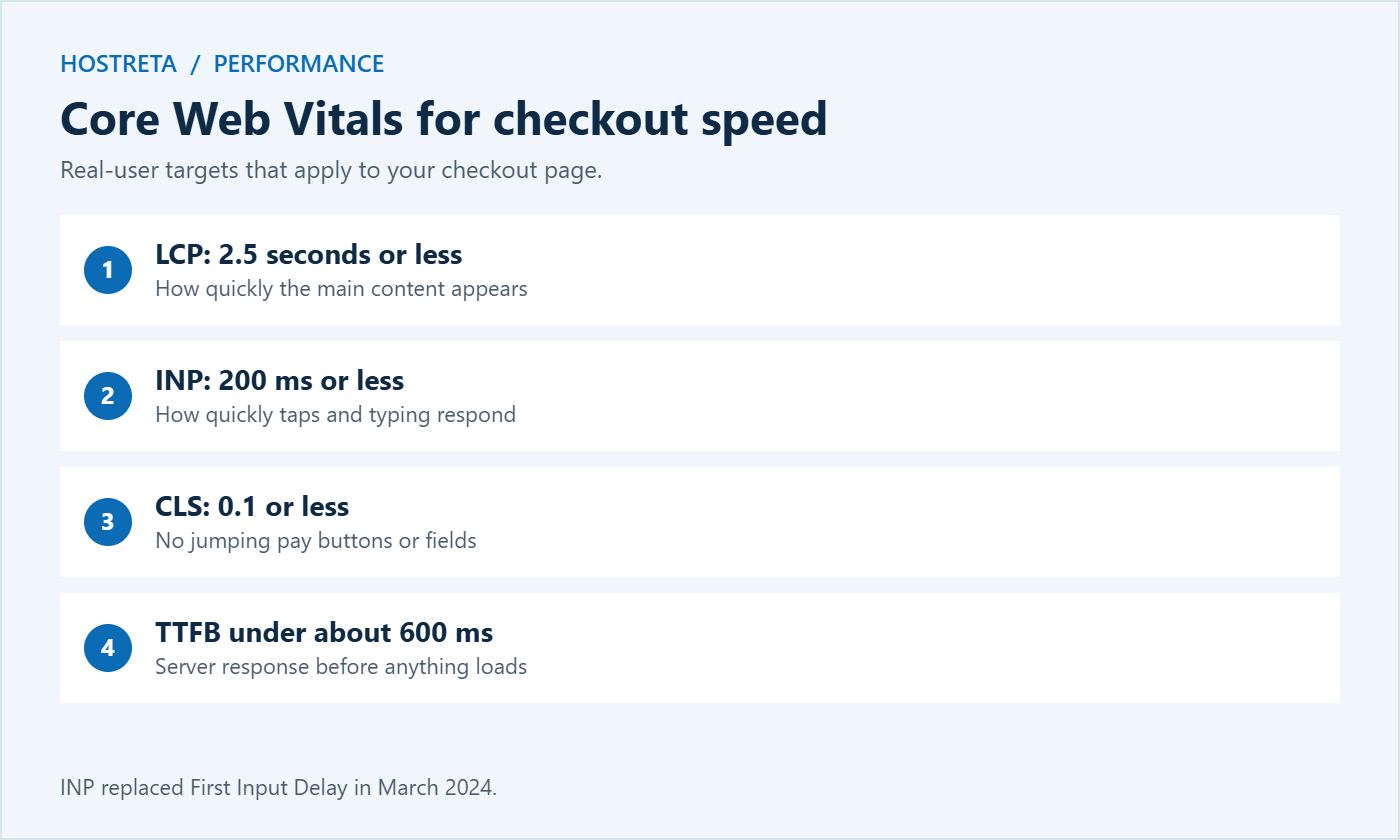
Google measures real-user experience with three Core Web Vitals. For checkout, all three matter:
Largest Contentful Paint (LCP): how quickly the main content appears. Aim for 2.5 seconds or less.
Interaction to Next Paint (INP): how quickly the page responds when a shopper taps or types. INP replaced First Input Delay in March 2024. Aim for 200 milliseconds or less. Heavy JavaScript on checkout often hurts INP.
Cumulative Layout Shift (CLS): how much the page jumps around as it loads. Aim for 0.1 or less — a moving pay button causes mis-taps.
Add a product to the cart, then test the checkout manually. Many online tools can’t keep a cart, so lab tests of checkout need care — see PageSpeed Insights vs GTmetrix vs Pingdom.
Write down a baseline before you change anything: TTFB, total load time, number of requests, page weight, and query count. Without a baseline, you can’t tell whether a change helped.
Cutting heavy scripts and plugins
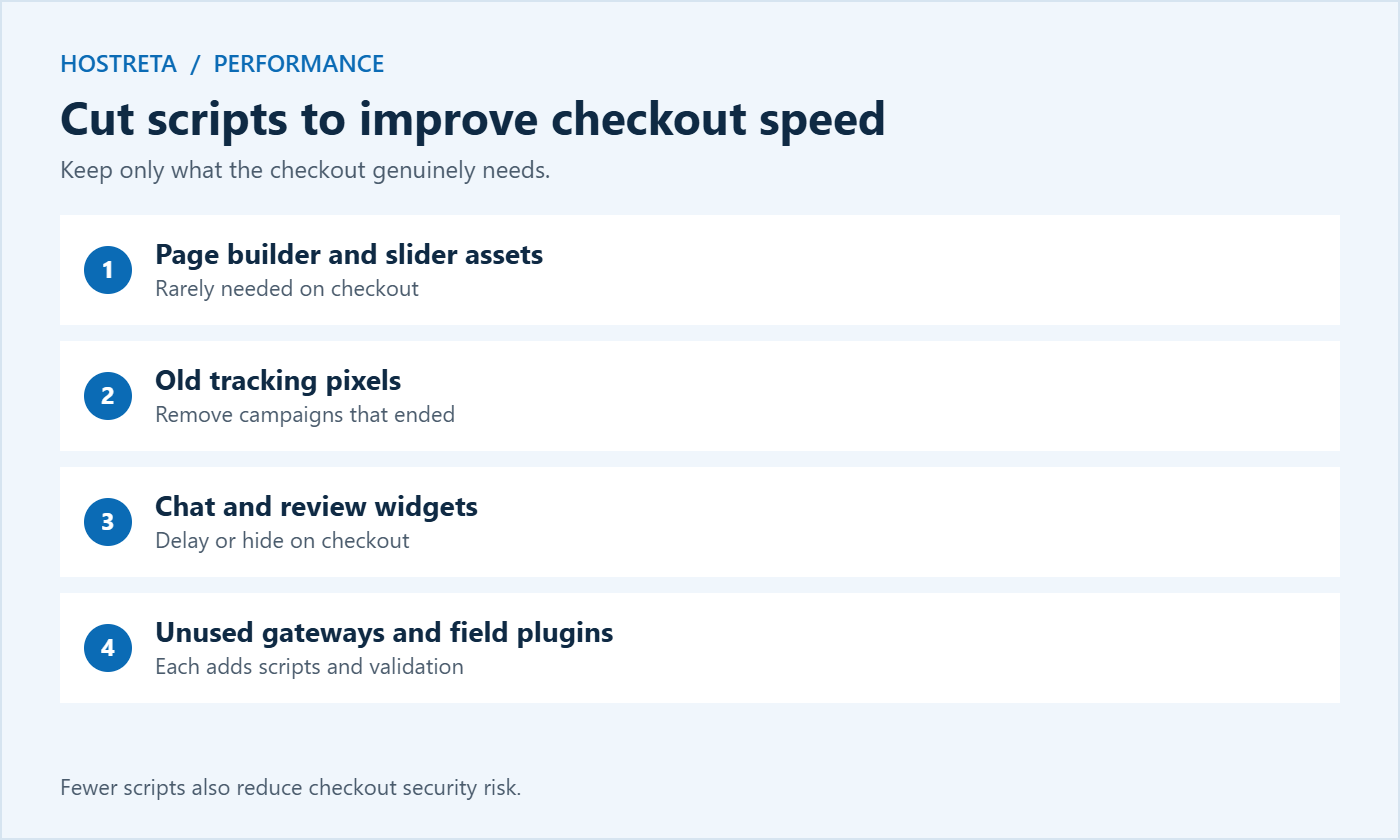
Disable unnecessary scripts on checkout with an asset manager: sliders, galleries, review widgets, and page builder assets rarely belong there.
Remove old tracking pixels from campaigns that ended.
Delay chat widgets until interaction, or hide them on checkout.
Trim checkout field plugins — each adds validation and scripts.
Remove unused payment gateways, which often load their own scripts.
New WooCommerce stores use the Checkout block by default, and many older stores have switched. The block checkout is built with modern JavaScript and updates totals without full page reloads, which can feel faster. But extensions that don’t support it may fall back to slower methods or load extra scripts. Check that your payment, shipping, and field plugins are compatible, then compare checkout speed on both versions on staging before you decide.
Payment and shipping performance
Load payment scripts only on checkout, not on every page.
Offer express wallets such as Apple Pay and Google Pay, which skip most form typing on mobile.
Cache shipping rates where your plugin allows, so carrier APIs aren’t called on every keystroke.
Use address autocomplete carefully — it saves typing but adds a script.
Review fraud checks that call external services during checkout.
Studies of online retail consistently find that slower pages lead to more abandoned carts, and checkout speed is where that effect is sharpest. A shopper who has already chosen products and started paying is extremely valuable; every pause gives them time to doubt the purchase, check a competitor, or simply get distracted. On mobile, where most holiday shopping happens, a slow checkout also makes typing addresses and card details more frustrating.
Small gains add up. Shaving half a second off each checkout step, across thousands of visitors during a sale, can recover a meaningful number of orders. That’s why improving checkout speed is often a better investment before Black Friday than redesigning the homepage. For wider context, see Why Website Speed Matters: SEO, Sales and Bounce Rate.
A step-by-step checkout speed audit
Record your baseline. Measure TTFB, total load time, page weight, number of requests, and query count on checkout with a real cart. Repeat three times and take the average.
List every script on checkout. In DevTools, filter the Network tab by JavaScript and note each file’s source. Mark anything that isn’t essential for paying.
Disable non-essential scripts on staging. Use an asset manager plugin to turn them off on checkout only, then measure checkout speed again.
Check plugins with Query Monitor. Sort by query time and HTTP requests to find plugins that slow down the server side of checkout.
Review payment and shipping integrations. Note any external calls that take more than a few hundred milliseconds.
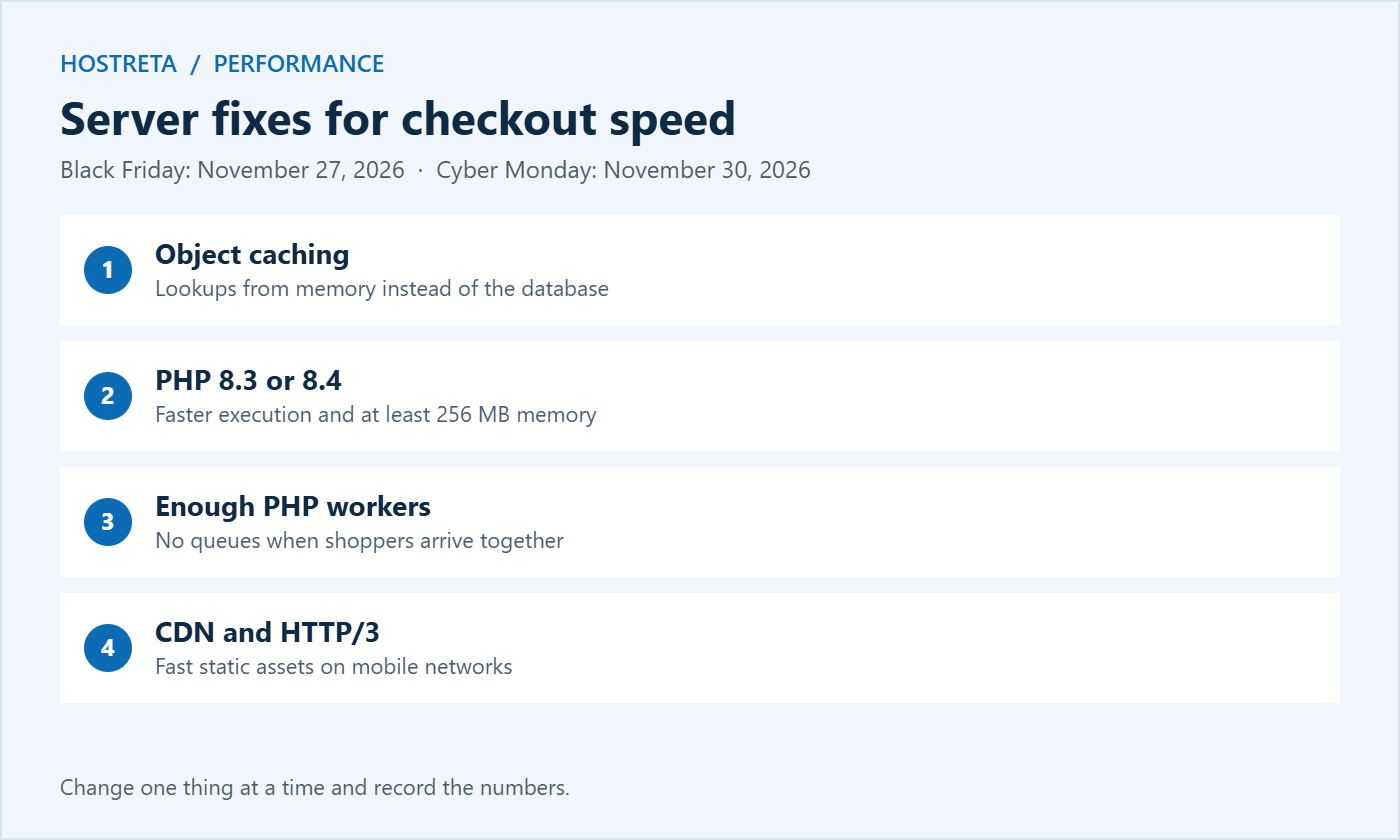
Enable or confirm object caching and measure again.
Check PHP version, memory, and workers with your host.
Test on a real phone over mobile data, completing a full purchase.
Apply the winning changes to the live store during a quiet hour and re-measure.
Document what you changed so you can repeat the audit before every big sale.
This audit usually takes two to three hours and often reveals one or two changes that make a dramatic difference to checkout speed.
Quick wins most stores can make today
Remove chat widgets and pop-ups from checkout.
Delete payment gateways you no longer offer.
Turn off marketing pixels on checkout except those you truly need for conversion tracking.
Make sure images in the order summary are small thumbnails, not full-size product photos.
Enable object caching if your host offers it.
Reducing form friction
Perceived checkout speed isn’t only about loading. A long form feels slow even if the page loads instantly. Simplifying the form often improves conversions as much as technical tweaks:
Remove optional fields such as company name or a second address line if most customers don’t need them.
Offer guest checkout so shoppers don’t have to create an account first.
Use the right keyboard on mobile — numeric for phone numbers and postcodes, email for email fields.
Show clear, inline error messages instead of reloading the page.
Display shipping costs early so there are no surprises at the last step.
Offer express wallets so returning shoppers can pay with one tap.
Your theme controls much of what loads on checkout. A heavy theme can add hundreds of kilobytes of CSS and JavaScript that have nothing to do with paying. To improve checkout speed from the front end:
Improving checkout speed before the sale is only half the job; you also need to know if it degrades under real traffic. Set up monitoring that checks the checkout page every minute and alerts you if response times rise or errors appear. 360 Monitoring from Kawedma tracks uptime and server health, and many hosts provide resource graphs in real time — see Best Uptime Monitoring Tools.
During the busiest hours, place a quick test order every few hours and keep an eye on PHP worker usage. If checkout speed drops sharply, check for a recent change, a plugin running background jobs, or a sudden spike in bot traffic before considering a restore. A plan for emergencies is in Store Backup and Rollback Plan for Peak Sales Days.
Checkout speed checklist for Black Friday 2026
Record a baseline for checkout speed on desktop and mobile.
Remove non-essential scripts, widgets, and unused gateways from checkout.
Confirm block checkout compatibility for all checkout-related plugins.
Enable object caching and confirm PHP 8.3 or 8.4.
Check PHP worker limits and upgrade if needed.
Cache shipping rates and review external API calls.
Simplify the form and enable express wallets.
Load test with checkout included.
Set up monitoring and alerts on the checkout page.
Freeze changes before the sale.
Common checkout speed mistakes
Testing only the homepage and assuming checkout is just as fast.
Testing while logged in as an admin, which loads extra scripts and skips caching rules customers experience.
Caching the checkout page, which causes wrong totals and empty carts.
Over-optimising JavaScript so payment scripts break.
Adding new plugins during the code freeze right before the sale.
Ignoring INP, so the page loads quickly but feels sluggish when shoppers tap and type.
Not retesting after updates, letting checkout speed slowly decline over months.
When to call a developer
If you’ve removed obvious scripts, enabled caching, and upgraded hosting but checkout is still slow, a developer can profile the site in depth. They can find slow custom code, optimise database queries, and fine-tune server settings. For stores where checkout speed directly affects significant revenue, a few hours of expert help before Black Friday is usually well worth the cost. If you’d prefer a store built for performance from the start, Kawedma’s e-commerce website service is another option.
Frequently asked questions
What is a good checkout speed?
Aim for a server response under about 600 milliseconds, visible content within 2.5 seconds on mobile, and interactions that respond within 200 milliseconds.
Can I cache the checkout page?
Not the page itself, because it’s different for every shopper. You can cache static assets, use a CDN, and use object caching to speed up the dynamic parts.
Do express payment buttons slow down checkout?
They add scripts, but they usually save shoppers far more time than they cost. Load them only where needed and test their impact.
How often should I check checkout speed?
After every plugin or theme update, monthly in normal times, and weekly in the run-up to big sales.
Does the number of products in the cart affect checkout speed?
Yes. Larger carts mean more calculations for prices, tax, shipping, and stock. Test checkout speed with a typical cart and with a larger one, especially if you sell bundles or many small items.
Will a CDN speed up checkout?
A CDN speeds up static assets like images, CSS, and JavaScript, which helps the page appear faster. It doesn’t cache the dynamic checkout itself, so server-side improvements are still needed.
Is block checkout faster than the old checkout?
Often it feels faster because totals update without reloading the page. Actual results depend on your plugins and theme, so compare both on staging.
Do security plugins slow down checkout?
Some do, particularly those that scan every request in PHP. A host-level or CDN-level firewall usually protects the store with less impact on checkout speed.
Checkout is where browsing turns into revenue, so it deserves more attention than any other page on your store. Start by measuring honestly with a real cart on a real phone. Remove anything that doesn’t help a customer pay, make sure your server and caching are ready for the rush, and simplify the form wherever you can. Then test again under realistic conditions and keep monitoring during the sale. These steps don’t require a redesign or a big budget, but they can make a noticeable difference to how many shoppers complete their orders during the busiest days of the year, and the improvements keep paying off long after the holidays end.
Should I hire help or do it myself?
Most store owners can handle the basics in this guide themselves: removing scripts, enabling caching, simplifying the form, and testing on a phone. Bring in a developer when the remaining slowness comes from custom code, complex integrations, or server configuration you can’t change yourself. Either way, start with the measurements so you know exactly where the time goes and can judge whether each fix actually helped.
A faster checkout is one of the simplest ways to turn more of your holiday traffic into paying customers this season.
Key takeaways
Measure checkout speed with a real cart, on mobile, before changing anything.
Remove scripts and widgets that don’t belong on checkout.
Trim extra checkout plugins and unused gateways.
Use object caching, current PHP, and enough PHP workers.
Test logged out, on mobile, with a real cart and coupon.