Hosting

Redis Object Caching for WooCommerce Stores Explained
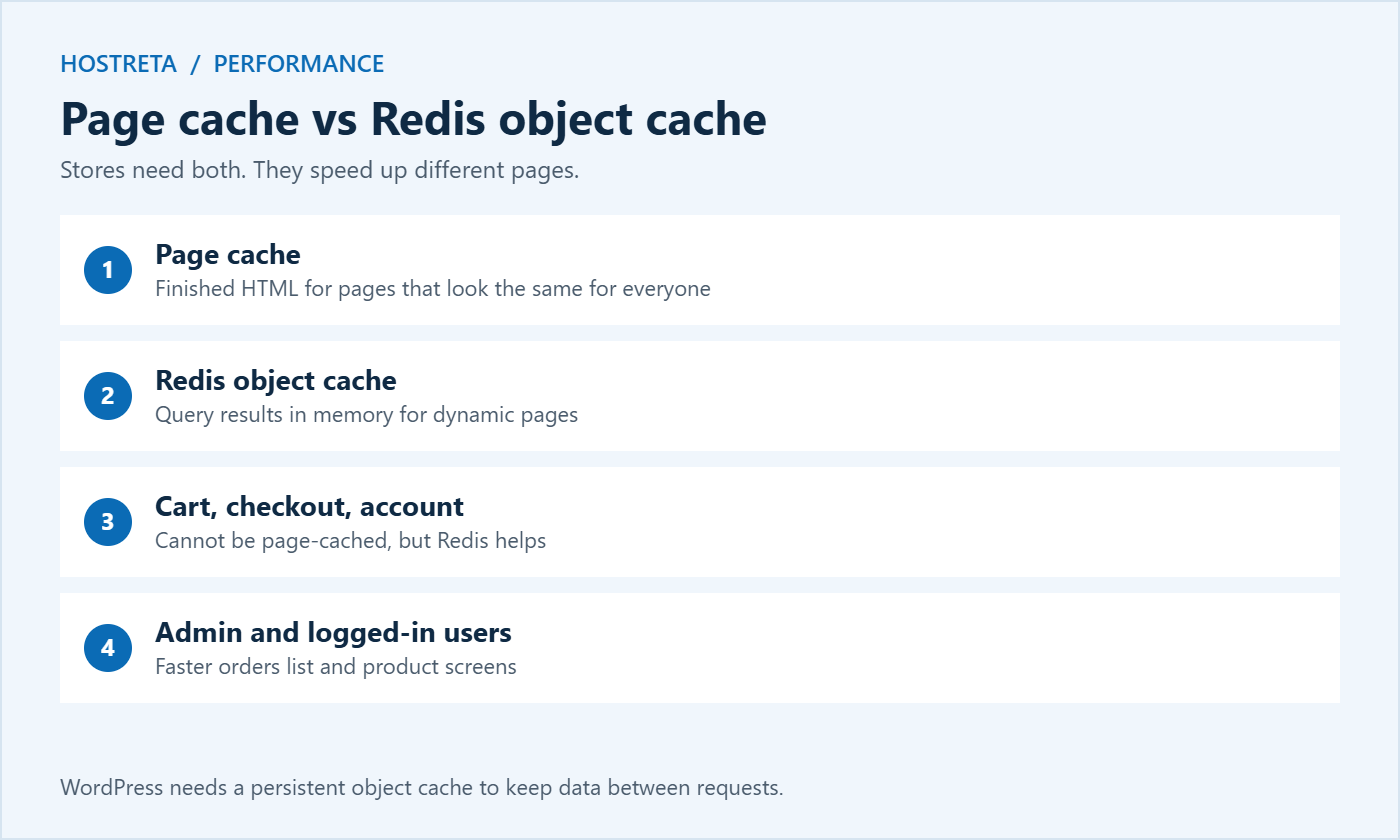
You’ve enabled page caching and your product pages fly. Then a customer adds something to the cart and everything slows down. That’s because the pages shoppers care about most — cart, checkout, and account — can’t be page-cached. Object caching with Redis is what speeds those up, and for a busy WooCommerce store it’s one of the most effective performance upgrades available.
This guide explains the difference between page and object caching, how Redis helps WooCommerce specifically, what’s new with Redis and its open-source fork Valkey, how to check host support, how to set it up safely, how to size memory, and how to test the result before Black Friday on November 27, 2026.
WordPress has a built-in object cache, but by default it only lasts for a single page load. A persistent object cache such as Redis keeps that data in memory between requests, so the second, third, and hundredth visitor all benefit. Stores need both page caching and persistent object caching. Which pages to cache and which to exclude is covered in WooCommerce Caching: 7 Essential Checks for a Safe Store, and the general concept is explained in Object Caching With Redis: 7 Essential Checks. This article focuses on what Redis means for a store.
The busier and more dynamic your store, the bigger the gain. Stores with large catalogues, many logged-in customers, or heavy admin use usually see the biggest improvements from Redis.
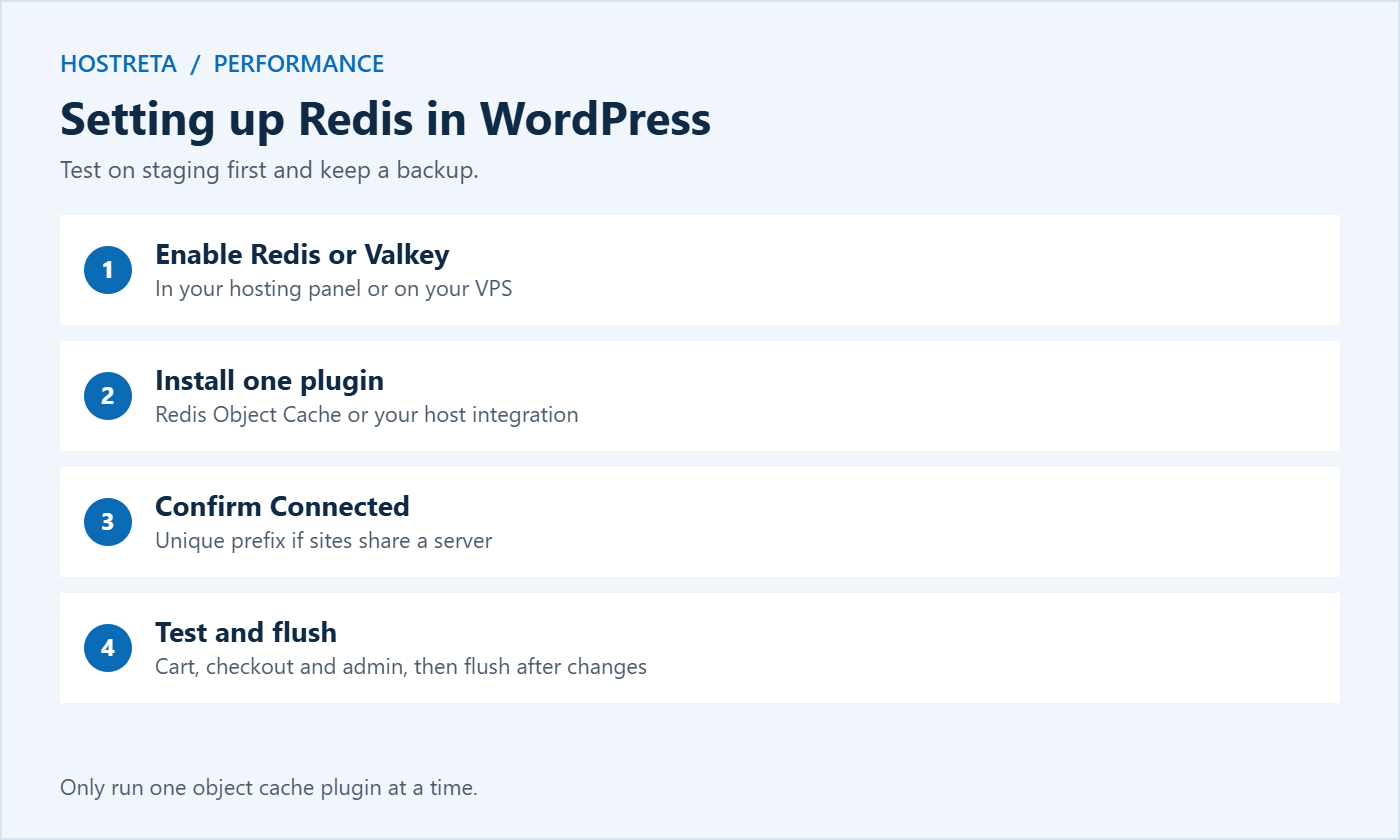
In 2024, Redis changed its licence away from a traditional open-source licence. In response, the Linux Foundation launched Valkey, an open-source fork that remains compatible with Redis. In 2025, Redis added an AGPL open-source option again. For WordPress site owners, the practical impact is small: many hosts now offer Valkey alongside or instead of Redis, and WordPress object cache plugins work with either because they speak the same protocol. If your host lists “Valkey” in the panel, treat it exactly like Redis for the steps in this guide.
If your current plan doesn’t offer Redis, it may be time for an upgrade. Kawedma WordPress hosting and managed WordPress hosting powered by Rocket.net include advanced caching, while a Kawedma VPS server, cloud hosting, a managed VPS, or an unmanaged VPS let you install and tune Redis yourself.
If anything behaves oddly — stale prices, wrong cart totals — disable the object cache, flush it, and re-enable. Only run one object cache plugin at a time.
Redis keeps data in RAM, so it needs enough memory to hold your most-used data. A small store may need only 64–128 MB; larger catalogues often use 256 MB to 1 GB. When memory fills up, Redis removes older keys according to its eviction policy. For WordPress, an eviction policy such as allkeys-lru (remove the least recently used keys) is a common choice. Watch the plugin’s memory and hit-ratio statistics during busy periods, and raise the limit if the cache is constantly evicting useful data.
It helps to understand what an object cache stores, because it explains both the speed gains and the occasional odd behaviour. On a typical WooCommerce site, the cache holds:
Without a persistent cache, WordPress fetches all of this from the database on every page load. With one, most of it comes straight from memory in a fraction of a millisecond. That’s why the improvement is most visible on pages with lots of data, like the orders list or a cart with several products and shipping options.
A cache is only as good as the code that updates it. When a plugin changes data directly in the database without telling WordPress, the cached copy can become outdated. Well-written plugins use WordPress functions that clear the right cache entries automatically. If you notice a price, stock level, or setting that won’t update, flushing the object cache usually fixes it immediately, and it’s worth reporting the issue to the plugin developer.
Object caching works best as part of a layered approach to speed:
Each layer removes work from the next one. Together they let a modest server handle far more shoppers during a sale.
Consider a store with 2,000 products and around 300 orders a day. Before enabling a persistent object cache, the checkout page ran about 400 database queries and took roughly 1.2 seconds to generate. The orders screen in the admin took four seconds to load during busy afternoons, and staff complained it was hard to process orders quickly.
After enabling the cache with 256 MB of memory, checkout generation dropped to around 0.5 seconds, with most queries now served from memory. The orders screen loaded in just over a second. During the next sale, the same hosting plan handled noticeably more shoppers before slowing down, because each request finished faster and freed up PHP workers sooner. Results vary from store to store, but improvements of this size are common on busy WooCommerce sites.
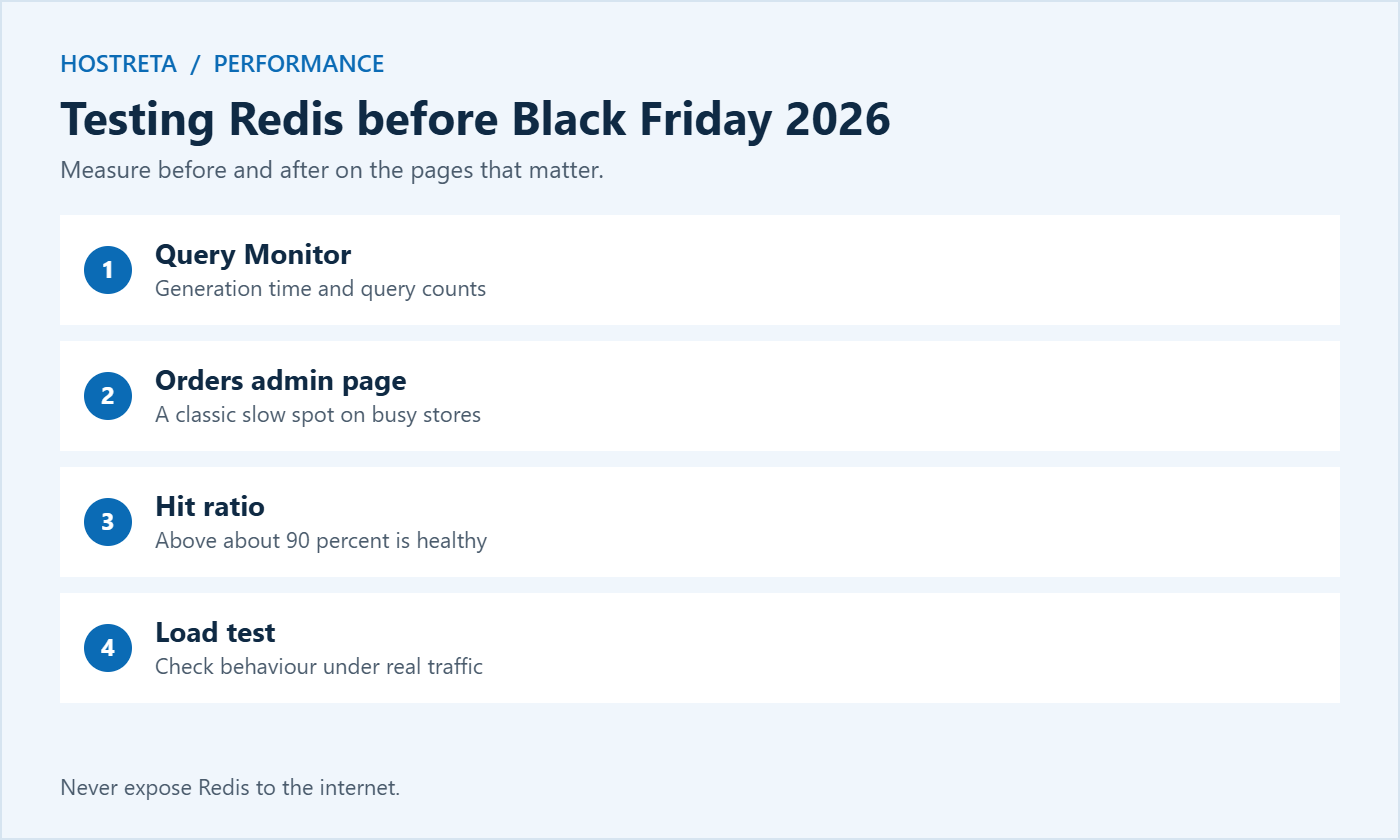
Object caching won’t make slow external services faster. If your checkout waits two seconds for a shipping rate API or a slow payment script, that time remains. It also won’t fix a bloated theme or heavy front-end JavaScript that slows pages in the browser. Use Query Monitor and browser developer tools together to find where time is really being spent — see How to Use Chrome DevTools to Find Slow Resources.
Then stop making changes until the sale is over — see Code Freeze for Online Stores and Store Backup and Rollback Plan for Peak Sales Days.
How you enable and manage the cache depends on your hosting:
If you’re unsure, ask your host directly which caching layers your plan includes. A good host will explain how page caching, object caching, and the CDN work together on your account. For help choosing, see How to Choose Hosting for an Online Store.
Check cache statistics once a month and before every big promotion. A falling hit ratio, rising memory use, or frequent evictions suggest the cache needs more memory or that a plugin is storing too much data. Note the figures in your maintenance log so you can spot trends — see Website Maintenance: 7 Essential, Safe Monthly Checks.
If your host offers it at no extra cost, yes — it’s easy to enable and helps carts, accounts, and the admin. On very small sites the gain may be modest but rarely harmful.
Rarely, usually because of a plugin that doesn’t clear its cached data properly. Flush the cache after major changes and test checkout.
Both work. Redis is more common in WordPress hosting and offers more features; Memcached is simpler. Use whichever your host supports well.
No. Use page caching for anonymous visitors and Redis for everything that must be built dynamically.
Usually not for single edits, because WordPress clears the related entries automatically. After bulk imports, large price changes, or plugin updates, a manual flush is a sensible precaution.
Yes, especially for logged-in editors and for pages with complex queries. For anonymous visitors, page caching does most of the work.
Only if your host provides it. Some shared plans include it; others don’t allow persistent caching services. Ask support before installing a plugin.
WordPress falls back to the database. The site keeps working, just more slowly, until the service is restored and the cache warms up again.
Of all the performance improvements available to a WooCommerce store, a persistent object cache offers one of the best returns for the effort involved. It speeds up the exact pages that make you money — the cart, checkout, and customer accounts — and it makes daily admin work faster for you and your team. Enable it on staging, test the key journeys, watch the statistics for a week, and then roll it out to the live store well before your busiest weekend. Combined with good page caching, a CDN, and a capable hosting plan, it helps your store stay fast when shoppers arrive in large numbers.
On hosting that supports it, enabling the service and connecting a plugin takes about ten minutes. Allow another hour for testing cart, checkout, coupons, and admin screens on staging, plus a few days of monitoring on the live store before any major promotion. That small investment of time is usually repaid many times over during the first busy weekend, when faster pages mean more completed orders and fewer frustrated customers.
Start on staging this week, measure carefully, and roll it out once you are confident everything works exactly as expected.
Faster carts and checkouts mean happier customers and more completed orders during every sale.
We may earn a commission on purchases made through these links, at no extra cost to you.
Don’t miss the chance to participate in the biggest giveaway of this year.