HowTo

WordPress Multisite: 7 Essential Checks for a Safe Setup
WordPress Multisite lets an organisation coordinate several sites within one installation. Shared administration can simplify some work, but it also creates shared dependencies. Choose it because that operating model fits the project, not because a single dashboard guarantees lower costs or fewer incidents.
This guide explains what multisite is, when it makes sense, how to enable it step by step, how to manage sites, themes, and plugins, and the common pitfalls.
Multisite is a built-in WordPress feature that turns one installation into a network of sites. A Super Admin manages the network: which themes and plugins are available, which sites exist, and which users belong where. Each site has its own content, settings, and admins.
All sites share the same WordPress core files, themes, and plugins, and the same database (with separate tables per site).
Good fits
Poor fits
For client sites, consider separately managed and appropriately isolated installations when independence is required — see Hosting for Agencies: Managing Multiple Client Sites.
wp-config.php above “That’s all, stop editing!”:define( 'WP_ALLOW_MULTISITE', true );.htaccess; Nginx needs its own supported configuration. Do not copy another network’s paths or constants.Check your hosting resources first with Multisite Hosting Requirements: Plan Resources Before You Scale.
A fast, well-supported host makes every WordPress task smoother. Kawedma WordPress hosting and managed WordPress hosting powered by Rocket.net include staging sites for safe testing, while shared hosting from Hosting.com or Kawedma shared hosting suit smaller sites. Protect the site with an SSL certificate and automatic backups from CodeGuard.
WordPress Multisite is easier to manage when you review it regularly. Keep this WordPress Multisite checklist handy and revisit it after every major update.
The official network overview describes multiple sites within one installation, with shared resources and site-specific content tables. The arrangement is different from simply installing several independent copies of WordPress in different folders.
Within WordPress Multisite, a site administrator can manage appropriate content and settings for a site, while a network administrator controls broader capabilities. Decide who should hold that broader authority. A common WordPress Multisite sign-in does not mean every user should be able to administer every site.
Write down the shared components and the consequences of changing them. If a required plugin update affects all WordPress Multisite sites, agree on a release process covering them. WordPress Multisite is an administrative architecture, so its fit depends on those operational agreements as much as on technical setup.
Create a short requirements list for each proposed site. Include its owner, publishing team, required plugins, integrations, release schedule and recovery needs. Look for shared requirements and important exceptions. A common logo alone does not prove that a shared installation is the best choice.
Consider how the network might change. One department may later need a separate domain or an independent hosting contract. A client may need to leave the agency. Those events do not necessarily rule out WordPress Multisite, but they should appear in the design and handover discussion before migration.
Read the network preparation guidance and compare alternatives. A normal site with suitable templates, or several separately managed installations, may meet the requirement more directly. Keep a written reason for the choice so future maintainers understand the accepted tradeoffs.
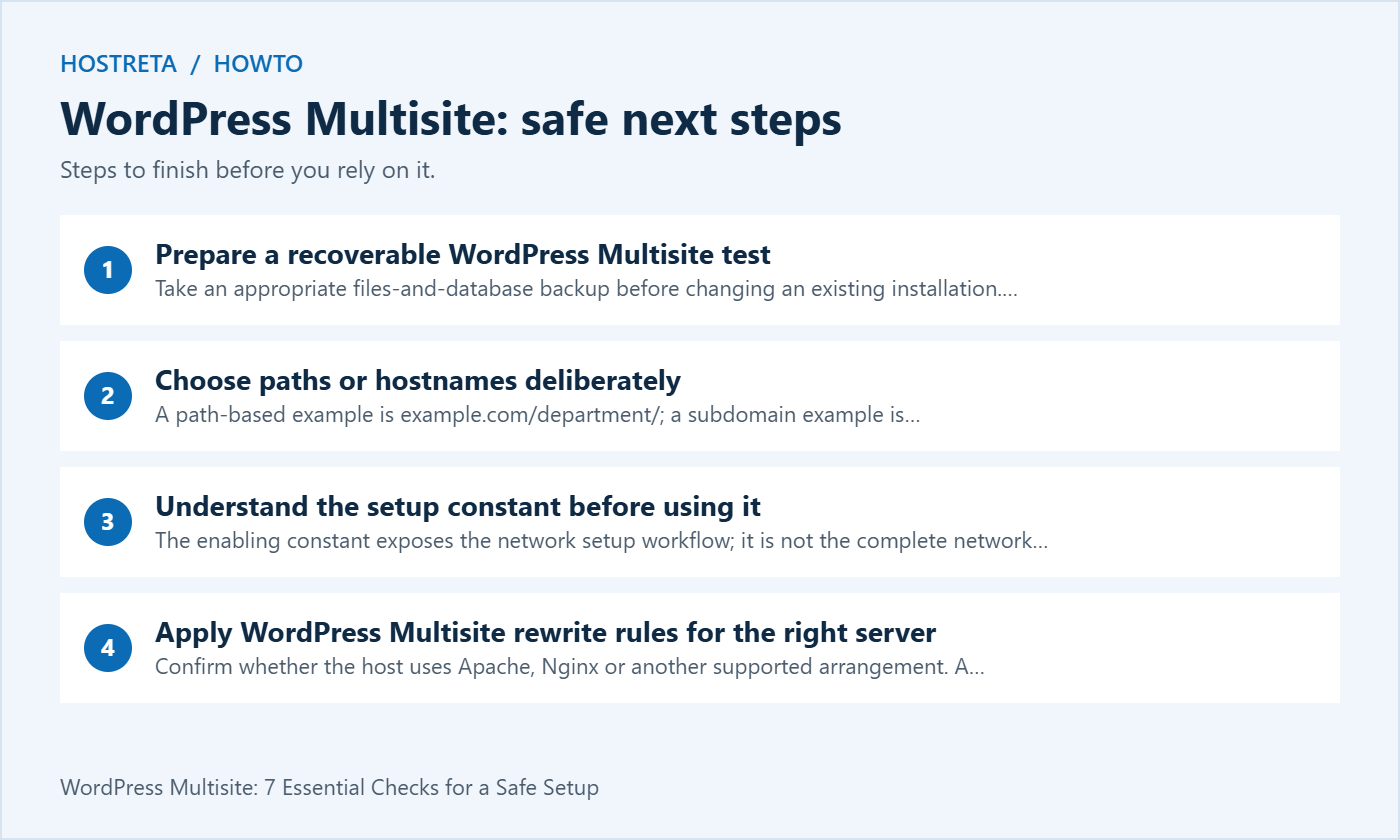
Take an appropriate files-and-database backup before changing an existing installation. Verify where it is stored and who can restore it. A scheduled-backup setting is not the same evidence as a completed recovery exercise.
Use a controlled copy for the initial setup where practical. Review credentials, email sending, payments and external integrations on that copy. A test network should not send duplicate customer messages or process live business activity merely because production settings were copied into it.
Record the starting configuration and access route. Include the web-server type and how configuration changes are deployed. The official creation instructions should be applied to the actual environment rather than mixed with snippets from an unrelated server tutorial.
A path-based example is example.com/department/; a subdomain example is department.example.com. Review the available setup options for the existing installation and the organisation’s URL requirements. Do not assume that a populated older site offers every option shown in a fresh-install demonstration.
For subdomains, coordinate DNS, web-server routing and certificate coverage. Those are separate checks. A hostname resolving to an address does not establish that the correct virtual host or WordPress site will answer it.
For mapped domains, identify who controls each domain and its DNS. Plan ownership, renewal and certificate responsibilities. WordPress Multisite can centralise application administration while domain administration remains distributed between several authorised owners.
The enabling constant exposes the network setup workflow; it is not the complete network configuration by itself. The following example belongs in a properly planned and backed-up installation:
define( 'WP_ALLOW_MULTISITE', true );Follow the current WordPress instructions for its location and the subsequent steps. Avoid duplicating an existing constant or editing an unrelated configuration file. Keep a recoverable copy and use the normal supported access method for the environment.
After opening Network Setup, review the instructions generated for that installation. They contain details that depend on the network. Do not copy another site’s identifiers, base paths or server rules because the tutorial appears visually similar.
Confirm whether the host uses Apache, Nginx or another supported arrangement. A provider-managed service may expose configuration through its own deployment process. Ask for the appropriate route instead of assuming every environment allows direct edits to the same files.
Where WordPress provides Apache rules, preserve unrelated required configuration and follow the generated replacement instructions. For Nginx, use the relevant supported server configuration. Adding an Apache .htaccess file to an Nginx-only path does not make that server apply the rules.
Test both public pages and administration after the change. Include a subsite URL, login, an uploaded image and a representative permalink. The homepage can load while subsite routing is wrong, so WordPress Multisite acceptance must cover more than a single successful request.
Add a controlled test site through Network Admin using the supported interface. Choose a clear test identity and confirm its intended address. Keep the scope small while validating the network configuration.
Publish a simple page, upload a non-sensitive sample file and check both from a normal visitor session. Confirm that the content belongs to the intended site and that links do not unexpectedly return to the main site. Check the relevant HTTP and HTTPS entry points under the approved redirect design.
Record any missing capability before adding a portfolio of sites. Fixing a routing or permission issue on one controlled WordPress Multisite subsite is simpler than investigating the same uncertainty after a large migration.
Use a test account to verify the role that an ordinary site administrator or editor will receive. Check the tasks they need and the areas they should not control. Do not test only with the network’s most privileged account.
The WordPress capabilities reference distinguishes network-level administration. Use the supported role model and review any custom capability changes carefully. A plugin can add behaviour, so document the resulting permissions rather than relying solely on a role label.
Maintain an access-removal process for staff changes. Confirm that removing a person’s site role and removing broader network authority are handled as intended. WordPress Multisite should support deliberate access management, not a permanently shared administrator password.
Install and maintain shared theme code through the network’s supported process. Then make the appropriate themes available to the intended sites. Availability is different from selecting the active theme for a site.
Test representative content before allowing a theme for widespread use. Include long headings, mobile navigation, forms and any store templates. A theme that works on the main site can still need configuration for a subsite with a different workflow.
Keep customisation records and a release plan. A change to shared theme code can affect several sites at once. Test the site types that depend on it, and maintain a recovery route appropriate to the network rather than treating each dashboard as an independent code installation.
The Network Admin guide explains that network activation makes a plugin active across the network but does not determine where it stores settings. That depends on the implementation. Verify actual behaviour for each important dependency.
Build a compatibility list covering activation, configuration, licences, scheduled jobs and external integrations. A plugin appearing in the menu is not proof that all its functions are supported in WordPress Multisite. Test the business workflow and ask the author about unresolved limitations.
Use network activation only when the component belongs across the network. For optional site-level functionality, confirm the permitted activation workflow and who can change it. Keep that decision with the network runbook so another administrator does not enable a heavy integration everywhere by accident.
List the jobs that matter: publishing, imports, cleanup, reports and notifications. Verify the triggering and execution arrangement supported by the host. A network with several sites can have background work that is not visible in a quick public-page check.
Test the notifications used by the organisation. New-user messages, password resets, contact forms and store receipts may have separate settings. Use controlled recipients and verify actual receipt through the intended route without sending a large volume of test messages.
Record whether a failure occurs before submission, at transport or at recipient handling. WordPress Multisite does not eliminate the need to configure and maintain authorised sending identities. An application success status is not a guarantee of inbox placement.
Check that the public domain resolves and the hosting service routes it to the correct site. Verify certificate coverage and the intended canonical address. Inspect representative links, media and login behaviour from an ordinary visitor session.
Ask who maintains the mapped domain after handover. A separate owner may control DNS while the network team maintains application settings. Document the coordination route for renewals, migrations and troubleshooting instead of assuming that one dashboard controls the whole path.
Keep old URLs and migration requirements in the release plan. If a site is moving from another installation, content import alone does not establish that redirects, integrations and media references are complete. Verify the actual visitor journeys before approving launch.
Confirm whether the backup tool and provider can restore the network, one site or the specific content needed. Those are different operations. Shared users, settings and dependencies can make an isolated restoration more involved than restoring a folder.
Run an appropriate controlled restore exercise and record the result. Include media and the relevant configuration, not only the posts table. For sites with recent orders or registrations, decide how changes after the recovery point would be reconciled.
A WordPress Multisite runbook should explain who approves recovery and what might be affected. Do not restore an old network database casually to fix one site’s layout problem. Select the smallest supported recovery operation that addresses the verified issue.
| Area | Representative test | Owner |
|---|---|---|
| Routing | Main site, subsite and mapped domain | Hosting and network administrator |
| Access | Ordinary editor and site administrator | Access administrator |
| Dependencies | Required plugin and theme workflows | Implementation team |
| Background work | Scheduled task and notification route | Operations owner |
| Recovery | Agreed network or individual-site restoration | Recovery owner |
Record the version, test conditions, result and accepted limitations. Repeat relevant checks after shared-code changes. A checklist is useful when another administrator can reproduce it without relying on undocumented knowledge.
Identify what must move: content, media, relevant users, settings, integrations and public URL handling. Review the migration tool’s actual coverage. An ordinary content export may omit important configuration, so do not call it a full-site backup.
Test the destination independently before changing production routing. Confirm authorised access and a clear handover of responsibilities. A business should not discover that its only recovery account belongs to a former contractor after the separation is complete.
For hosting or network implementation support, consider KAWEDMA’s hosting and website development services. Describe the proposed WordPress Multisite model and ask which network, mapping, update and recovery tasks are included. Confirm the selected plan’s support rather than assuming a general WordPress package covers every requirement.
No. It deliberately shares important code and administration. Review the boundaries your organisation needs and choose separate environments when independent operation is the priority.
No general guarantee applies. Check support and test the required functions at the intended scope. Keep site-specific integrations optional when that matches the design.
That confirms one stage of configuration. Public routing, roles, media, dependencies, notifications and recovery still need their own tests. Approve the network after the agreed acceptance checks pass.
Reassess it when ownership, release schedules, isolation needs or required integrations change substantially. Keep the existing network stable while evaluating alternatives on a controlled copy.
We may earn a commission on purchases made through these links, at no extra cost to you.
Don’t miss the chance to participate in the biggest giveaway of this year.