Hosting

Upgrade PHP Version: 7 Essential Checks for a Safe Switch
PHP is the language WordPress runs on, and many sites are still using versions that no longer receive security updates. Unsupported PHP can miss upstream security fixes. A supported upgrade can also change compatibility and performance, so choose and test the target runtime before changing production.
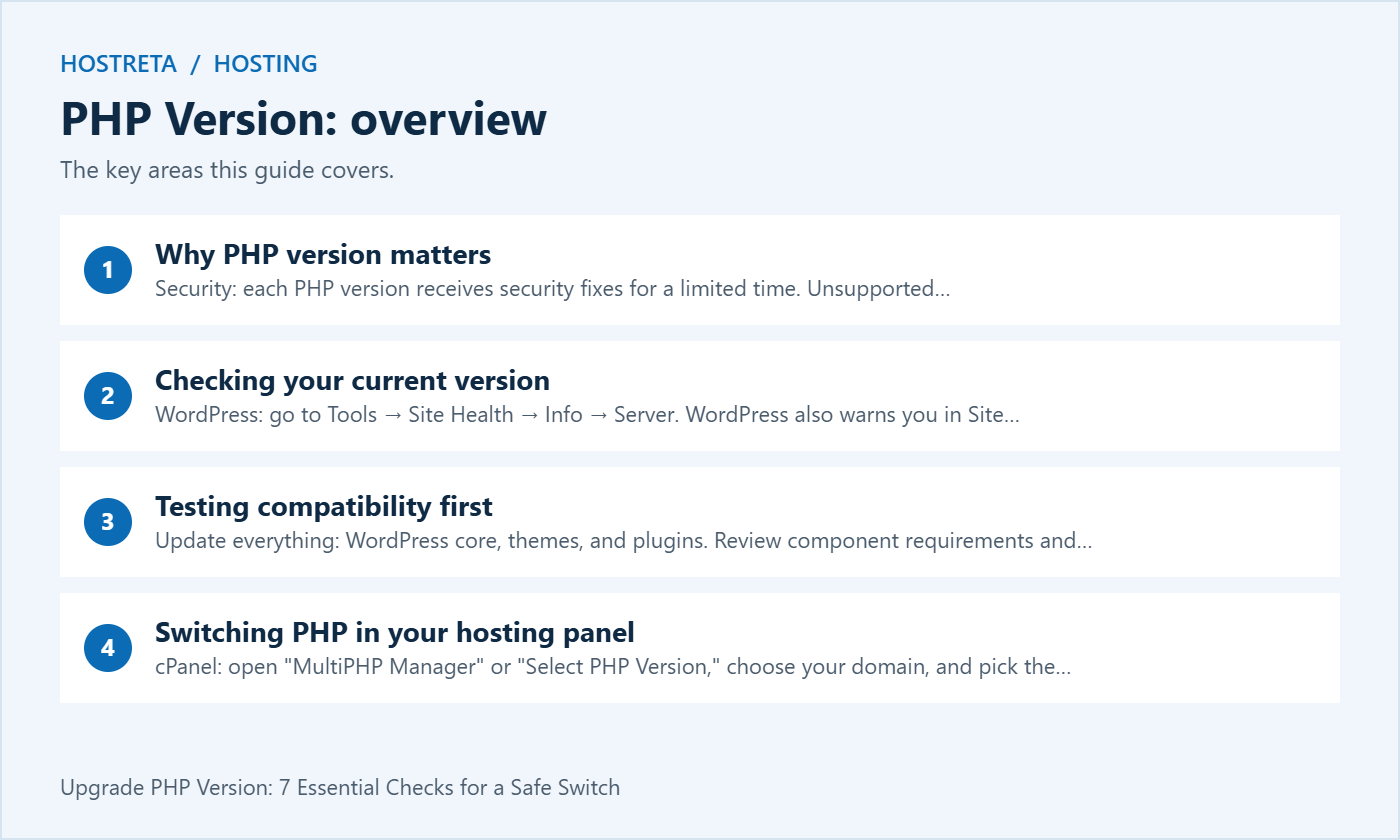
This guide shows how to upgrade PHP version safely: why it matters, how to check your current version, how to test compatibility, how to switch in your hosting panel, and how to fix errors afterward.
Speed matters for SEO and sales too — see Why Website Speed Matters: SEO, Sales and Bounce Rate.
wp --info shows the CLI runtime, which may differ from the PHP used for web requests — see WP-CLI for Beginners: Manage WordPress From the Terminal.Check the official PHP supported versions page to see whether your version still receives security updates.
Plan a tested route to a supported target. Intermediate steps may help diagnosis but are not a universal requirement. Use the host’s supported cache and runtime restart process, then verify the effective version.
The right plan makes these checks far easier. For WordPress sites, Kawedma WordPress hosting and managed WordPress hosting powered by Rocket.net include caching, staging, and backups. Growing sites that need guaranteed resources can choose a Kawedma VPS server, cloud hosting, a managed VPS from Hosting.com, or an unmanaged VPS if you prefer full control.
Record the PHP version serving the website, not only the version printed by a terminal command. A hosting account can use one runtime for web requests and another for scheduled commands. That difference can explain why a job fails while the homepage still works.
Check the host’s site-specific setting and the relevant server information. Determine whether the account contains several domains with independent settings or an inherited default. Do not assume that changing an account-wide selector affects only the site named in a tutorial.
Before you upgrade PHP version settings, record the current handler and configuration route. Another administrator should be able to identify the intended site and restore the working runtime without relying on the browser session of the person doing the release.
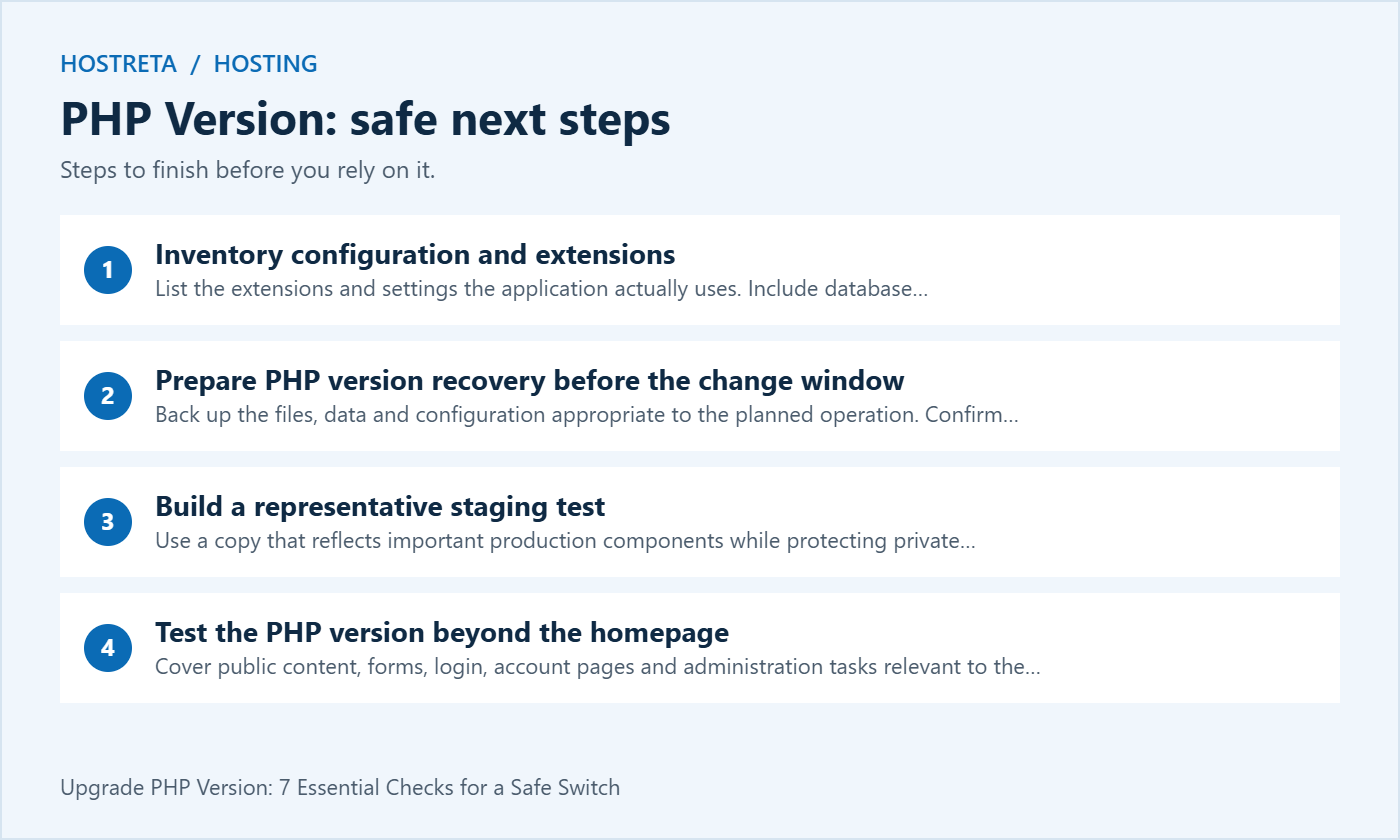
Use the current PHP lifecycle information and the WordPress compatibility reference for the installed WordPress release. Minimum compatibility, a recommended environment and upstream security support are different concepts.
Review the required theme, plugins and custom code as a complete application. A WordPress core compatibility statement does not validate every third-party dependency. Ask suppliers about important unresolved requirements and record any component that prevents moving to the selected target.
When planning to upgrade PHP version, avoid choosing an unsupported intermediate branch as a permanent destination just because an old plugin happens to run on it. A temporary recovery step and a sustainable supported deployment need separate decisions and follow-up work.
List the extensions and settings the application actually uses. Include database connectivity, image processing, internationalisation, file handling and any component-specific dependency. Use the host’s supported tools and current component documentation to verify them.
Compare the target environment rather than assuming extensions carry over automatically. A control panel may keep separate settings per runtime. Upload limits, memory settings and execution limits may also differ between handlers or pools.
Record the intended values and why they matter. If you upgrade PHP version and an upload workflow breaks, that record helps distinguish a missing extension from a changed size limit. It is more useful than randomly enabling every available module or increasing every setting.
Back up the files, data and configuration appropriate to the planned operation. Confirm that the previous working runtime remains available if the host permits switching back. Do not assume the panel keeps every older branch indefinitely.
Test the restoration route on a controlled environment where practical. A database archive alone does not recreate an extension set, server configuration or changed application files. Keep the required pieces and responsibilities visible in the release plan.
For a busy store or membership site, consider activity during the change window. Restoring older data can overwrite legitimate new records. Decide how the service owner will handle recovery without treating a full database rollback as the automatic answer to every runtime error.
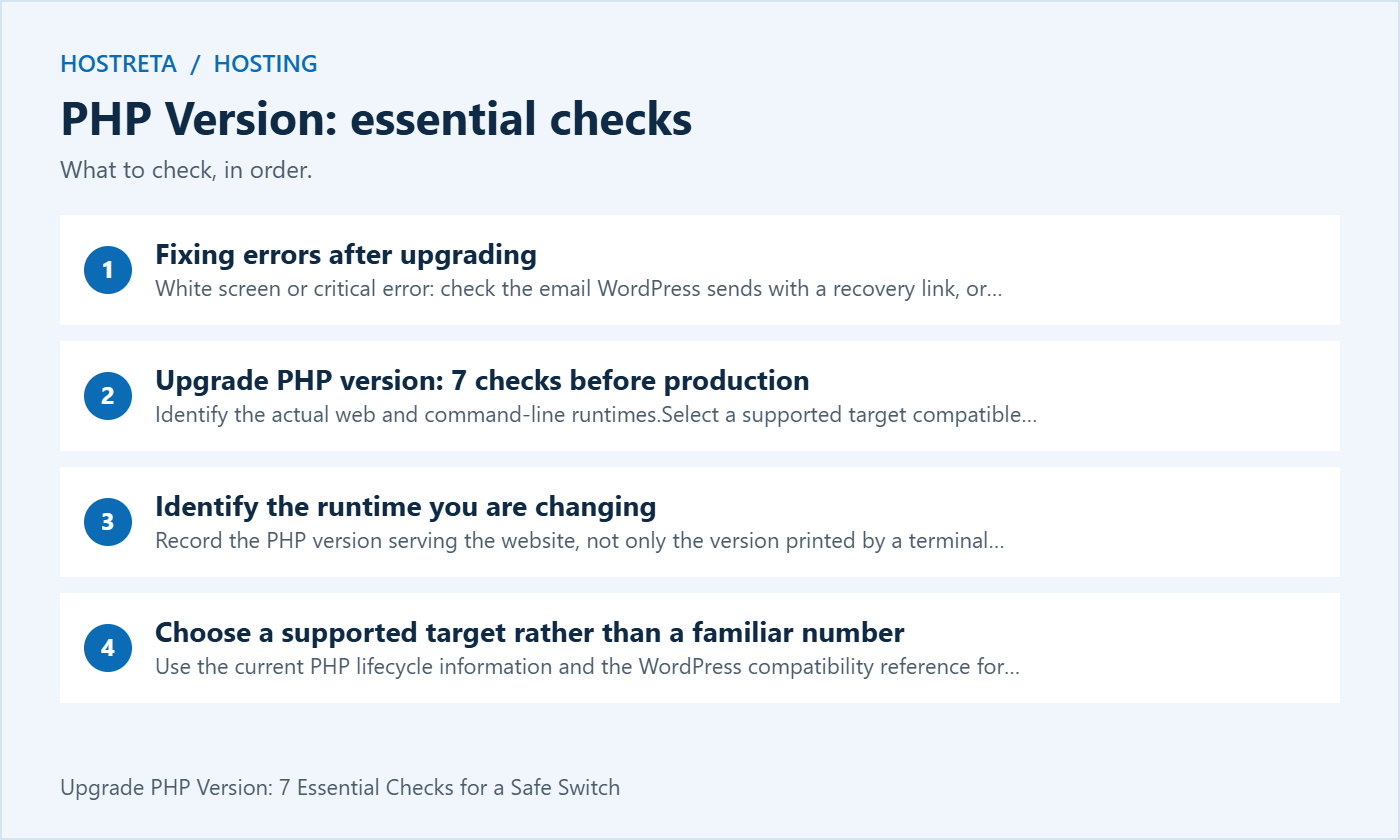
Use a copy that reflects important production components while protecting private information and external systems. Review copied credentials, email sending, payment connections and publishing integrations. A staging test should not accidentally perform live business actions.
Document differences between staging and production. Resource limits, cache behaviour, domain routing and background scheduling can differ. A passing test provides evidence within those conditions; it does not remove the need to verify the actual production environment.
Before you upgrade PHP version on staging, record a working baseline. Check the important journeys under the current runtime so an existing fault is not automatically blamed on the new version. Keep the same sample tasks for the before-and-after comparison.
Cover public content, forms, login, account pages and administration tasks relevant to the site. A cached homepage may not exercise the PHP paths that changed. Include operations that process data, upload files or call important integrations.
For a store, use approved testing methods for product selection, cart, checkout and order notifications. For a publication, test editing, media handling and scheduled content. Select representative cases rather than assuming one page stands for every feature.
When you upgrade PHP version, record each failure with the exact operation and time. A screenshot of a generic critical-error page is a starting point, not enough evidence to identify the incompatible code path.
Review scheduled tasks, imports, reports, queue processing and command-line maintenance. They may run through a different PHP binary or have different environment settings from web requests. Confirm the intended runtime for each relevant route.
Test the actual job under controlled conditions and inspect its result. A scheduler reporting that it started does not prove that the application task finished successfully. Record the exit or completion evidence available from the supported tooling.
If you upgrade PHP version only for the web pool, do not assume a terminal session changed with it. Coordinate the host’s supported configuration for both routes and retest important jobs before closing the release.
A scanner can identify some patterns that may need review, but it cannot execute every application workflow or fully understand all dynamic behaviour. Treat its report as evidence for investigation, not a universal pass or fail certificate.
Combine static checks with the relevant supplier statements and functional tests. A clean scan can miss an integration path that only runs for a particular user or event. A warning can also require context before deciding that the component is unusable.
Use the results to plan targeted fixes before you upgrade PHP version in production. Record which issues were corrected, accepted or still need evidence. Avoid blindly changing code just to silence a tool without understanding the application behaviour.
Prefer the hosting service’s supported logs or a deliberately protected application logging arrangement. Keep error details away from public pages. Stack traces and configuration data can reveal information that visitors do not need.
Record the first relevant error, operation and timestamp. Repeated secondary errors can obscure the original failure. Identify the code path and the installed component versions before applying an update or asking a developer for a correction.
If the need to upgrade PHP version exposes deprecated behaviour, distinguish notices from fatal failures while still planning maintenance. Do not describe a site as fully compatible solely because public error display was turned off.
Panel names and workflows vary. Follow current instructions for the selected provider and confirm the domain or application before saving the setting. A generic cPanel or custom-panel example should not be treated as an exact map of every hosting interface.
For a self-managed server, a runtime change can include packages, extensions, application pools and server routing. Plan the complete deployment and recovery process. Installing a new PHP package does not prove that the website has begun using it.
After the switch, verify the effective runtime through an appropriate web-side check and the important workflows. Use supported runtime and cache refresh procedures where needed. Do not assume a dropdown save alone completes the production release.
Compare the failure with the staging and baseline records. If an important production workflow fails, use the agreed recovery route where appropriate and investigate on a controlled copy. Avoid making several unrelated live changes while trying to hide the symptom.
Check configuration and extensions as well as application code. A missing module or different runtime setting can produce a failure even when the component’s language syntax is compatible. Identify the actual difference before replacing a working plugin unnecessarily.
If you must temporarily return to a previous runtime, keep the follow-up visible. Record why the attempt failed, who will fix it and how the next upgrade PHP version test will demonstrate the correction. Recovery should not quietly become an indefinite unsupported configuration.
Repeat representative uncached requests and business operations under comparable content and cache conditions. Record the runtime, resource limits and test context. A single faster homepage response can reflect caching or ordinary variation rather than the PHP change alone.
Look at errors and resource pressure alongside response time. A configuration that makes one test faster but fails under concurrent work is not a complete improvement. Verify correctness before focusing on a performance score.
When reporting an upgrade PHP version project, state what was tested and what changed. Avoid universal speed promises or an exact sales uplift. The practical result may be continued supported operation and fewer compatibility risks rather than a dramatic visible redesign.
| Area | Check | Evidence |
|---|---|---|
| Runtime | Web and relevant CLI routes use intended versions | Verified environment information |
| Configuration | Required extensions and limits are present | Reviewed comparison |
| Functions | Important visitor and administrator tasks work | Controlled test results |
| Background work | Scheduled and integration tasks complete | Job completion evidence |
| Recovery | Responsible staff can restore a working service | Tested procedure and owner |
Keep the matrix proportionate to the application. A small content site and a store with several payment and fulfilment integrations need different test coverage. The release should be reviewable by someone who did not perform the switch.
If the project needs a supported hosting environment or WordPress implementation work, consider KAWEDMA’s hosting and website development services. Ask which PHP branches, extensions, staging and recovery options are supported on the selected plan.
Confirm who is responsible for third-party compatibility fixes. A hosting runtime switch and repairing custom plugin code can be different services. Provide the affected workflow and redacted diagnostic evidence when requesting help.
Choose a supported target that fits the application’s verified compatibility and the provider’s supported stack. Availability in a panel is one fact, not a complete production readiness assessment.
No. Review the complete dependency set and test the relevant functions. A core compatibility statement does not validate every extension or custom integration.
No. Use it to identify issues for review, then exercise the important workflows. Tools and functional tests provide different evidence.
The command-line runtime can be configured separately from the web handler. Verify both routes and use the hosting provider’s supported method to select the intended environment.
Close it after verifying the target runtime, important workflows, background jobs and recovery documentation. Record accepted limitations and the next maintenance owner rather than stopping at a successful panel save.
Keep the previous and target runtimes, relevant extensions, changed settings and the tests performed. State whether web requests and scheduled commands were checked separately. Include the release time and the person who accepted the working result.
Record unresolved warnings and the responsible follow-up owner. A known limitation should remain visible after the immediate incident has ended. This helps the next maintainer distinguish a new regression from behaviour already under review.
Retain the recovery instructions in the normal project runbook and review them when the hosting environment changes. An upgrade PHP version procedure should remain understandable beyond the person who clicked the selector.
We may earn a commission on purchases made through these links, at no extra cost to you.
Don’t miss the chance to participate in the biggest giveaway of this year.