Dev & Security

WP-CLI for Beginners: 7 Essential Checks for Safe Commands
WP-CLI can make repeated administration easier to reproduce, but a short command can still make a large production change. WP-CLI is the official command-line tool for WordPress, and once you learn a handful of commands, you can inspect and manage a site through a repeatable process. Reliability still depends on scope, recovery and verification.
This guide to WP-CLI for beginners explains what it is, how to connect over SSH, the everyday commands you’ll use, database tasks, and how to stay safe on live sites.
WP-CLI lets you manage WordPress by typing commands instead of clicking. You can install and update plugins, manage users, change settings, export databases, and much more — all from a terminal.
Ask whether your specific hosting plan provides WP-CLI and the required access. SSH availability alone does not prove that WP-CLI is installed or supported. If you’re new to the terminal, start with Terminal Basics Every Website Owner Should Know.
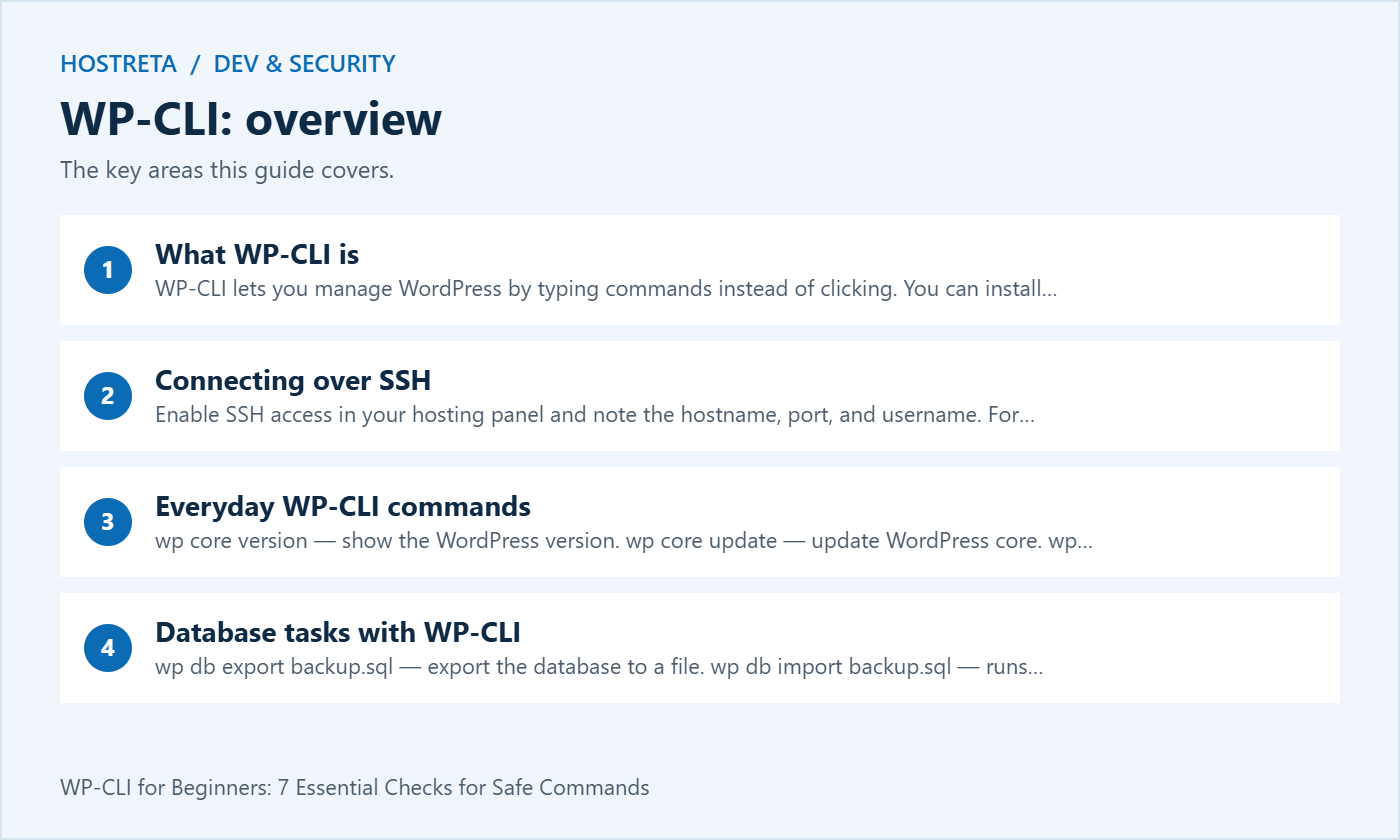
ssh username@yourserver.com -p 22 (use your host’s port).wp --info.wp core version — show the WordPress version.wp core update — update WordPress core.wp plugin list — list plugins with status and available updates.wp plugin update --all — changes every eligible plugin in scope; use a tested release and recovery plan rather than running it blindly.wp plugin deactivate plugin-name — disable a broken plugin when you’re locked out of the dashboard.wp theme update --all — update all themes.wp user list — list users and roles.wp cache flush — clear the object cache.Targeted deactivation can help when a verified plugin fault prevents dashboard access, but it changes functionality and does not fix every cause — a handy companion to How to Safely Update WordPress Themes and Plugins.
wp db export backup.sql — export the database to a file.wp db import backup.sql — runs the file’s SQL against the configured database. Depending on the file, this can replace or delete current data; validate the target and recovery plan first.wp search-replace 'http://old.com' 'https://new.com' --dry-run — preview reported changes. Review scope, selected tables and expected effects before planning a real replacement.wp db optimize — optimise database tables.wp transient delete --expired — clean up expired temporary data.WP-CLI’s search-replace handles serialized data correctly, which makes it ideal after a domain change — see How to Change Your WordPress Site Address Without Breaking It.
--dry-run whenever a command offers it.pwd before running commands.Monitoring and logging work best alongside layered protection. SiteLock scans for malware, CodeGuard keeps off-site backups with version history, and 360 Monitoring alerts you to downtime. Secure hosting matters too: Kawedma WordPress hosting and managed WordPress hosting powered by Rocket.net include firewalls and automatic updates. Use NordVPN when managing sites over public Wi-Fi.
Start on a controlled local or staging installation when learning. Read-only tasks help you understand the command structure without using production as a practice exercise. The official beginner guide and command help are the right starting points for the installed tool.
Confirm the current working directory and the site identity before interpreting output. An account can contain several installations with similar names. A successful command against the wrong folder is still the wrong operation.
Write down a small initial task, such as listing the installed plugins. Avoid pasting a long maintenance script before you understand each step. WP-CLI is useful because it makes operations explicit, but that advantage disappears when an unexplained sequence is copied from another environment.
A command typically has a namespace, an operation and optional arguments. Help explains which values are required and what options change. Use the specific command reference rather than assuming that every command accepts the same switches.
wp --info
wp help plugin list
wp core version
wp plugin list
wp theme list
These examples are intended for inspection in the appropriate installation. The resulting lists describe the system under the selected conditions; they do not prove that every component is compatible or that the public site is healthy.
When a command is missing, check the installed version and packages through the supported documentation. Do not replace an unfamiliar command with a guessed operation that changes data. WP-CLI extensions can add commands, so a tutorial’s environment may differ from yours.
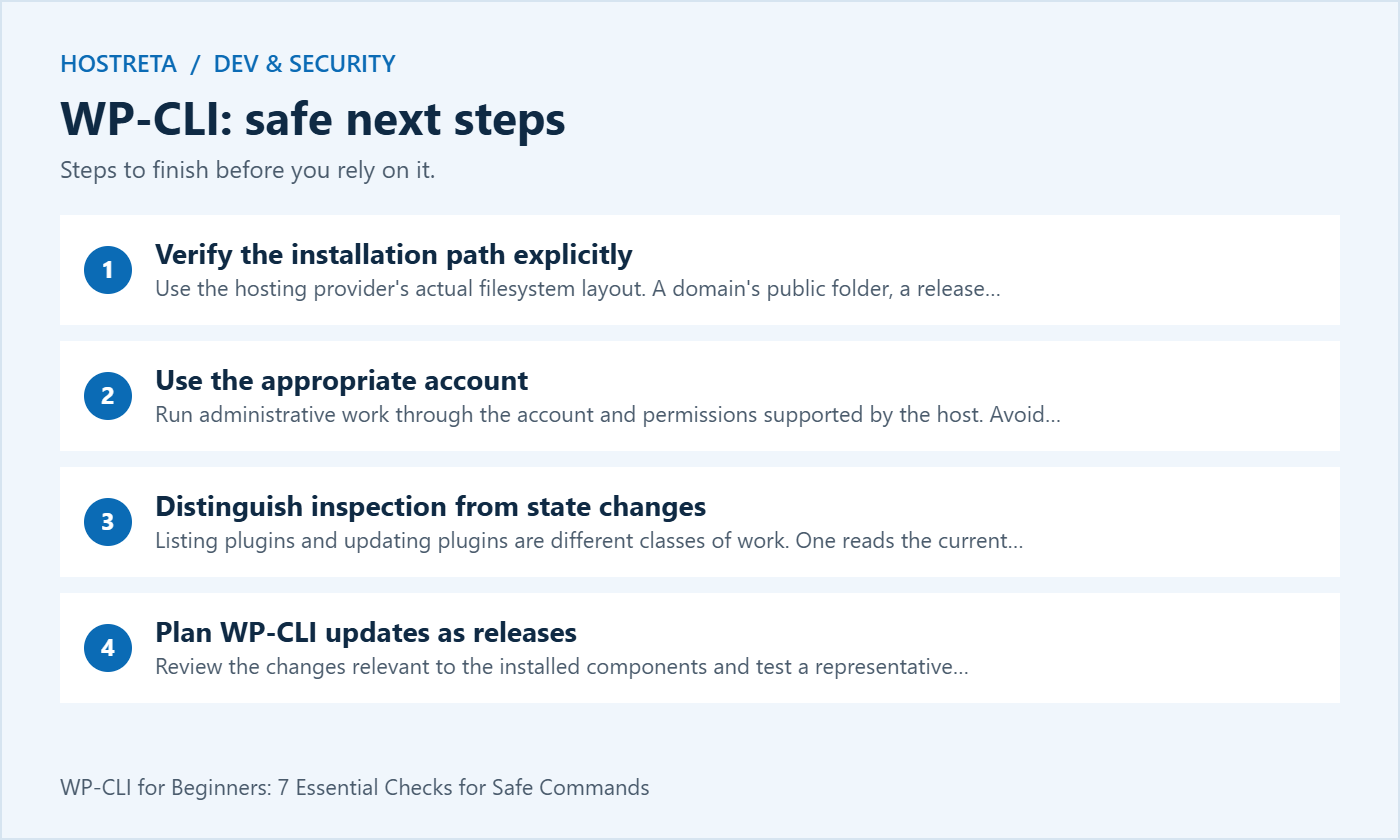
Use the hosting provider’s actual filesystem layout. A domain’s public folder, a release symlink and a WordPress application directory can be different locations. Confirm which one the command should target.
The WP-CLI configuration reference describes settings such as path and URL selection. Review inherited configuration and aliases when a command appears to affect an unexpected site. A convenient shortcut should remain understandable to the person using it.
Keep production and staging identities distinct. Use clear names in runbooks and verify the resolved target before consequential changes. A prompt colour or familiar directory name can be a useful cue, but it is not sufficient evidence that the right database and files are selected.
Run administrative work through the account and permissions supported by the host. Avoid defaulting to a broadly privileged system account merely because it makes a command execute. File ownership and permissions should remain compatible with the normal deployment process.
Use authorised access and the provider’s current authentication instructions. Keep private keys, tokens and database credentials out of shared command examples. A runbook should reference a secure credential location rather than embed the secret itself.
If WP-CLI reports a permissions problem, identify which operation and resource are involved. Broadly opening file permissions can create a second problem while hiding the original cause. Ask the host or responsible administrator to correct the access model when necessary.
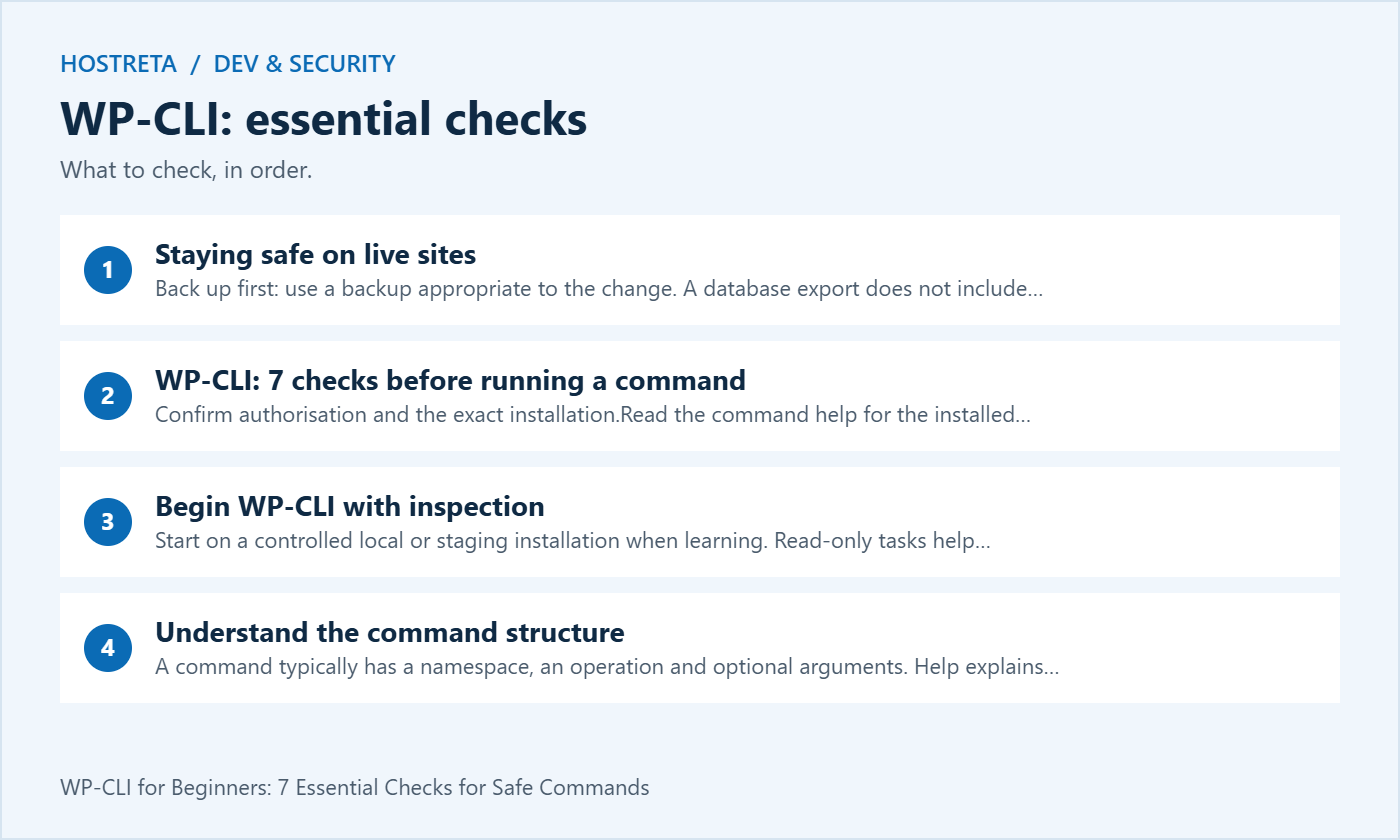
Listing plugins and updating plugins are different classes of work. One reads the current state; the other changes shared executable code. A command’s short length says nothing about the size of its effect.
Before a change, state the intended result and the acceptance checks. For a plugin update, that might include the target version and tests for the forms, checkout or other features it provides. Keep a recoverable working state and follow the site’s release process.
Use a narrow target when troubleshooting. Deactivating every plugin may disrupt several unrelated services. A verified targeted change is easier to assess and reverse than an unexplained bulk operation that makes the homepage appear to work.
Review the changes relevant to the installed components and test a representative environment. Include theme customisations and important integrations. Do not infer compatibility from a successful download or a command ending without an error.
After an update, check the actual business workflows. A contact form should accept a controlled enquiry, an account page should display correctly and store operations should use approved testing methods. Select tests appropriate to the component rather than repeating every possible check for a trivial change.
Record the versions and the result. If a regression appears later, the record should help distinguish the release from another configuration change. WP-CLI can support repeatable administration without replacing the judgement needed to decide when a release is acceptable.
The database export command writes a database representation using the configured connection. That is useful for database work, but it is not a complete copy of the website’s files, media and infrastructure configuration.
Store exports outside publicly served directories and restrict access. Database files can contain private user and business information even when the public website contains only ordinary articles. Avoid leaving a conveniently named SQL file available through a web URL.
Verify restoration on a suitable controlled destination. A successful export message does not establish that the full recovery process has been tested. Know which versions, files and settings must accompany the data for the intended restoration.
The database import reference describes running SQL through the configured database connection. The effects depend on the file’s statements and target. A filename such as backup.sql does not prove that it belongs to this site or that applying it is appropriate.
Check the origin, date, scope and intended destination of the file. Plan how newer activity would be handled, particularly for orders, registrations and messages. Restoring an older database to fix one setting can overwrite unrelated legitimate changes.
Keep import testing separate from production recovery approval. Demonstrating a file on staging is useful evidence, but the final recovery operation still needs the correct target and an agreed procedure. WP-CLI does not decide which business records may be replaced.
The search-and-replace documentation describes supported options and handling of serialised data. Read it for the actual scope, including tables and network behaviour. Do not assume that a generic old-domain and new-domain example captures every migration requirement.
wp search-replace 'https://old.example' 'https://new.example' --dry-runThis is a teaching example for reviewing a proposed replacement. Use controlled values and examine the report. A dry run shows what the tool would attempt under those options; it does not validate the business meaning of every match or prove that the final application will work.
Investigate unexpected matches before applying changes. Different hosts, email addresses, external references and historical records may require different treatment. Do not broaden the scope simply to make a match count larger.
A network contains shared resources as well as site-specific content. Selecting a site’s URL can establish context for some commands, but it does not turn every database or shared-code operation into an isolated single-site action.
Read the individual command’s network and table options. Define whether the intended task affects one site, all sites or shared components. Use a controlled network test when the scope is not already understood.
For WP-CLI runbooks, make network scope visible beside the command. A colleague should not need to infer it from an alias remembered by the original author. Verify the effect on representative sites and shared resources after the operation.
Identify which cache you mean: application object data, page responses, server cache or an edge service. A command targeting one layer may not affect the others. Avoid using a generic flush as the explanation for every stale page.
After an appropriate cache operation, verify the intended content and relevant private-page behaviour. Monitor whether a large cache rebuild creates temporary load. A fast cached result and a correct uncached result are different observations.
Keep the cache integration and owner documented. If the host provides a separate control, use its supported process rather than assuming a WordPress command can operate every layer in the delivery path.
Begin with a report or another narrow operation whose output can be checked. Define the target, expected result and failure behaviour. Do not create a schedule that silently repeats a broad update across a portfolio before the team can verify one site’s release.
Use clear logs that identify the site and operation without storing credentials. Review exit status and output according to the supported tooling. A scheduler saying that it started a job is not proof that the maintenance completed successfully.
Test how the process behaves when a connection fails, an expected command is unavailable or the target cannot be found. A safe automation should make those conditions visible and avoid continuing into unrelated changes with missing assumptions.
| Item | Record |
|---|---|
| Target | Authorised site, environment and relevant network scope |
| Purpose | Specific result the operation should achieve |
| Preparation | Backup, test and current state needed for recovery |
| Execution | Reviewed command, version and relevant output |
| Acceptance | Workflow checks and any remaining limitations |
Keep the record proportionate to the action. A simple inspection does not need a large approval document. A bulk production replacement needs enough detail for another administrator to understand and assess the operation.
If the project needs hosting or WordPress implementation support, consider KAWEDMA’s hosting and website development services. Ask whether the selected plan includes SSH and WP-CLI access and which maintenance tasks are managed. Do not assume these features are included solely because a service is described as WordPress hosting.
Provide the command, redacted error, target environment and intended task when asking for assistance. Avoid sending an unrestricted private key or a full database just to explain a command failure. A focused report helps the responsible administrator identify the right layer.
It provides another administration interface. Use the interface appropriate to the task and the operator’s understanding. The same need for correct permissions, backups and verification applies to meaningful changes.
Start with a controlled learning environment and a clear release process. Broad updates are useful only when their scope, dependencies and recovery are understood. A short command is not a reason to skip testing.
No. Check the help for the specific command and version. Where no suitable preview exists, use a controlled test and the operation’s supported validation process rather than inventing a switch.
No. Recovery may also require files, uploads, configuration and compatible code versions. Choose and test the backup scope appropriate to the change.
Choose one real low-risk maintenance task on staging. Read its reference, define the expected outcome, execute it under the right permissions and verify the result. Expand only when that complete process is repeatable.
Read the whole command and replace teaching placeholders deliberately. Check the shell syntax as well as the WP-CLI operation: quoting, spaces and special characters can change what the terminal passes to the tool. A command written for another shell or filesystem layout may need adaptation.
Keep secrets out of copied examples and shared screenshots. Where a parameter can contain sensitive information, use the supported secure input or credential-handling approach for the environment. Do not paste a real password into a public troubleshooting note.
Before pressing Enter, state the target and expected effect in plain language. If either remains unclear, return to the command reference or test on a controlled copy first.
We may earn a commission on purchases made through these links, at no extra cost to you.
Don’t miss the chance to participate in the biggest giveaway of this year.