Hosting

WooCommerce Caching: 7 Essential Checks for a Safe Store
Caching makes WooCommerce fast — until it caches the wrong page and a customer sees someone else’s cart, or an “add to cart” button stops working. Stores need a more careful setup than blogs, because much of the site is personal to each shopper.
This guide explains how WooCommerce caching works, which pages to cache, which to exclude, how object caching helps, and how to test carts afterward.
Full-page caching saves the finished HTML of a page and serves that copy to the next visitor. That’s perfect for a product page everyone sees the same way — and dangerous for a cart page, which is different for every shopper.
WooCommerce sets cookies for carts and sessions. A conservative page-cache setup bypasses shared HTML caching for active carts and shopper sessions using the cache provider’s documented cookie rules. Most WooCommerce-aware caching plugins do this automatically; always confirm rather than assume.
These pages take the most traffic and benefit most from caching.
/cart//checkout/ and any order-received or thank-you pages/my-account/ and all its sub-pagesAlso exclude WooCommerce AJAX requests from caching. If you use a CDN with HTML caching, apply the same exclusions there — see Server vs Plugin Page Caching.
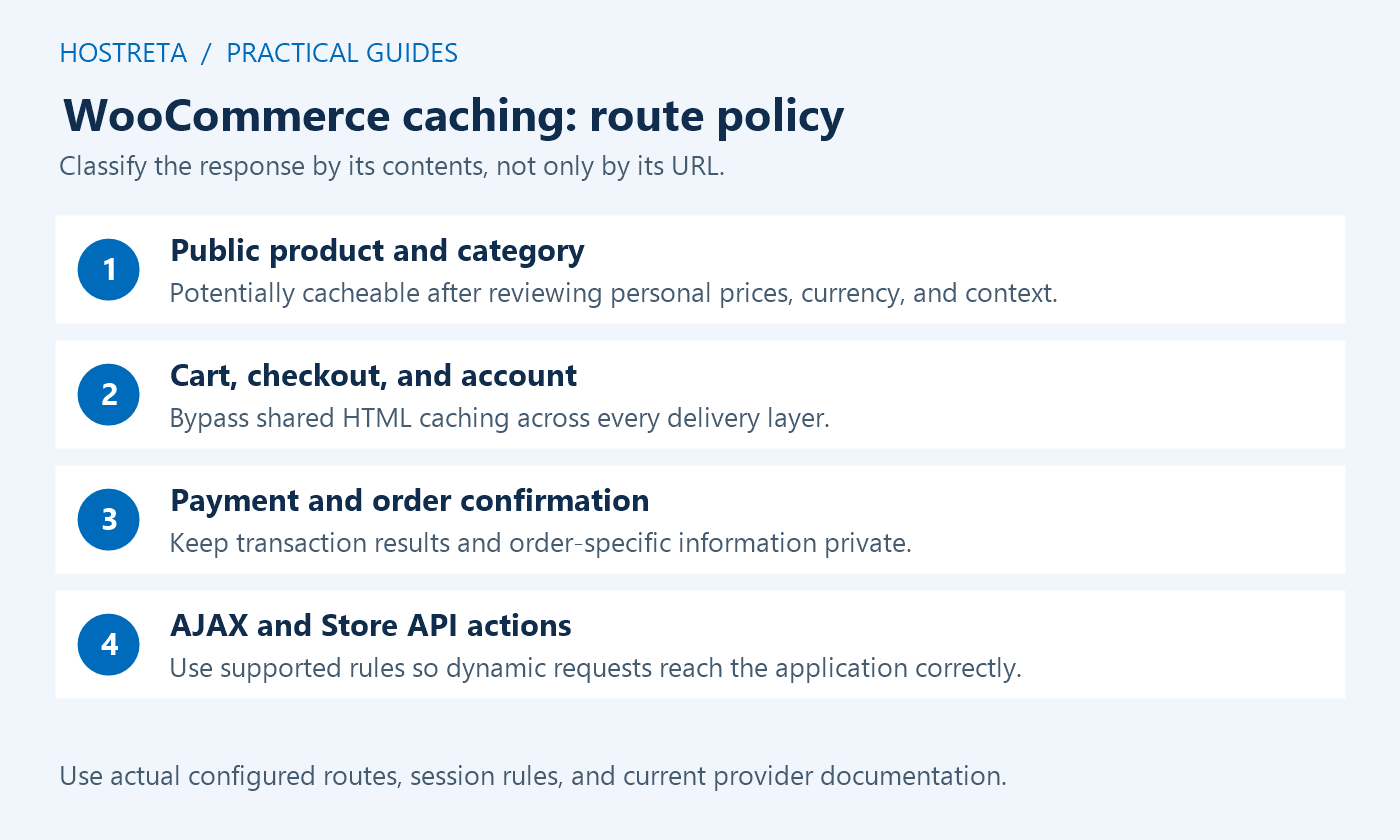
Cart, checkout, and account requests still need live application processing. A persistent object cache such as Redis can reuse eligible application data across requests, potentially reducing database work. It does not cache every query or remove payment processing, and the benefit must be measured.
Its value depends on the queries, extensions, memory allocation, and integration used by the store. Setup is covered in Object Caching With Redis: Does Your WordPress Host Support It?.
Also consider cart fragments: the AJAX request that keeps the cart count updated on every page. Since WooCommerce 7.8, core no longer enqueues the legacy script indiscriminately on every page; themes and extensions can still request it. Inspect the implementation before changing it. The Mini-Cart block uses a different approach.
Then confirm it holds under load — see How to Load Test Your Store Before Black Friday Traffic.
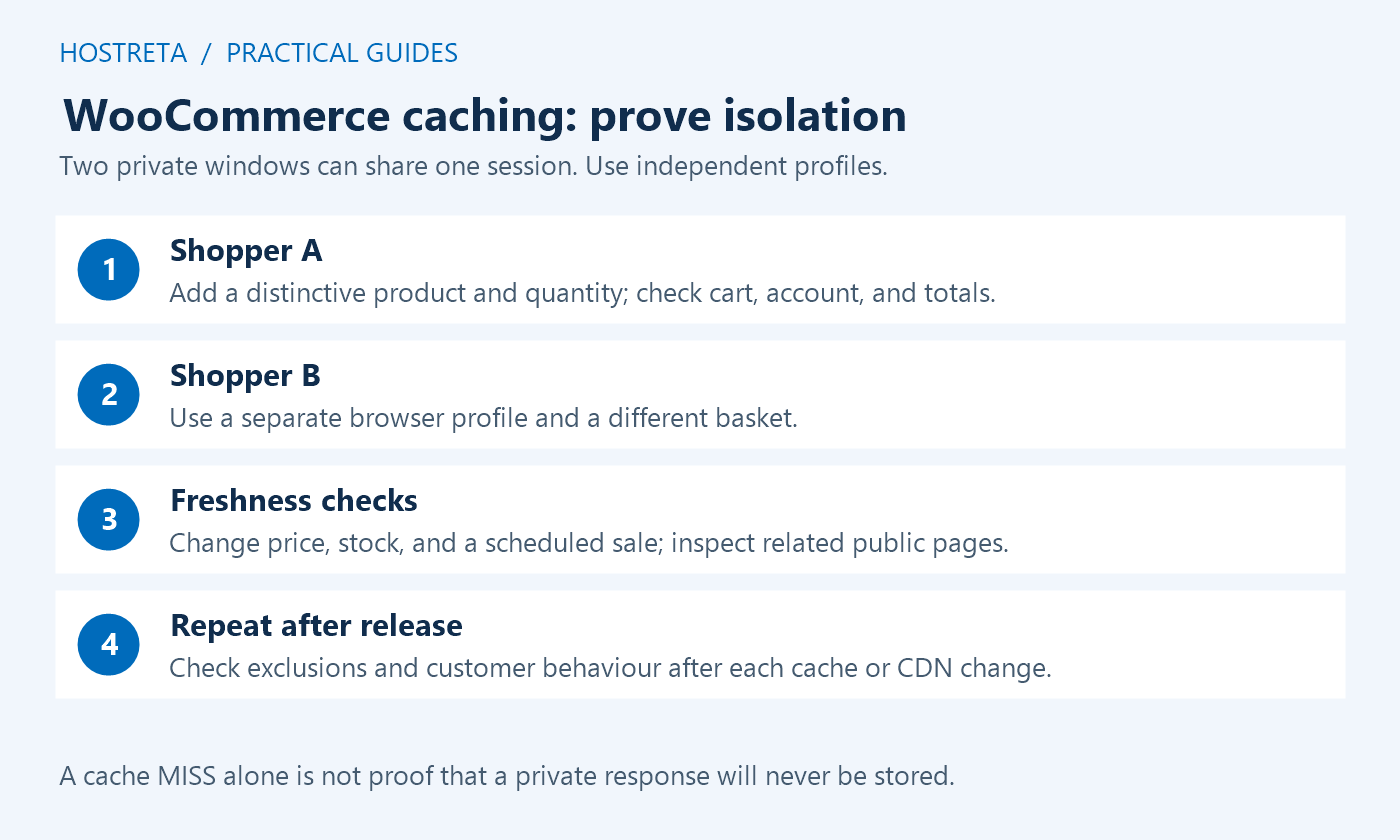
A useful WooCommerce caching policy explains three things: which responses may be shared, how the system recognises a shopper, and when an old copy becomes invalid. Start on staging with a backup and a written rollback procedure. Record the store version, checkout type, hosting cache, plugin cache, CDN rules, and any currency or membership extension. That inventory prevents a change in one layer from hiding a problem in another.
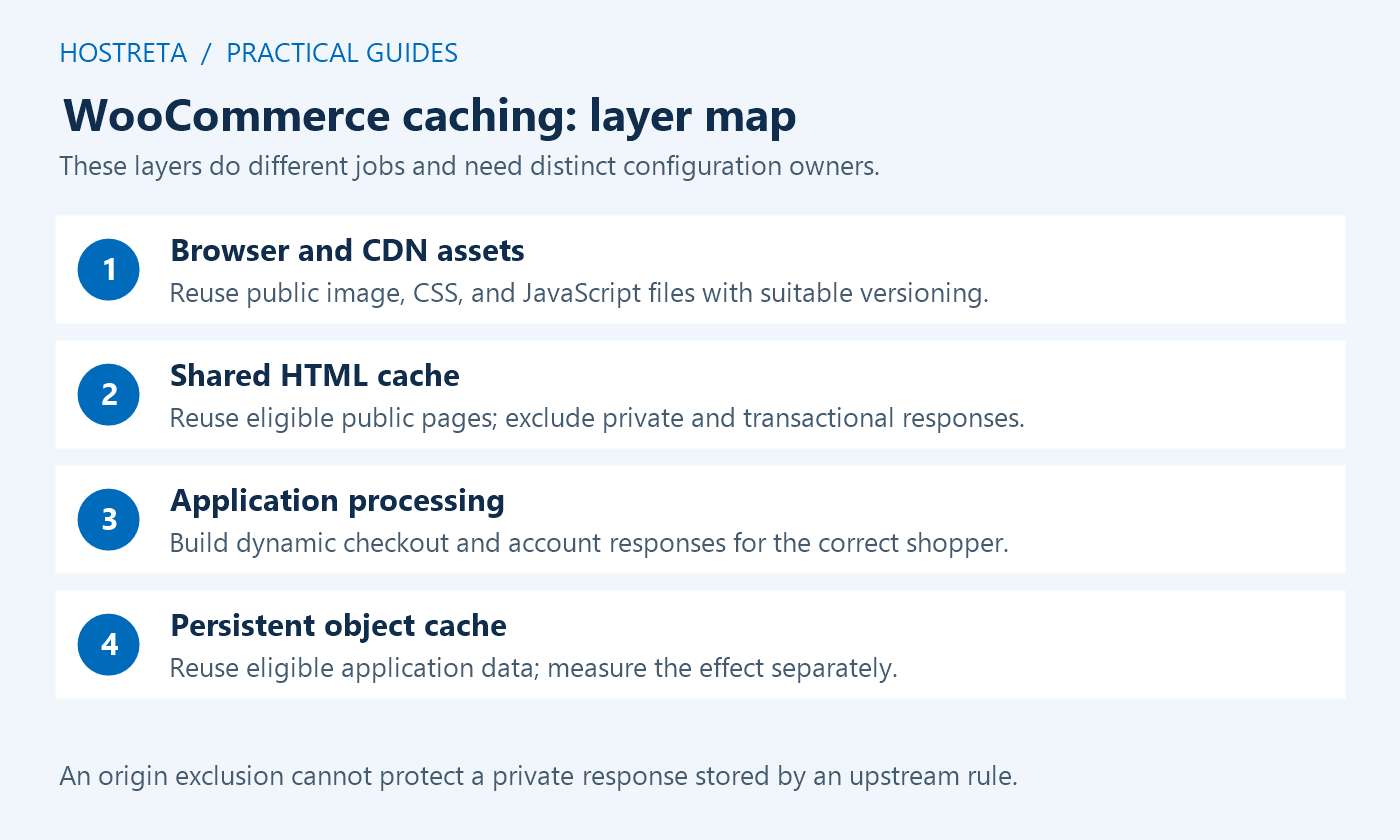
Browser caching, a CDN asset cache, a CDN HTML cache, a hosting reverse proxy, a WordPress page cache, and a persistent object cache do different jobs. WooCommerce caching becomes difficult to troubleshoot when a team calls all of them “the cache.” Draw up a small inventory showing who can change each layer, where exclusions are configured, how to inspect its status, and how to purge it.
Choose a clear owner for shared HTML caching. Two page-cache layers can work together, but only when both respect the same exclusions and invalidation events. Installing a second plugin does not automatically improve performance. If the hosting platform already handles page caching, ask which integration the provider supports before introducing another writer. Keep browser asset rules separate from HTML session rules.
For WooCommerce caching, an anonymous product description is a different resource from an account page or an order confirmation. Use the actual configured URLs, including translated routes, renamed endpoints, and custom checkout pages. A rule for /checkout/ does not protect a store whose checkout slug is different. Inventory order payment links and receipt routes as well as the main page.
Exclude shared HTML responses that contain account details, order information, a personal cart, or another shopper-specific value. Bypass authenticated sessions unless the provider documents a properly isolated alternative. Product and category pages are candidates for public caching only after checking whether extensions add customer pricing, location-specific taxes, membership offers, or other personalised output. A public-looking URL does not guarantee public content.
WooCommerce caching rules must consider session cookies as well as page paths. Check the provider’s current instructions for woocommerce_items_in_cart, woocommerce_cart_hash, and the wp_woocommerce_session_ cookie prefix. Do not copy a cookie expression into a different product without checking its syntax. Prefix matching, regular expressions, and exact cookie names are not interchangeable configuration formats.
Do not serve a saved shared response for checkout mutations or cart updates. Account for WooCommerce AJAX routes, Store API cart and checkout requests, and extension-specific endpoints. Broad “cache everything” rules can override sensible application defaults. Test the behaviour at the outermost CDN as well as the origin; a correct plugin exclusion cannot protect a response already stored at an upstream layer.
WooCommerce caching should save repeated rendering work without keeping a discontinued offer visible indefinitely. Identify what happens after a price change, stock update, sale start, sale end, category edit, or product import. Purging only the product page may leave an old price on the home page, a category listing, a related-products section, or a campaign landing page. Test the places customers actually use.
Use a staging product with a clear test price and stock quantity. Warm the product and category pages, change the values, then inspect both through the normal delivery path. Include a scheduled sale transition because a timed event can follow a different invalidation path from an editor pressing Update. Record the maximum acceptable stale window for public information and who acts if the purge does not arrive.
Persistent object caching can help WooCommerce caching by avoiding repeated application data work, but it needs a supported service, a compatible WordPress integration, and enough available memory. Check the host’s installation guidance and isolation rules. Separate production and staging namespaces where the integration requires them. A connection indicator proves connectivity; it does not prove that checkout is faster or that stored data stays correct.
Compare an uncached dynamic journey before and after the change using the same basket, account type, and payment sandbox. Review response duration, database activity, application errors, and resource usage. If a slower external shipping call dominates the request, Redis will not remove that wait. Keep the rollback process specific: disabling an integration and clearing its data are different operations, and a shared service may support other sites.
A WooCommerce caching test needs isolated sessions. Two private windows in the same browser may share one private session, so use separate browser profiles or different browsers. Give shopper A a distinctive product and quantity. Give shopper B a different basket. Confirm that totals, notices, addresses, currency, and account status remain separate while each shopper moves through product, cart, checkout, and confirmation screens.
Repeat with an empty cart, a returning shopper, an account login and logout, a coupon, and a shipping-address change. Use the gateway’s test mode on an isolated staging environment and verify the order result, confirmation, and expected notification flow. Do not send test payment requests to a live store without a controlled plan. An acceptable cache hit ratio cannot compensate for a leaked account detail or a duplicated order.
Make WooCommerce caching changes in a quiet period with someone available to check the customer journey. Change one layer at a time, invalidate the affected public pages, and repeat the isolation checks through the production domain. Keep the previous configuration available so the operator can reverse the specific rule responsible for a problem rather than disabling unrelated protections or restarting every service.
Watch checkout errors, unusual cart complaints, payment retries, origin resource usage, and the ratio of public cache hits to bypasses. A rise in bypasses may be expected when more visitors add products to carts. A sudden improvement in hit rate can instead mean a session rule has stopped working. Interpret performance numbers together with business behaviour and correctness checks.
| Response | Shared HTML policy | What to verify |
|---|---|---|
| Anonymous product or category | Potentially cacheable | No private pricing; price and stock invalidation works |
| Cart, checkout, account | Bypass | Every delivery layer respects the exclusion |
| Order payment and confirmation | Bypass | Order data never reaches another session |
| Cart or checkout API operation | No shared stored transaction response | Method, cookies, tokens, and route reach the application |
| Versioned public images, CSS, JavaScript | Usually suitable for asset caching | Updated files receive a new version and correct headers |
| Customer-specific product prices | Bypass unless isolation is documented | Membership, currency, and tax context remain correct |
Inspect the mini-cart implementation before changing WooCommerce caching rules. A legacy widget, a block, and a custom header can update differently. Check whether the relevant request succeeds and whether JavaScript optimisation has delayed a required dependency. Keep one reproducible basket and reverse one optimisation at a time. Removing the cart indicator may hide the symptom without fixing the underlying integration.
This points toward an invalidation gap in WooCommerce caching. Compare the affected page with a category listing and a fresh session. Determine whether the stale response comes from the browser, CDN, hosting page cache, or plugin cache using the provider’s documented headers. Repair the update or scheduled-event integration instead of making staff purge the entire site every time a promotion begins.
Treat this as an isolation failure, not a cosmetic display issue. Remove the affected route from shared HTML caching at every layer, purge stored private responses, and have the responsible operator review the scope. Retest independent sessions before re-enabling the rule. Preserve only the diagnostic information necessary for investigation and avoid copying customer details into public tickets, screenshots, or chat messages.
That can be normal evidence that public WooCommerce caching is helping browsing while the dynamic path remains expensive. Profile checkout separately. Database work, server capacity, shipping-rate services, payment authentication, and extension code can contribute different delays. Improve the measured bottleneck rather than attempting to make checkout share one stored page across shoppers. Use the hosting resource limits guide to separate capacity limits from cache configuration.
Keep a short evidence sheet for each release: date, operator, configuration version, test product, shopper profiles, affected routes, expected behaviour, and observed result. Document which response headers belong to which provider. A label such as HIT or MISS has meaning only within that provider’s implementation; it is not a universal security verdict. Record repeated requests and actual session separation alongside the header observation.
Write acceptance criteria in customer terms. For example: shopper B never receives shopper A’s basket; changing a delivery address recalculates eligible shipping; a scheduled promotion becomes visible within the agreed window; and order confirmation belongs to the right order. These checks make WooCommerce caching reviewable by an operator who was not present during setup. Avoid collecting live personal data merely to demonstrate that a test passed.
After approval, record the exact rollback trigger and the person authorised to use it. A serious private-data mix-up calls for immediate containment, while a public image taking longer to refresh may allow a narrower purge. Explain that distinction before a busy sale starts. Store the record with the release notes so a later plugin update does not silently invalidate assumptions made during the original configuration.
No. Start with anonymous pages that show the same information to eligible visitors. Review currency, geolocation, wholesale pricing, memberships, and personal recommendations before allowing a shared copy. WooCommerce caching can use documented variations where supported, but an unbounded set of cache keys can lower reuse and create more complexity. Bypass uncertain cases until the isolation design is tested.
No. A MISS may be the request that creates a stored response. Repeat the journey and inspect another independent session. The WooCommerce caching configuration should explicitly exclude private routes and transaction requests rather than relying on a single observation. Confirm that an upstream CDN or host rule is not overriding the application’s intended behaviour.
No. They operate at different levels. Redis-backed object caching can reuse eligible application objects while PHP still builds the response. A page cache can serve saved public HTML without rebuilding it. A store may benefit from both, but WooCommerce caching should keep their measurements, configuration, failure modes, and rollback procedures distinct. Neither removes the need for sufficient server capacity.
Not without checking which component uses them. Consult WooCommerce’s cart fragments guidance and test the actual theme. The legacy API is not the same as the Mini-Cart block. Blindly removing a dependency can leave shoppers with stale cart feedback even when the underlying basket is still correct.
Ask the host to identify its cache layers, supported exclusions, purge integration, and persistent object-cache options. If you need implementation help, discuss those requirements with a provider such as KAWEDMA, which offers hosting and website development. Request a written test and rollback plan for your store; a provider name alone does not establish compatibility or a performance result.
Use WooCommerce’s official caching configuration guide as the baseline, then follow the specific host and plugin documentation. Recheck the policy after checkout, theme, currency, or CDN changes. Reliable WooCommerce caching is a maintained agreement about fresh public pages and private shopper journeys, supported by repeatable evidence.
Run the same WooCommerce caching checks after a hosting migration or a change to delivery rules. Compare the current configuration with the approved record rather than assuming the previous environment transferred every exception. Give support staff a clear way to report an incorrect basket, stale offer, or failed checkout, and keep a responsible operator available during the first campaign traffic.
We may earn a commission on purchases made through these links, at no extra cost to you.
Don’t miss the chance to participate in the biggest giveaway of this year.