HowTo

How to Schedule a WooCommerce Sale in Advance
Launching a sale manually at midnight means staying awake, hoping nothing breaks, and updating prices one product at a time. WooCommerce can do it for you. Schedule a WooCommerce sale properly and prices change themselves — and change back when the sale ends. That frees you to focus on marketing and customer service when it matters most.
With Black Friday on November 27, 2026 and Cyber Monday on November 30, this guide shows how to plan and schedule every WooCommerce sale in advance: why scheduling beats manual launches, setting sale dates on simple and variable products, bulk scheduling with CSV and plugins, timezone and cron pitfalls, caching, communicating the sale, verifying it went live, and cleaning up afterwards.
A scheduled WooCommerce sale also means your emails, banners, and prices line up exactly. When the launch email lands, the discounts are already live.
Write the plan in a simple spreadsheet. It becomes the source for your bulk import and a record you can review afterwards.
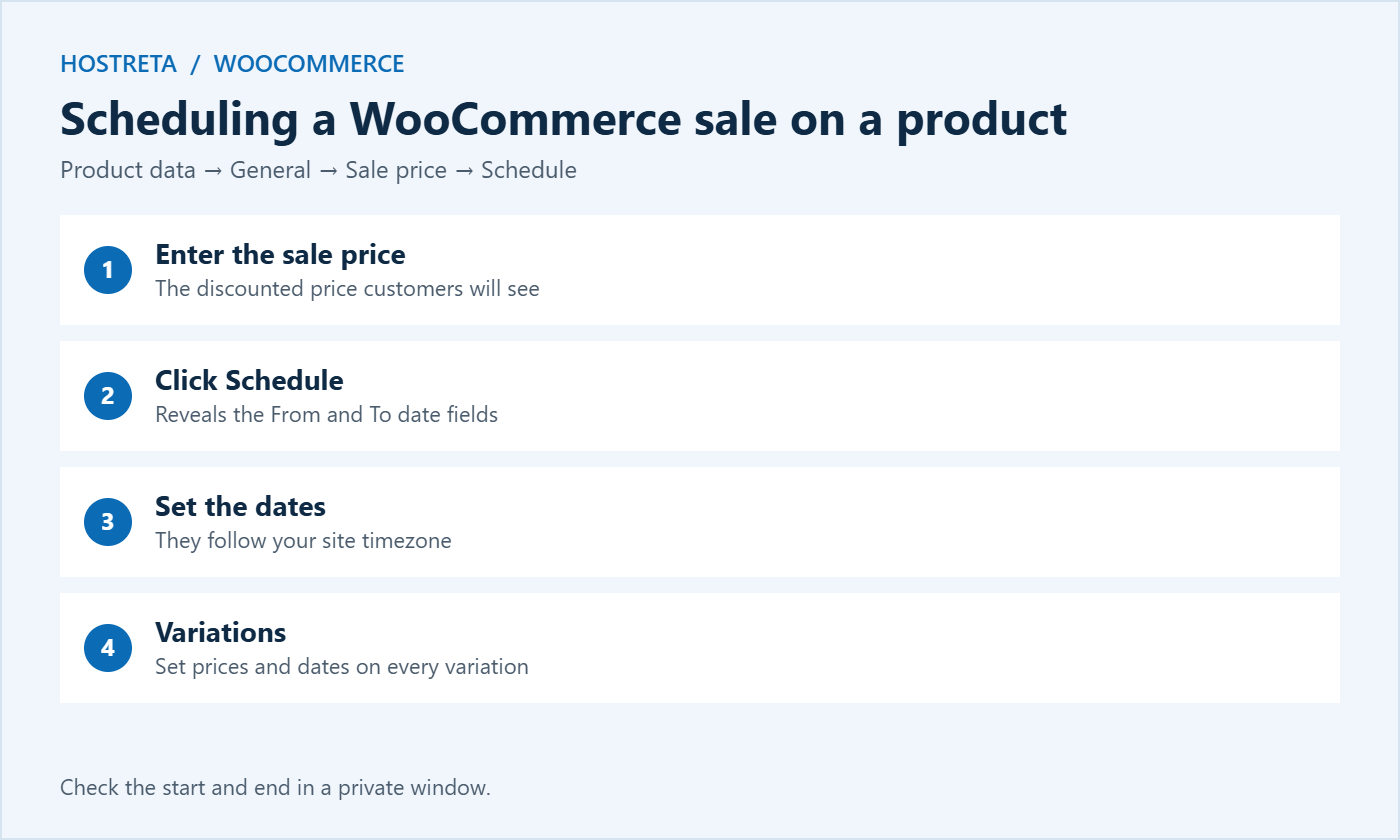
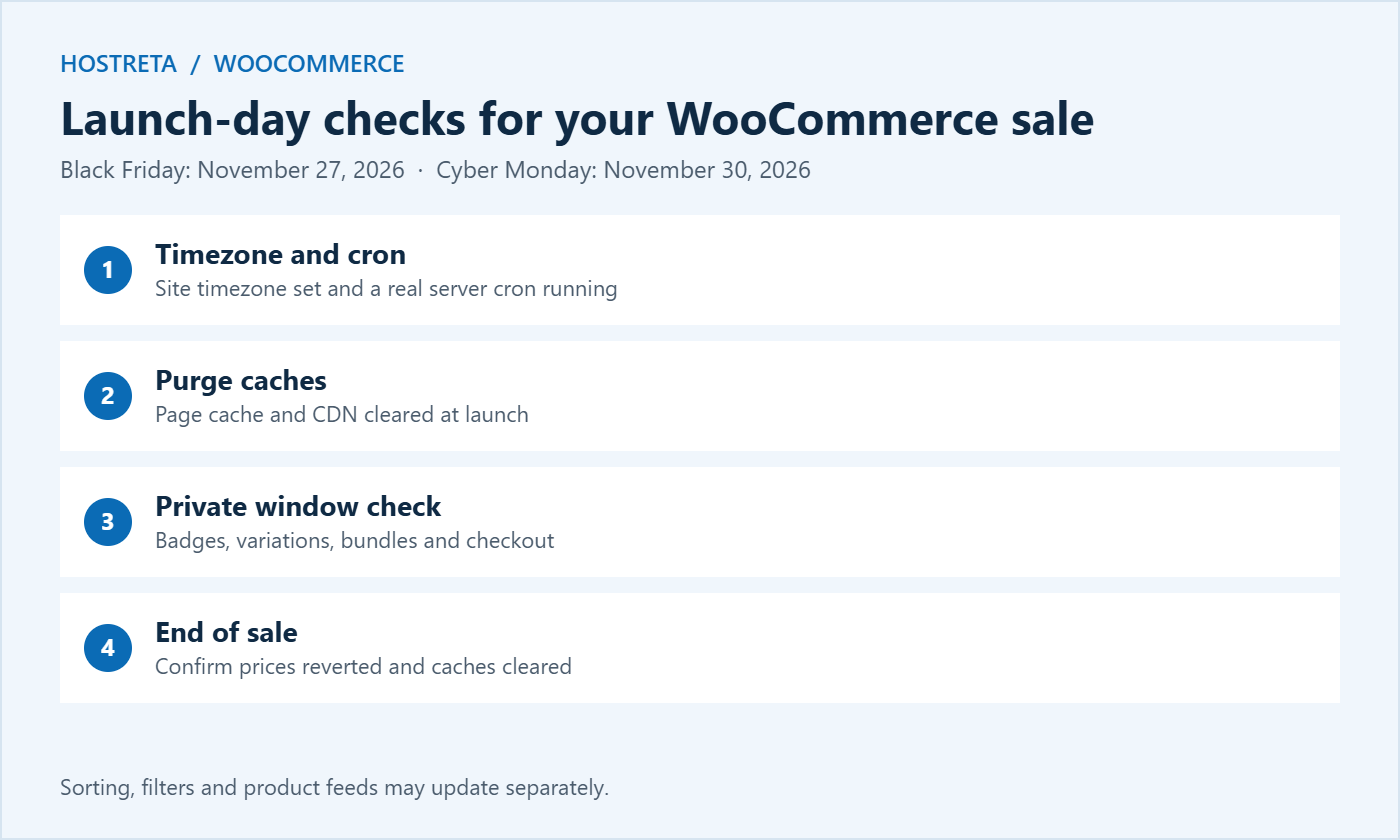
The dates follow your site’s timezone. Check exactly when your WooCommerce sale starts and ends by viewing the product in a private window shortly after each boundary — especially the end date, so you know whether the last day is included. The fields are described in WooCommerce’s managing products documentation.
For variable products, set sale prices and dates on each variation under Product data → Variations. If you have many variations, use the bulk actions dropdown in the variations panel to set sale prices and schedules for all of them at once. Variations are the most common place for a WooCommerce sale to go wrong, so test them carefully.
Product bundles, subscriptions, and bookings are added by extensions, and each handles sale prices slightly differently. Check the extension’s documentation and test a scheduled price on one product before rolling it out — see How to Set Up Product Bundles in WooCommerce.
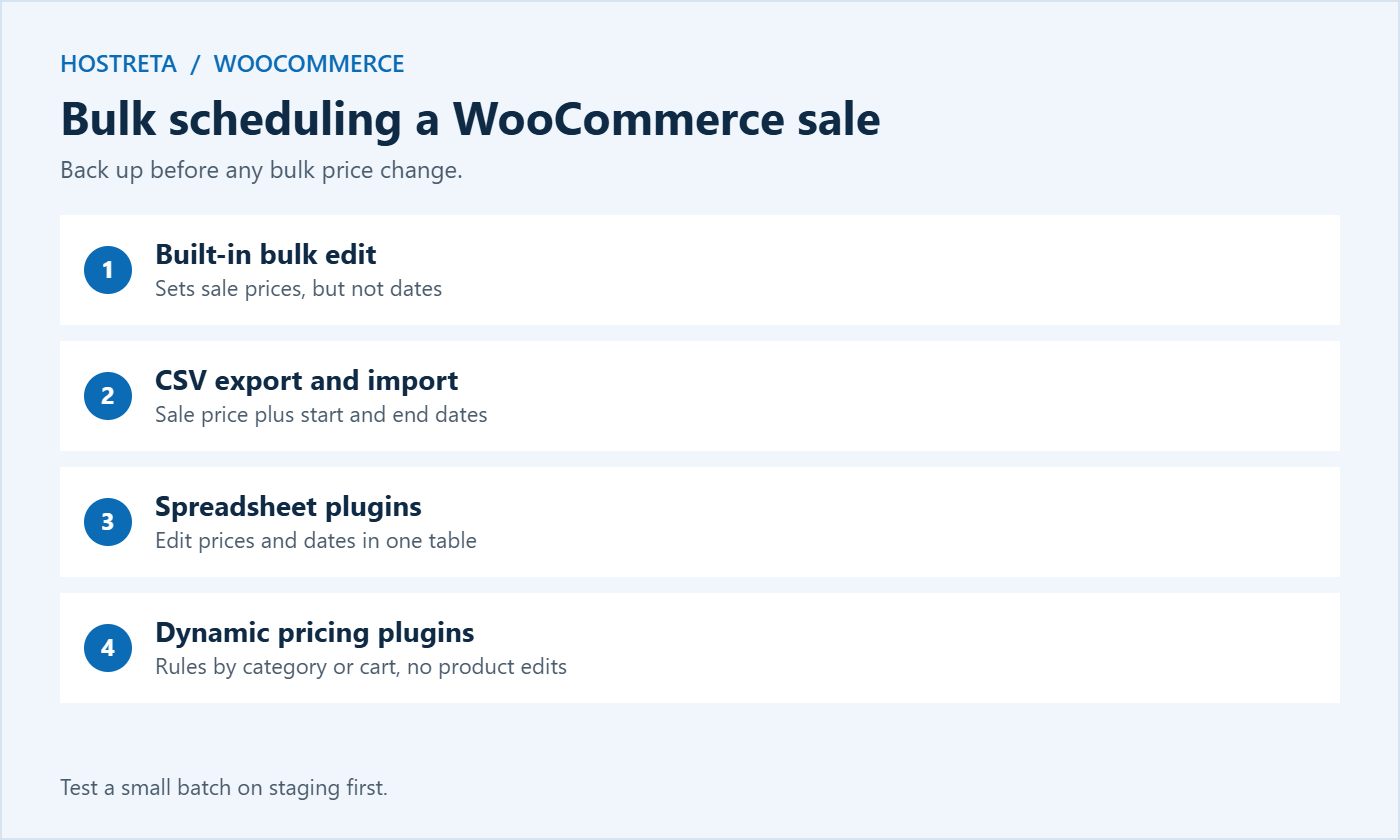
Sale price, Date sale price starts, and Date sale price ends, then re-import with “update existing products” ticked.Always back up before bulk price changes — see Store Backup and Rollback Plan for Peak Sales Days.
Full-page caches store copies of product and category pages. If a page was cached before the sale started, visitors may still see the old price until the cache expires. Most caching plugins and managed hosts clear product pages when prices change, but scheduled changes don’t always trigger a purge. Set a short cache lifetime on sale day, or clear the cache manually right after launch. More detail is in WooCommerce Caching: 7 Essential Checks.
Include these steps in your full checkout test — see How to Test Your Checkout End to End Before Peak Season.
A well-scheduled WooCommerce sale brings a burst of traffic the moment it starts. Make sure your hosting can handle it — see PHP Workers Explained and Should You Upgrade Your Hosting Plan Before Black Friday?. Kawedma WordPress hosting, managed WordPress hosting powered by Rocket.net, a Kawedma VPS server, and a managed VPS are all good options for growing stores. Add 360 Monitoring so you know immediately if the store slows down at launch.
Scheduling lets you run more ambitious promotions without extra work on the day. These structures are easy to set up in advance:
Whichever structure you choose, keep it easy to explain. A WooCommerce sale that customers understand in one sentence will convert better than a complicated set of overlapping offers.
When sale prices, coupons, and dynamic pricing rules all run at once, products can end up discounted twice. Before launch, list every active discount and check which products each one affects. Tick “Exclude sale items” on coupons where needed, and test carts that combine sale and non-sale products. Clear rules protect your margin during the busiest days.
A staging site is a private copy of your store where you can test changes safely. It is the best place to rehearse a scheduled WooCommerce sale:
Make sure staging can’t send real emails or take real payments while you test.
Many countries have rules about advertising discounts. In the European Union, the Omnibus Directive requires stores to show the lowest price from the previous 30 days when announcing a price reduction. Other regions have their own rules about “was” prices and fake discounts. Check the requirements for the markets you sell to, keep records of your regular prices, and avoid raising prices just before a WooCommerce sale to make the discount look bigger. Honest pricing builds trust and keeps you on the right side of consumer protection laws.
A tidy finish prevents customers finding sale prices that no longer apply at checkout, which causes confusion and support requests.
Scheduling makes it easy to compare results, because the sale had clear start and end dates. In WooCommerce → Analytics, set the date range to your sale and compare it with the same period last year and with a normal week. Useful measures include:
Tag campaign links with UTM parameters so you can see which channels drove sales — see UTM Parameters: Track Every Campaign Link. Note what worked and what didn’t while it is fresh, and keep the notes with your sale spreadsheet.
Use what you learned to plan smaller promotions through the year: a January clearance, a spring sale, or an anniversary offer. Each one is quicker to set up once you have a tested spreadsheet, a reliable cron, and a checklist. Over time, scheduled sales become a routine part of running the store rather than a stressful event.
Core WooCommerce schedules by date. For a precise start time, use a plugin that adds time fields or dynamic pricing rules, or schedule a bulk import with a real cron job.
Check the site timezone, clear all caches, confirm the dates were saved on every variation, and make sure WordPress cron is running.
Yes, once the end date passes, the regular price returns. Check in a private window and clear caches if old prices still appear.
Test on a staging copy by setting the sale to start today, or temporarily change the dates on one product and check the result.
Core WooCommerce applies sale prices to everyone. For wholesale, member, or VIP pricing, use a role-based pricing plugin or private coupons alongside your scheduled WooCommerce sale.
Sale prices update your product schema automatically, which can show the reduced price in search results. Keep product URLs the same and avoid creating separate sale-only product pages that duplicate content.
Change the end date to today or clear the sale price on affected products, then purge caches. For large catalogues, keep a CSV with regular prices ready so you can re-import it quickly.
As far as you like. Many stores set up Black Friday prices two to three weeks in advance, test them on staging, and then leave them alone during the code freeze.
Scheduling takes a little planning up front, but it pays back many times over. Once your prices, dates, and checks are in place, your WooCommerce sale runs on its own while you focus on answering customers, packing orders, and watching results. Start with one category this week, test it on staging, and build from there. By the time Black Friday arrives, launching the sale will feel routine rather than stressful, and you will have a repeatable process for every promotion that follows throughout 2027.
Good scheduling is invisible to customers. They simply see the right prices at the right time, every time, and that reliability is exactly what earns repeat business.
Plan it once, test it well, and let WooCommerce handle the timing for you.
We may earn a commission on purchases made through these links, at no extra cost to you.
Don’t miss the chance to participate in the biggest giveaway of this year.